🧭 Custom Direction Icon Set
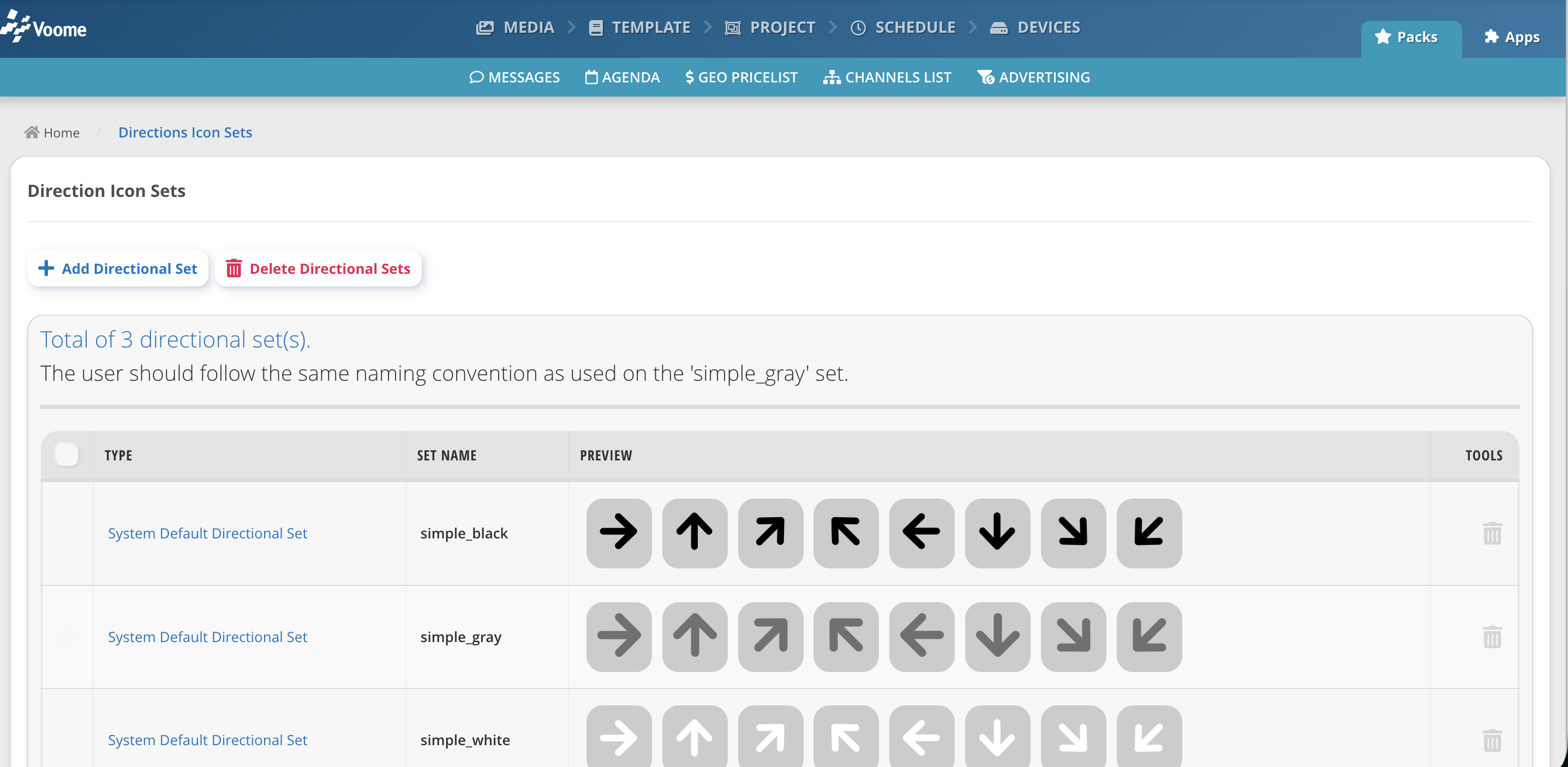
A Direction Symbols Set is a folder of eight PNG arrows, one per compass direction, used by the Agenda and Booking layers to point visitors from a screen towards a room. Uploading your own set replaces the built-in simple_black, simple_gray and simple_white arrows with your own artwork.
As with the weather sets, the filenames are the mapping. Each file is named after a compass code, and the layer asks for the code that was configured for that room on that screen. A file named anything else is never displayed.
Open the Direction Icon Sets page
- Open Styles & Fonts in the main menu.
- Click Direction Symbols Set.
The list shows every set available to your projects, with a preview of each arrow. Built-in sets cannot be deleted, your own can. Clicking an arrow downloads it, so you can pull a built-in set apart to use as a template.
Required filenames
Eight PNG files, named after the compass codes:
| Filename | Direction |
|---|---|
N.png | North |
NE.png | North East |
NO.png | North West |
E.png | East |
O.png | West |
S.png | South |
SE.png | South East |
SO.png | South West |
The codes come from the Italian compass points, so West is O (Ovest) and North West is NO (Nord Ovest). Files named W.png and NW.png are uploaded without complaint and then never displayed. This is the single most common mistake with these sets.
Create a set
- Click Add Directional Set.
- Type a Set Name. This is the name that will appear in the layer dropdown.
- Click Select PNG Images and select all eight arrows at once.
- Click Upload & Add.
What the upload accepts
- Format:
.pngonly. - Size: roughly 4.7 MB per image.
- Set name: lowercased, with spaces turned into underscores and anything that is not a letter, number, hyphen or underscore removed.
Lobby Arrows v2becomeslobby_arrows_v2. - Filenames: spaces are turned into underscores, which will break the mapping. Use the exact names in the table above.
Files that are not PNGs, or are over the size limit, are skipped silently with no error message. Check the preview row after uploading and confirm all eight arrows are there.
The eight files are usually the same arrow at eight angles. Draw N.png first, then export the rotations. Keep the canvas square and the same size in every file, so the arrow does not appear to jump as the direction changes.
Use the set in a project
- Open a project and select the Agenda or Booking layer.
- Set Direction Symbols Set to your set name.
- Publish the project.
The set decides how the arrows look. Which arrow appears is decided per screen: the direction towards each room is configured on the point of interest, so the same room can point left on one screen and right on another. The set you choose here is used for all of them.
Update or delete a set
To replace a single arrow, upload a new file with the same filename into a set of the same name. Uploading does not clear the existing folder, so matching filenames are overwritten and the rest of the set is left alone.
To remove a set, tick its checkbox or click the bin icon on its row, then click Delete Directional Sets and confirm. Check that no project still selects it first.
🙋🏼 Common Issues
The room and time appear but there is no arrow
Either the filenames do not match the compass codes, or no direction has been configured for that room on that device. Check the file list first, since it is the quicker of the two to rule out, and pay particular attention to O.png and NO.png.
Most arrows work but one direction is always blank
That one file is missing or misnamed. It only shows up when a room using that direction reaches the screen, so an incomplete set can look correct for a long time before anyone notices. Confirm all eight files are present in the preview row.
The arrows look off-centre or different sizes
Each PNG is drawn into the same box, so a set built from images with different canvas sizes or different amounts of padding will appear to shift as the direction changes. Re-export the set with one canvas size and consistent margins.
My set is not in the dropdown
Sets are per account, so check you are logged into the account you uploaded to. If the set appears on the Direction Icon Sets page but not in the layer dropdown, reload the project editor, since the dropdown is filled when the editor loads.