🌤️ Custom Weather Icon Set
A Weather Icon Set is a folder of PNG images, one per weather condition, that the Weather layer uses to draw the condition symbol. Uploading your own set lets the forecast match your brand instead of using the built-in black, white or open_weather_map icons.
The whole feature rests on one rule: the filenames are the mapping. The layer asks for the icon by the condition code it receives from OpenWeatherMap, so a file named 01d.png is the one shown for a clear sky during the day. Name a file anything else and it is never displayed.
Open the Weather Icon Sets page
- Open Styles & Fonts in the main menu.
- Click Weather Icon Set.
The list shows every set available to your projects. System Default Weather Set rows are shipped with the platform and cannot be deleted. User Account Weather Set rows are yours. Each row previews every image in the set, and clicking an image downloads it, which is handy for grabbing a built-in set to use as a starting point.
Required filenames
Each file is a PNG named after an OpenWeatherMap icon code. The d suffix is the daytime version and n is the night-time version, so most conditions need two files.
| Filename | Condition |
|---|---|
01d.png / 01n.png | Clear sky |
02d.png / 02n.png | Few clouds |
03d.png / 03n.png | Scattered clouds |
04d.png / 04n.png | Broken or overcast clouds |
09d.png / 09n.png | Shower rain |
10d.png / 10n.png | Rain |
11d.png / 11n.png | Thunderstorm |
13d.png / 13n.png | Snow |
50d.png / 50n.png | Mist |
The built-in sets also contain a 905.png. Include it so your set matches the built-in file list exactly.
Open a System Default Weather Set row and download its images. Whatever filenames you see there are exactly the filenames your set needs. The page itself says it: follow the same naming convention as the open_weather_map set.
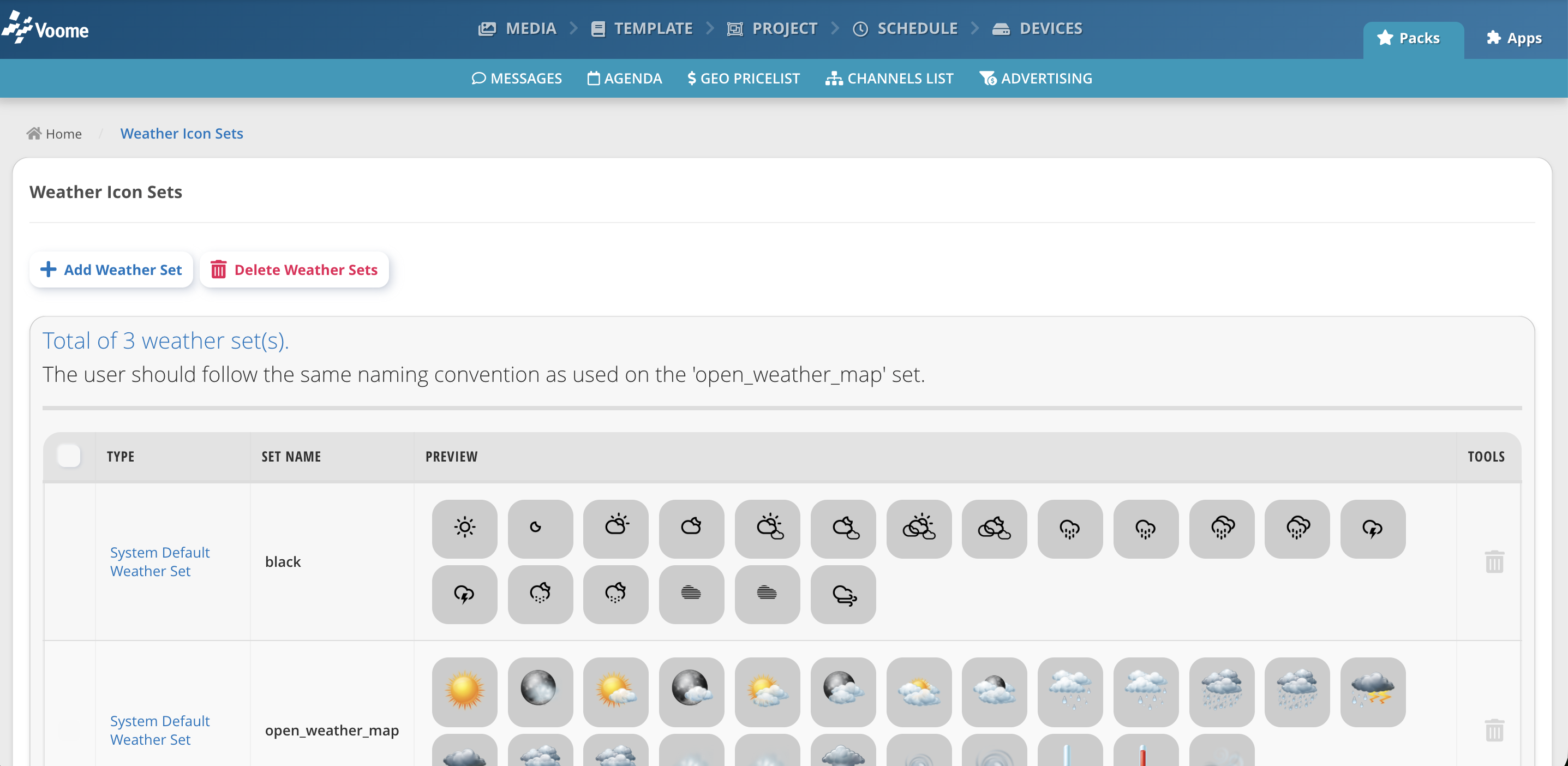
Create a set
- Click Add Weather Set.
- Type a Set Name. This is the name that will appear in the layer dropdown.
- Click Select PNG images and select all the images for the set at once.
- Click Upload & Add.
The set appears in the list, with each image previewed.
What the upload accepts
- Format:
.pngonly. - Size: roughly 4.7 MB per image.
- Set name: lowercased, with spaces turned into underscores and anything that is not a letter, number, hyphen or underscore removed.
My Winter Icons!becomesmy_winter_icons. - Filenames: spaces are turned into underscores, which will break the mapping. Name your files exactly as in the table above, with no spaces.
Anything that is not a PNG, or is larger than the limit, is skipped silently with no error message. Always check the preview row after uploading and count the images.
Use the set in a project
- Open a project and select the Weather layer.
- Set Weather Icon Set to your set name.
- Add an Icon sublayer if the layer does not already have one, since the layer does not draw the symbol on its own.
- Publish the project.
Update or delete a set
To replace a single icon, upload a new file with the same filename into a set of the same name. Uploading does not clear the existing folder, so files with matching names are overwritten and everything else is left alone.
To remove a set, tick its checkbox or click the bin icon on its row, then click Delete Weather Sets and confirm. Make sure no project still selects the set first, because a project pointing at a deleted set has no images to draw.
🙋🏼 Common Issues
The forecast shows but the icons are blank
The filenames do not match the condition codes. A layer that draws temperatures correctly and shows nothing where the symbol should be is asking for a file your set does not contain. Compare your file list against a built-in set, character by character, and watch for underscores added in place of spaces.
Only some conditions have an icon
The set is incomplete. Missing conditions stay blank until the weather changes to one you did supply, which is why an incomplete set can look fine for days and then fail. Upload the full list, including both the d and n variants.
My set is not in the dropdown
Sets are per account, so check you are logged into the account you uploaded to. If the set is listed on the Weather Icon Sets page but not in the layer dropdown, reload the project editor: the dropdown is filled when the editor loads.
The icons are hard to see against the background
Weather symbols are drawn at whatever size and position the Icon sublayer defines, with no recolouring. Supply PNGs with transparent backgrounds, and design them for the background they will sit on. This is why the platform ships both a black and a white set.