How to turn screens on and off automatically
To turn a screen on and off automatically, you create serial commands (one Power ON, one Power OFF) once for your account, then schedule them on each device and publish. A serial command is an instruction the media player or monitor sends to the screen, such as switching it on.
The setup has two parts. You create the commands in the command list, which is shared by the whole account. You then schedule them device by device, choosing on which days and at what time each command runs.
📍 How to access Commands
In Voome CMS, click Settings > Platform > Commands, or open cms.voome.com/command/list directly.
The page shows an Add Command button at the top and, below it, the list of commands already created in your account.
➕ Create a serial command
- On the Commands page, click Add Command.
- In the Command Preset section, choose the
Communication Typethat matches how your screens are installed (see Which communication type to choose below). - If you chose
SERIAL RS-232, choose theMonitor brandof the screen connected to the media player:SamsungorLG. - Choose the command to create:
Power ONorPower OFF. - Check that the Command Specifics section below has been filled in automatically.
- Click Add Command.
The new command appears in the command list. Repeat the procedure for the other command: you usually need one Power ON and one Power OFF, so the screen can be switched on and off by itself.
This is an advanced section. If you feel you need to edit it, please contact support.
🔌 Which communication type to choose
- HDMI CEC is the most common choice. Use it when the command travels over the HDMI cable: either a media player sends it to the connected monitor, or the monitor itself plays the content and sends the command to itself. You only need to choose
Power ONorPower OFF. - SERIAL RS-232 is for a media player connected to a monitor through a serial cable, the typical case being a SpinetiX player. The command always goes from the media player to the monitor, never from a monitor to itself. Voome supports Samsung and LG monitors over RS-232.
🗓️ Schedule a command on a device
Once the commands exist, assign them to each device that should switch on and off.
-
Open the serial commands of the device:
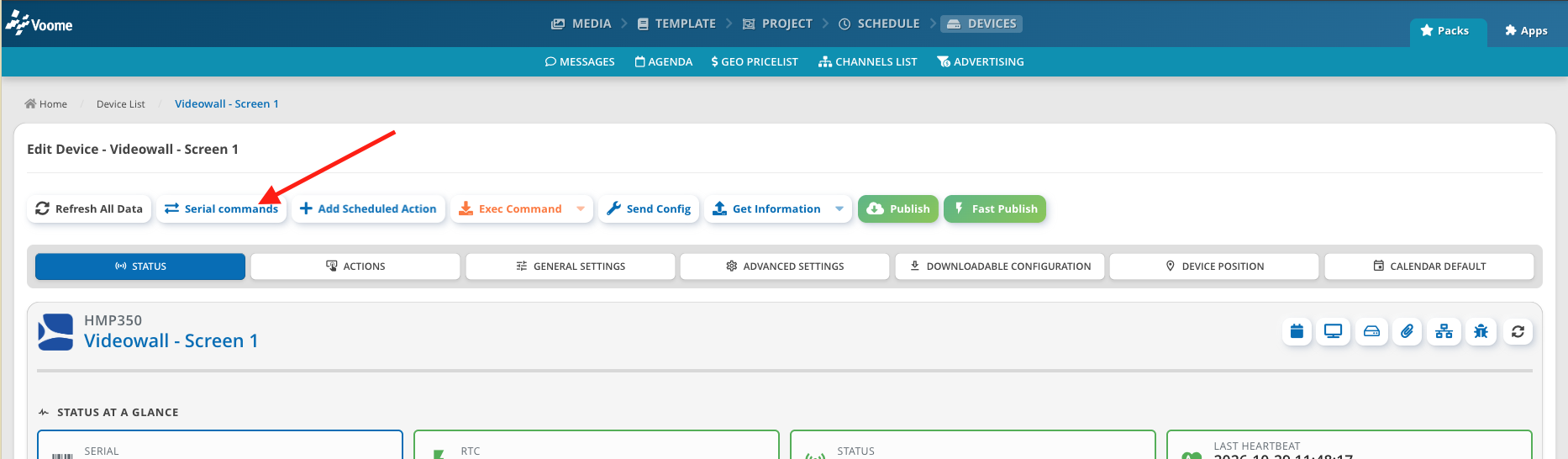
- With Device Management (Professional or Enterprise license): open the specific device page (not the device list) and click Serial commands.
- With Monitoring only: open the monitor list, click More info on the device, then click Serial Command.
-
On the device's scheduled commands page, click Add Scheduled Command.
-
In the Serial Command section, select the command to run (one of those you created earlier).
-
In the Schedule span section, set the
StartandEnddates between which the schedule is active. If you do not plan to change it often, set anEnddate far in the future. -
In the Time Range section, set the
Start timeand tick the days of the week on which the command runs. TheEnd timeis filled in automatically one minute after the start time. To add another range, click the+icon next to the section title.During the time range, the command is sent every minute. For example, with a
Start timeof08:00:00, the command runs between 08:00 and the end of the range.Each range has its own days, so you can run the same command at different times on different days. In the example below,
POWER ON - HDMIswitches the screen on at 08:00 from Monday to Friday, and at 10:00 on Saturday and Sunday: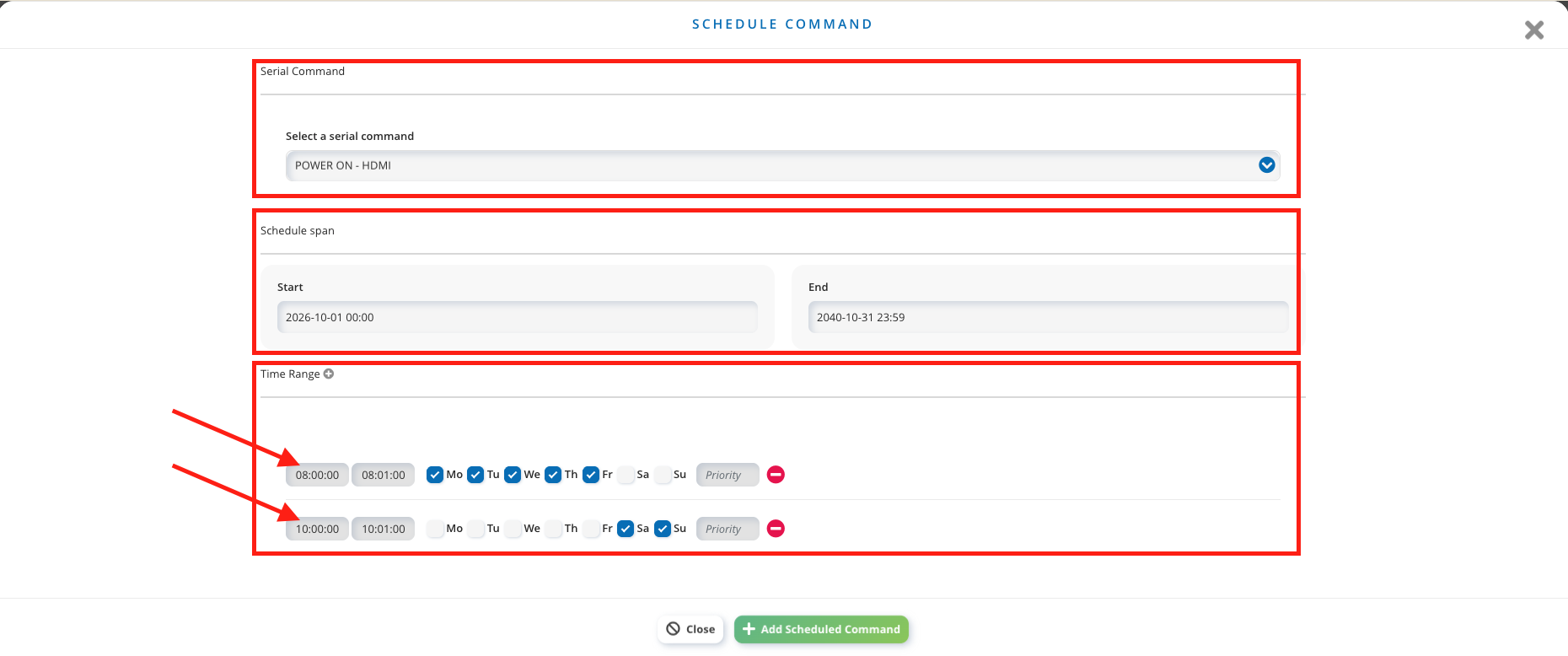 Leave at least one minute between start and end time
The times include seconds. If the
Start timeandEnd timeof a range are less than one minute apart, the command may not run. Check the seconds when you edit the times by hand. -
Click Add Scheduled Command to confirm.
-
Publish to the device, so the new schedule reaches the player.