🪧 Outdoor Panel Styles
A device style defines how the booking app looks on an outdoor panel: its logo, background, theme, and font.
One style is always required
A resource cannot be saved without a device style, so create at least one even if you have no outdoor panel at the moment.
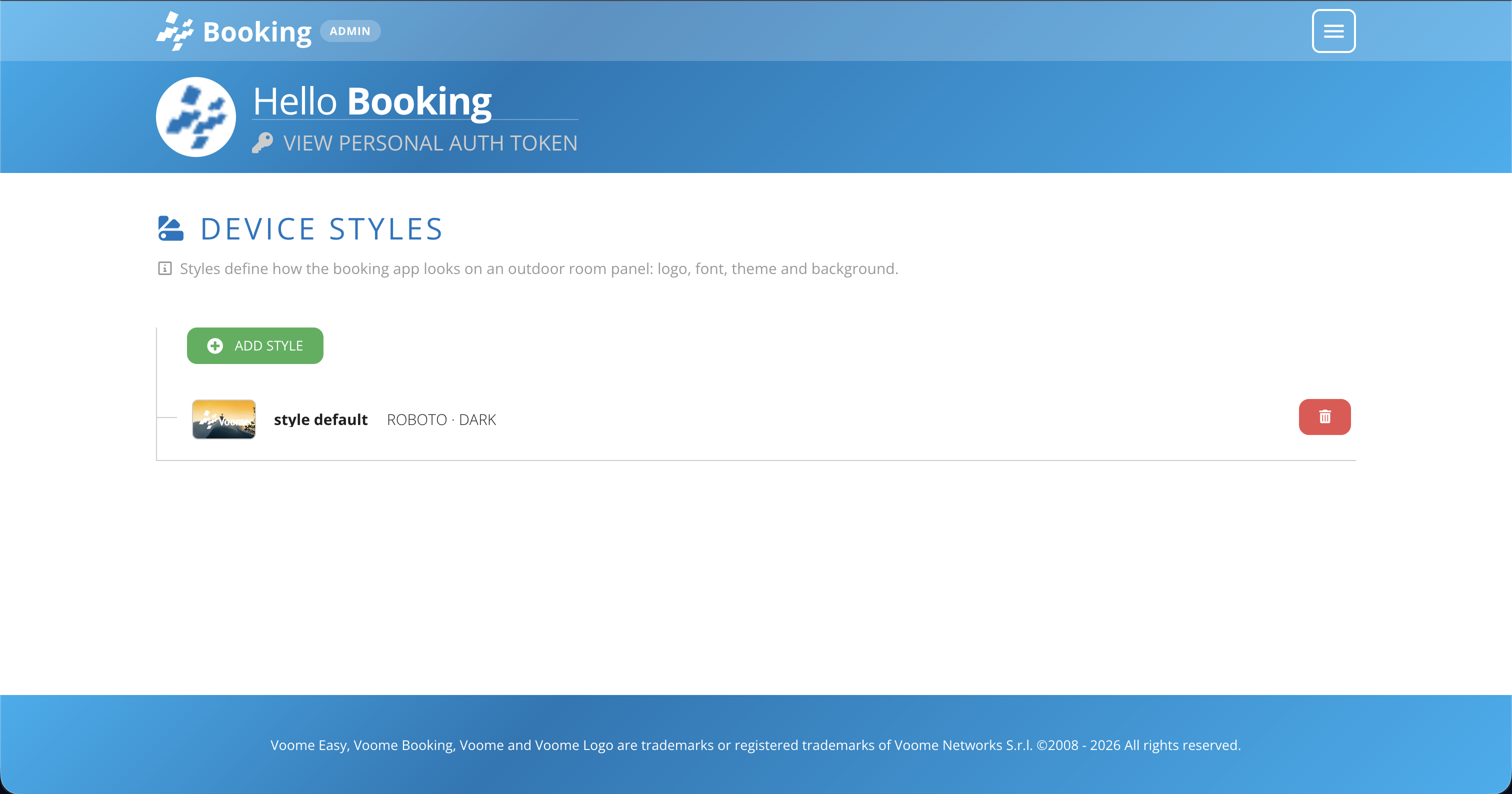
Each row shows the style thumbnail, its name, and the font and theme it uses, for example "ROBOTO · DARK". Press Add Style to create one, or the bin icon to delete an existing style.
➕ Create or edit a style
- Press Add Style, or open an existing style. The Edit Style form opens.
- Fill in the fields below. Set Name and Set Font are required, everything else is optional.
- Check the Live Preview on the right as you go: it renders the style exactly as it appears on an outdoor room panel.
- Save the style.
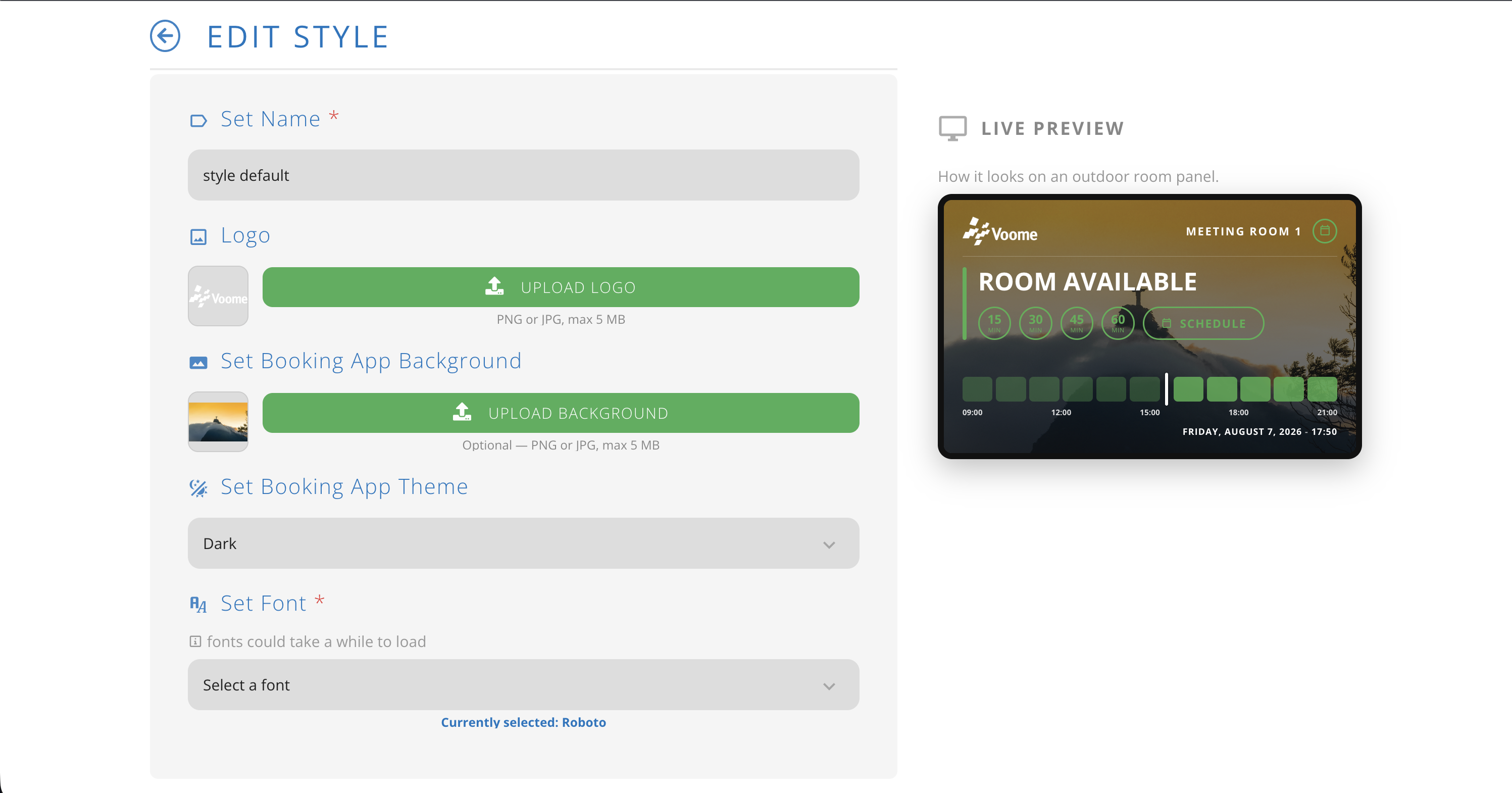
- Set Name (required): identifies the style in the list and when you pick it on a resource.
- Logo: PNG or JPG, max 5 MB. It appears in the top left corner of the panel.
- Set Booking App Background: optional, PNG or JPG, max 5 MB. It fills the panel behind the room status.
- Set Booking App Theme: the colour treatment of the panel interface, for example Dark.
- Set Font (required): the font used for all text on the panel. Fonts can take a while to load, and the one in use is shown under the dropdown.
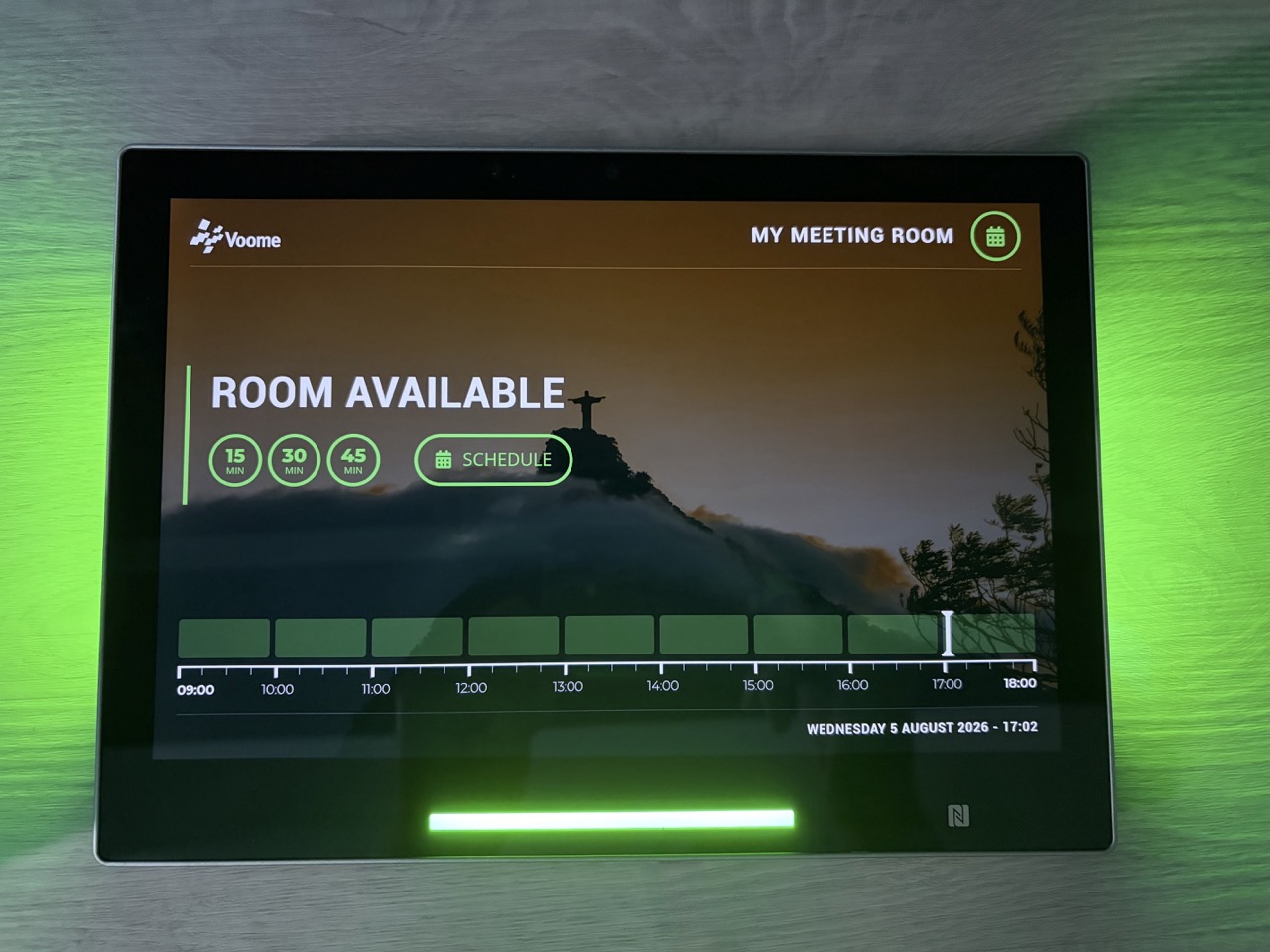
The same style on a real device, with the uploaded logo in the corner and the background behind the room status: