🗓️ Welcome to Booking
👋 Voome Booking is the app your organization uses to reserve shared resources: meeting rooms, desks, equipment, vehicles, anything that people need to take turns on.
Whether you are an administrator or a user, this page is the right place to start. It takes about a minute to see how the pieces fit and where to go next.
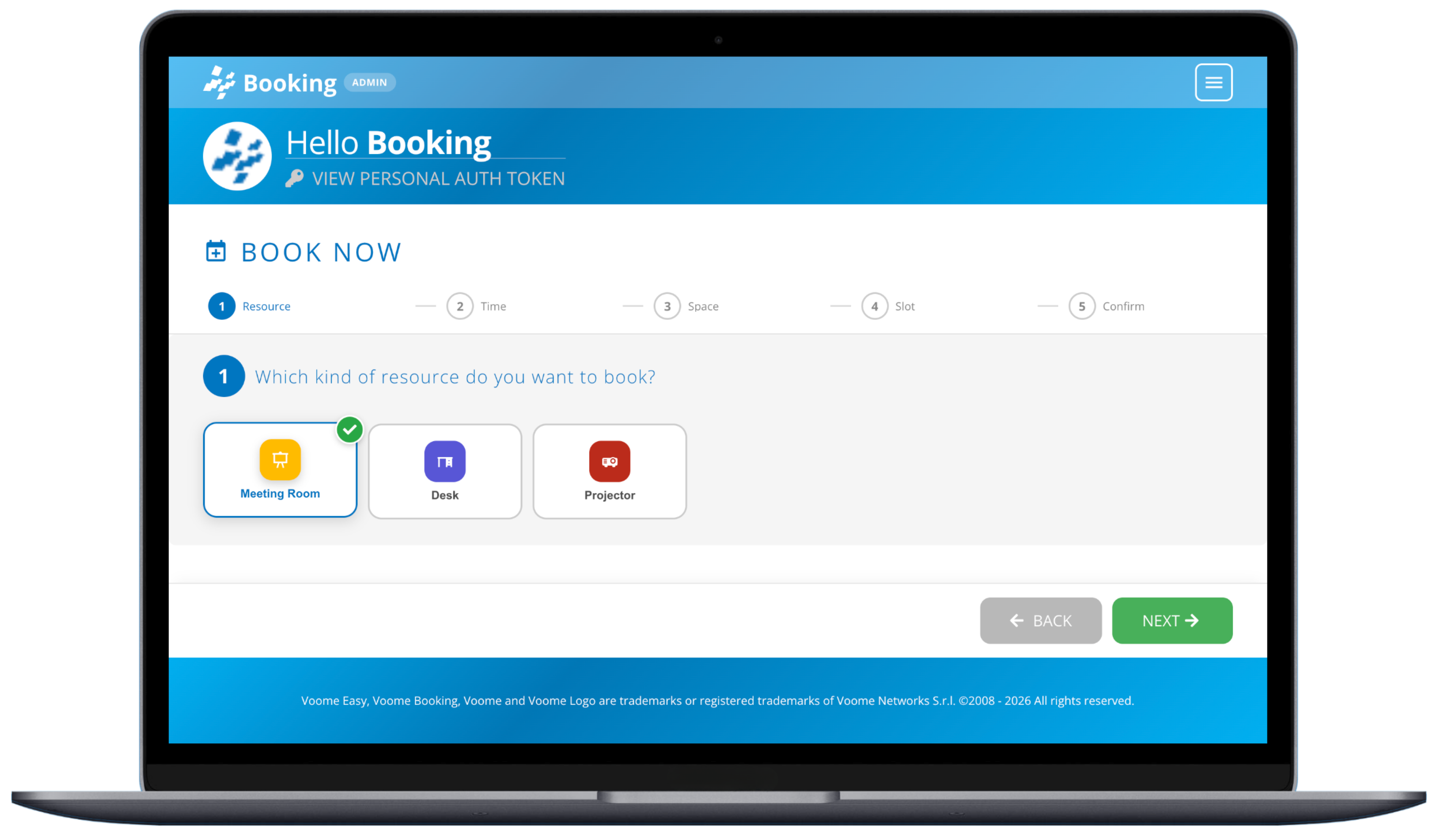 Booking a resource is a guided five-step process: resource, time, space, slot, confirm.
Where to go next
| If you are | Start here | It covers |
|---|---|---|
| Booking a room or a desk | 👤 User Guide | Making a reservation, tracking the ones you own, checking in at a panel |
| Setting the platform up | 🛠️ Admin Guide | Resource types, resources, permissions, outdoor panels, reports |
How Booking fits together
Booking has two sides, and the admin side comes first.
- An administrator defines the resource types, the families of bookable things such as "meeting room" or "car".
- The administrator then creates the individual resources of each type, and decides who is allowed to book them and under which rules, for example how far ahead and for how long.
- A user opens Book Now and walks the five steps. Only the resources their group is allowed to see appear.
- On confirmation, everyone involved receives an email with a calendar invite and an authorization code.
- If the resource has an outdoor panel next to it, that code is what checks the reservation in and out at the door.
This is why users never configure anything: by the time you reach Book Now, the choices you are offered have already been shaped by your administrator.
Your first task
As a user, make one reservation end to end. Open the menu (☰) in the top right corner, click Book Now, and follow the wizard. Then look at it in Your Events to see the note, the countdown, and the authorization code on its card.
As an administrator, set up one resource end to end. Create a resource type, add a single resource of that type, assign the group allowed to book it, then book it yourself as a user to check the rules behave as you expect.
Confirmation emails, calendar invites, and attendee notifications only go out once an administrator has configured an SMTP connector under Third Party Credentials. Reservations work without it, but nobody gets notified.