👤 User Guide
The Booking homepage is where you reserve the resources your administrator has already configured, and where you keep track of the reservations you own. Everything a standard user needs is on this single screen.
If you are an administrator and you need to create resources, rules, and permissions instead, go to the Admin Guide.
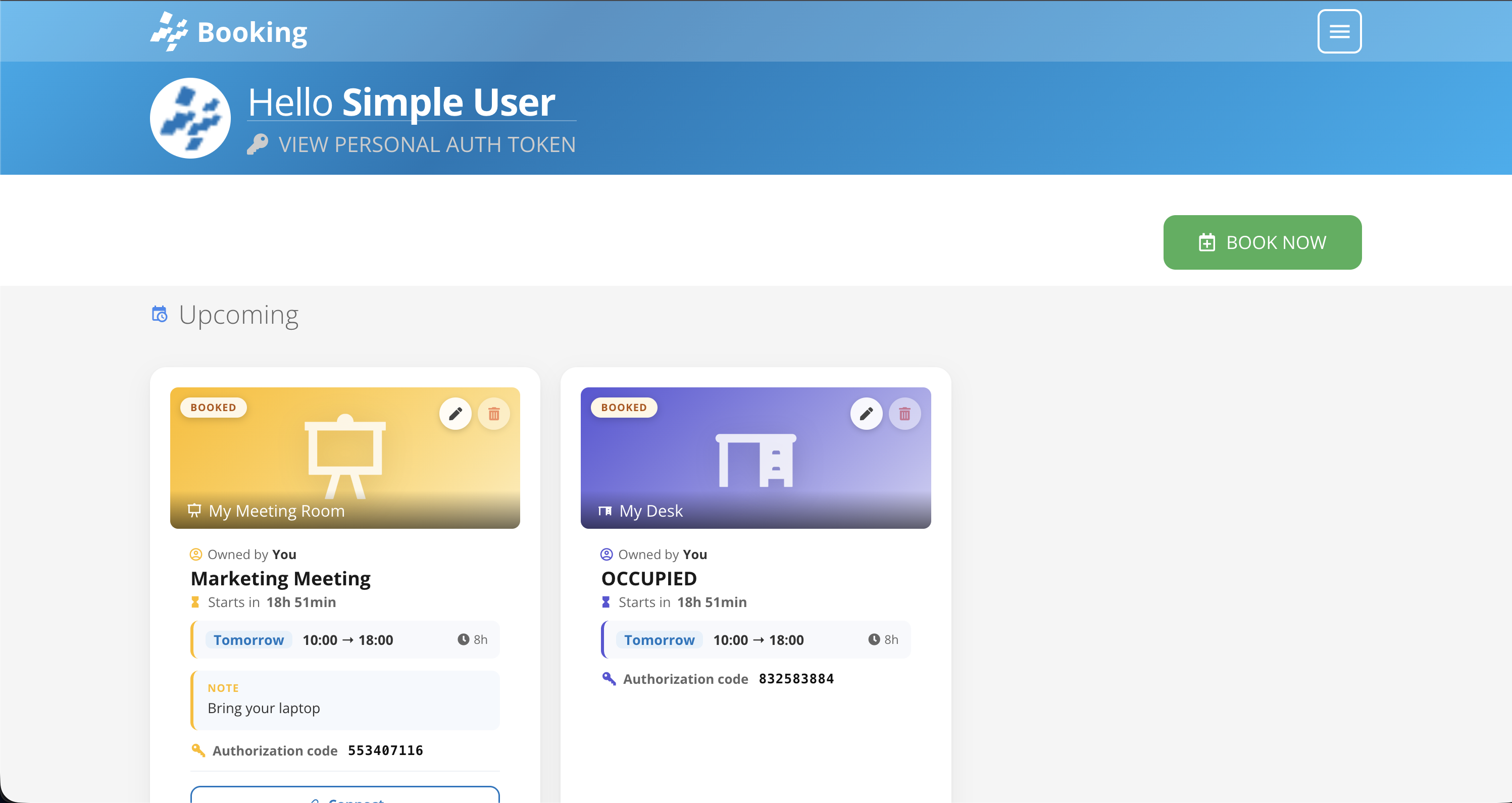 The Booking homepage, your starting point every time you log in.
What you can do
As a Booking user you can:
- Book a resource: a guided 5-step wizard that picks the resource type, the time, and the space.
- See your events: review, edit, or cancel the reservations you own and see calendar view.
- Connect a resource to a booking: pair an available resource with a reservation you already have.
Reading the homepage
- Header: shows the account you are logged in with. View personal auth token reveals your personal token, which identifies you on a panel.
- Book Now: opens the booking wizard. This is the fastest path to a new reservation.
- Upcoming: one card per reservation you own, so you can act on it without leaving the homepage.
Each Upcoming card shows:
- the resource name and its type icon, plus a status badge such as BOOKED
- the reservation title and its owner
- a countdown to the start, followed by the day, the time range, and the duration
- the note left by the organizer, if there is one
- the authorization code, needed to check in and check out at an outdoor panel
- a pencil icon to edit the reservation and a bin icon to cancel it
The same code arrives in the confirmation email, so you do not have to open the platform at the door. See Book Now for everything that email contains.
Book your first resource
- Click Book Now.
- Follow the five steps of the wizard: resource type, time selection, space, time slot, and summary.
- Confirm. You, the attendees, and the resource owner receive a confirmation email with a calendar invite and the authorization code.
The full walkthrough of each step is in Book Now.
Emails are only sent if your administrator has configured an SMTP connector in the Voome platform, under Third Party Credentials. Your reservation is still valid without it, and the authorization code stays visible on the Upcoming card.
Outdoor panels
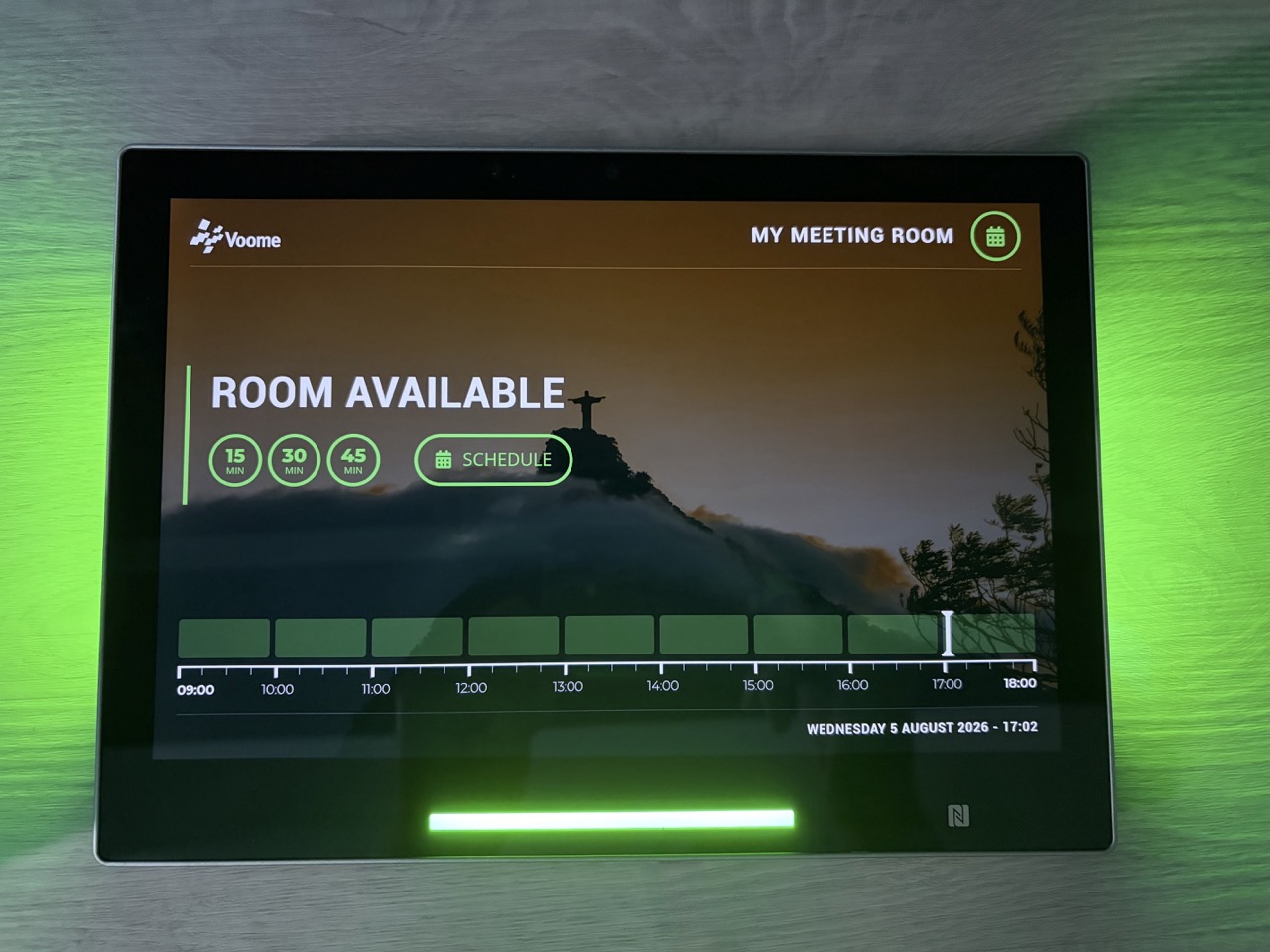
If your organization uses outdoor panels next to its rooms, you can check availability and book on the spot from the panel itself, without opening the platform. See How to Use the Outdoor Panel.