🗓️ Your Events
Your Events is where you find every reservation you own, in two interchangeable views: a card view with the full detail of each booking, and a calendar view that plots reservations against resources over time.
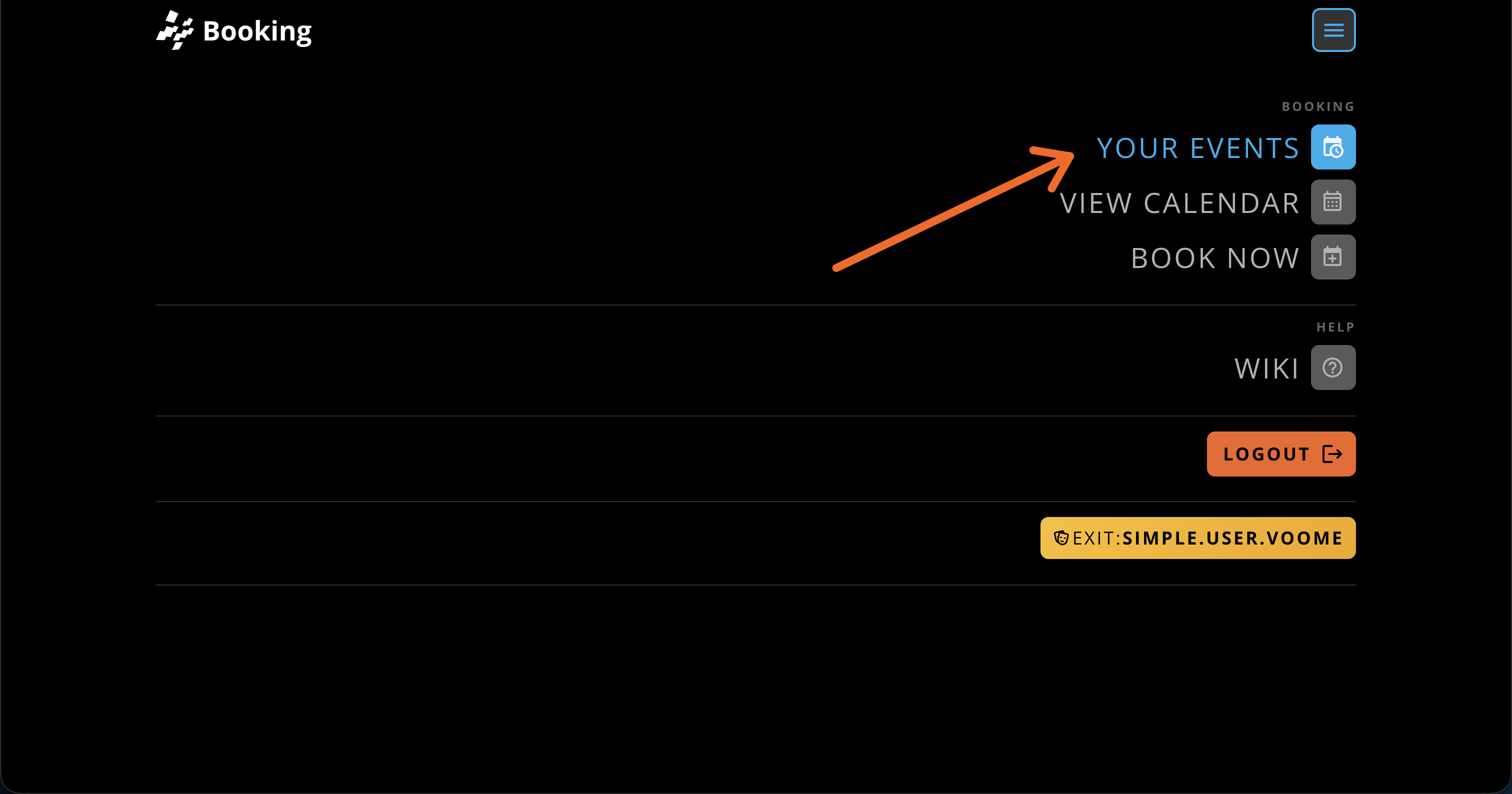
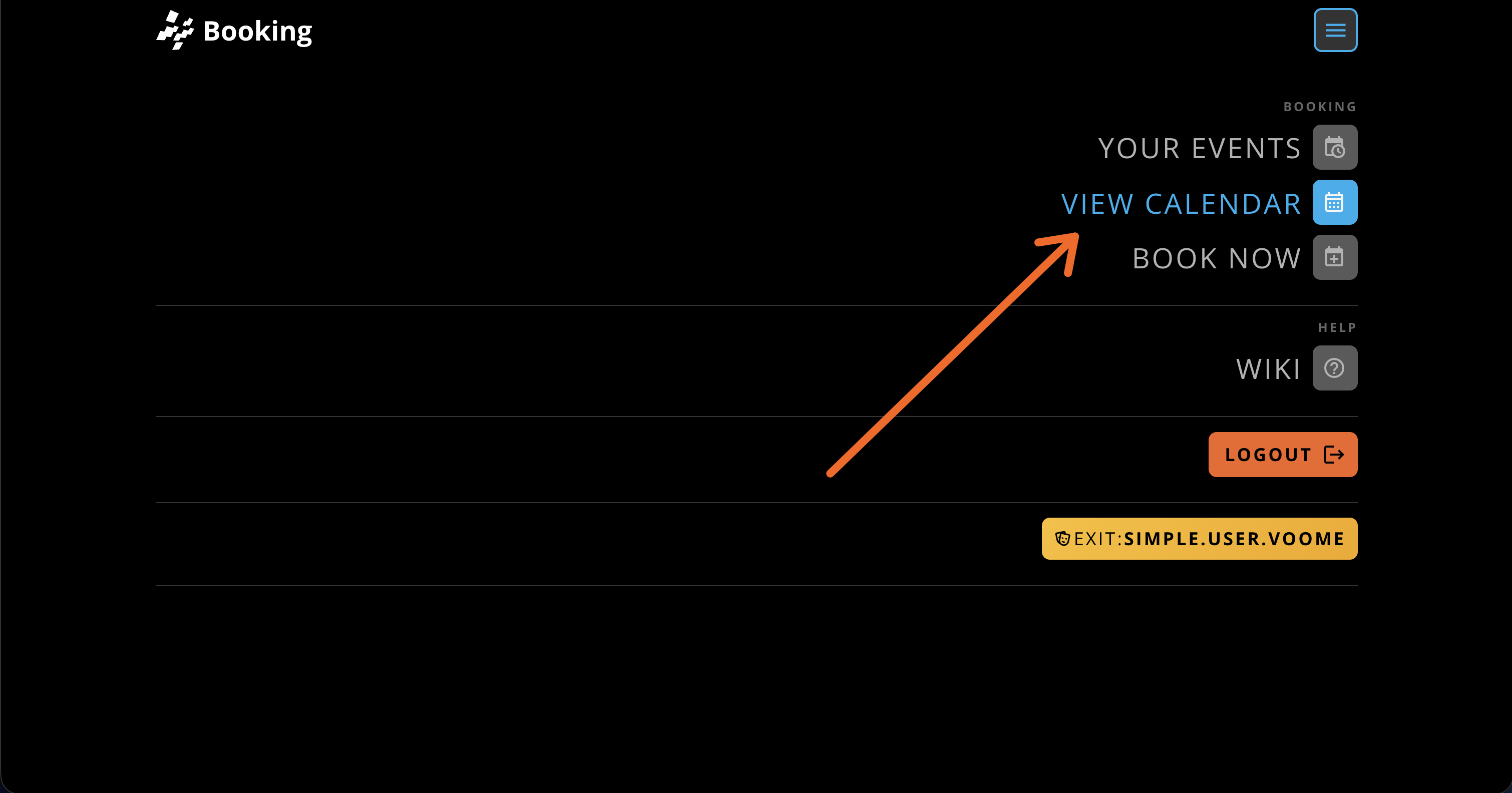
Both views are opened from the menu (☰) in the top right corner, under Booking. The same menu also holds Book Now, so you can go straight from checking your events to making a new reservation.
📇 Card View
The card view answers "what do I have coming up, and what do I need to get in". Open it from the menu with Your Events.
Reservations are grouped under Upcoming, one card each.
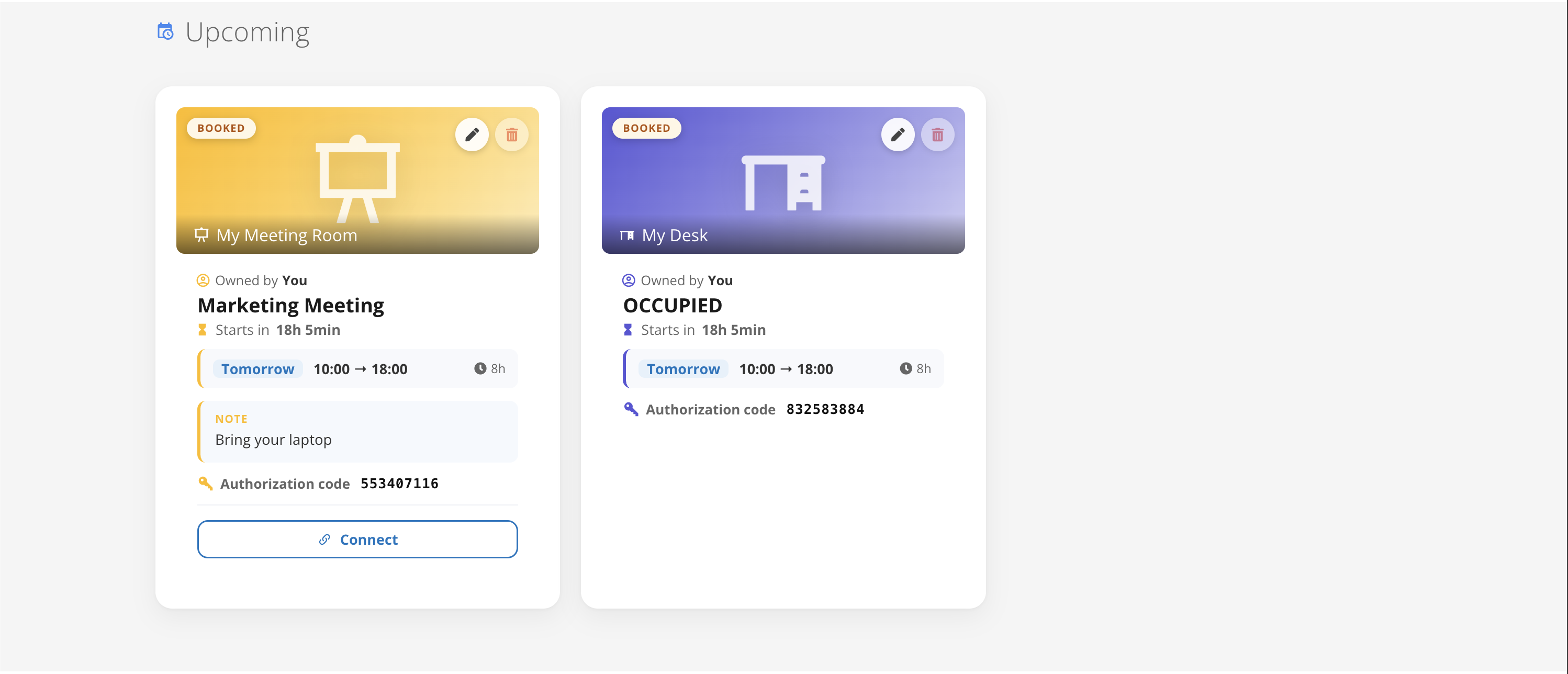
Every card carries, from top to bottom:
- Status badge and resource: the current state of the booking (for example BOOKED), the resource icon, and the resource name.
- Owner: who made the reservation. You means it is yours.
- Title: the reservation title, or the default label if you did not set one.
- Countdown: how long until the reservation starts, followed by the day, the time range, and the total duration.
- Note: the note left by the organizer, shown only if one was added.
- Authorization code: the code you use to check in and check out at an outdoor panel.
- Connect: pairs the reservation with the resource, when the resource supports it.
The pencil icon on the card edits the reservation, and the bin icon cancels it.
Cancelling releases the slot immediately and notifies the attendees, so the resource becomes bookable again for other people. Edit the reservation instead if you only need to change the time, the title, or the guest list.
🗓️ Calendar View
The calendar view answers "how is the week laid out, and what is still free". Open it from the menu with View Calendar.
Resources are listed down the left, each with the branch it belongs to, and time runs left to right. Each reservation is a coloured bar in the row of its resource, labelled with its title, so gaps in a row are the free slots.
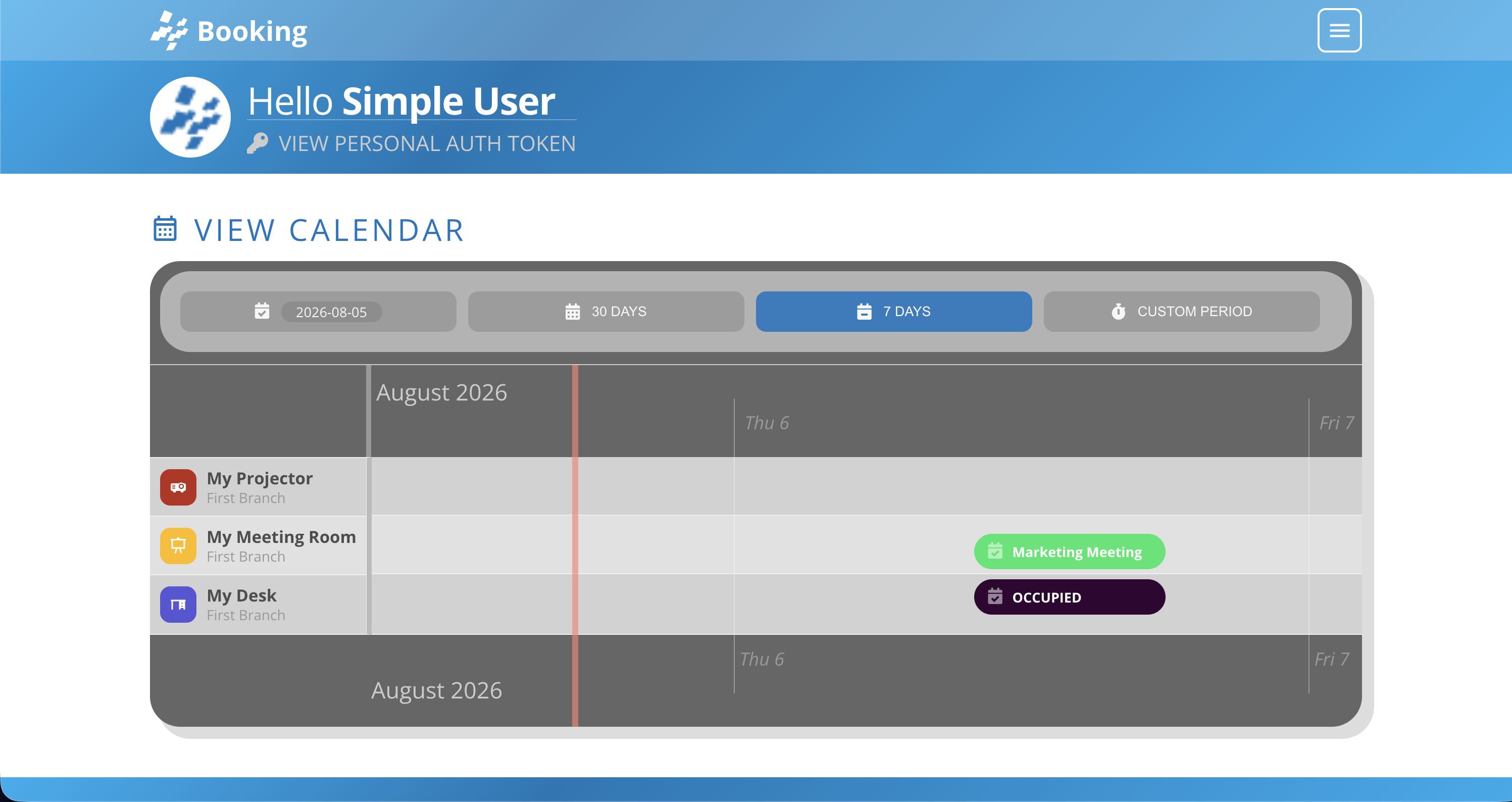
Four controls at the top set the window you are looking at:
- Date: the day the window starts from.
- 30 days: a one-month overview, useful for planning ahead.
- 7 days: the default week view.
- Custom period: any start and end date you choose.
Use the card view to act on a booking you already have, since that is the only place with the authorization code, the note, and the edit and cancel controls. Use the calendar view to find room for a new booking, because it shows other people's reservations on the same resources.