☝🏼 Touch Monitor: Discover More
Discover More turns one area of a project into a button that brings up a hidden layer with more detail, and puts it away on the next tap.
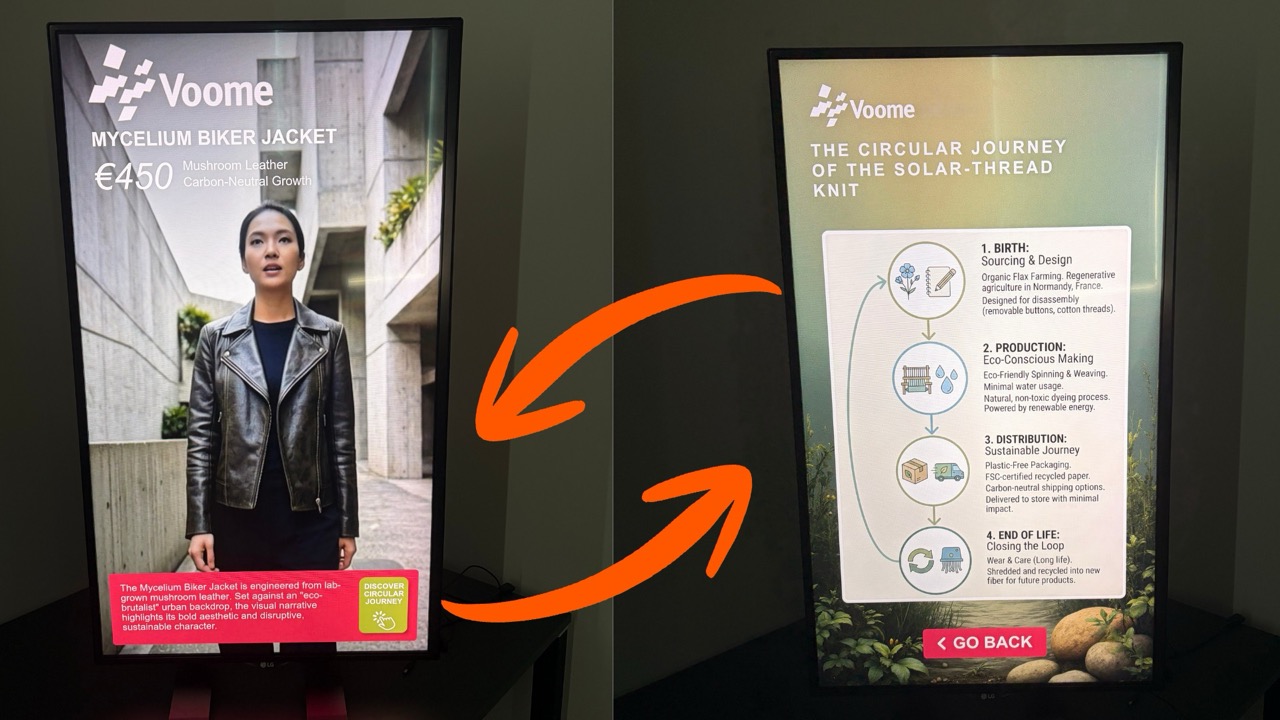
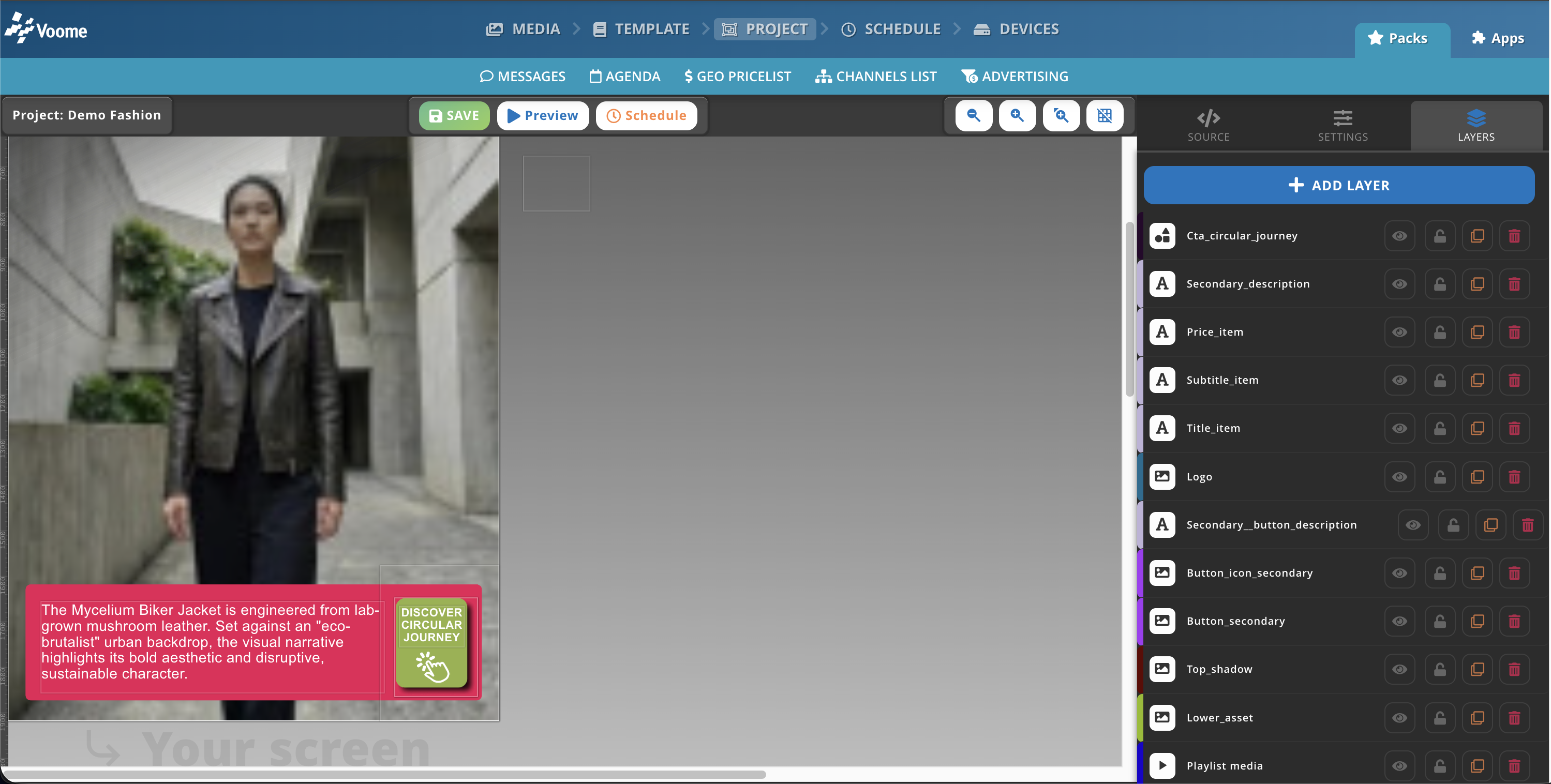
The screen plays an ordinary signage project, in this example a video playlist with a logo. One area of the design is turned into a button, here the DISCOVER CIRCULAR JOURNEY label in the bottom corner.
Tapping it brings up the hidden layer, in this example a single image telling the story of the product. Tapping the button again, or the GO BACK button, returns the screen to the playlist.
🎯 It fits retail and showrooms, where a passer-by decides in a second whether to look closer.
🏗️ How to set this up
Everything is built in the project editor, with no code involved. You need the Interactivity module enabled on your account.
-
Create a project and lay out the design the way you want it.
-
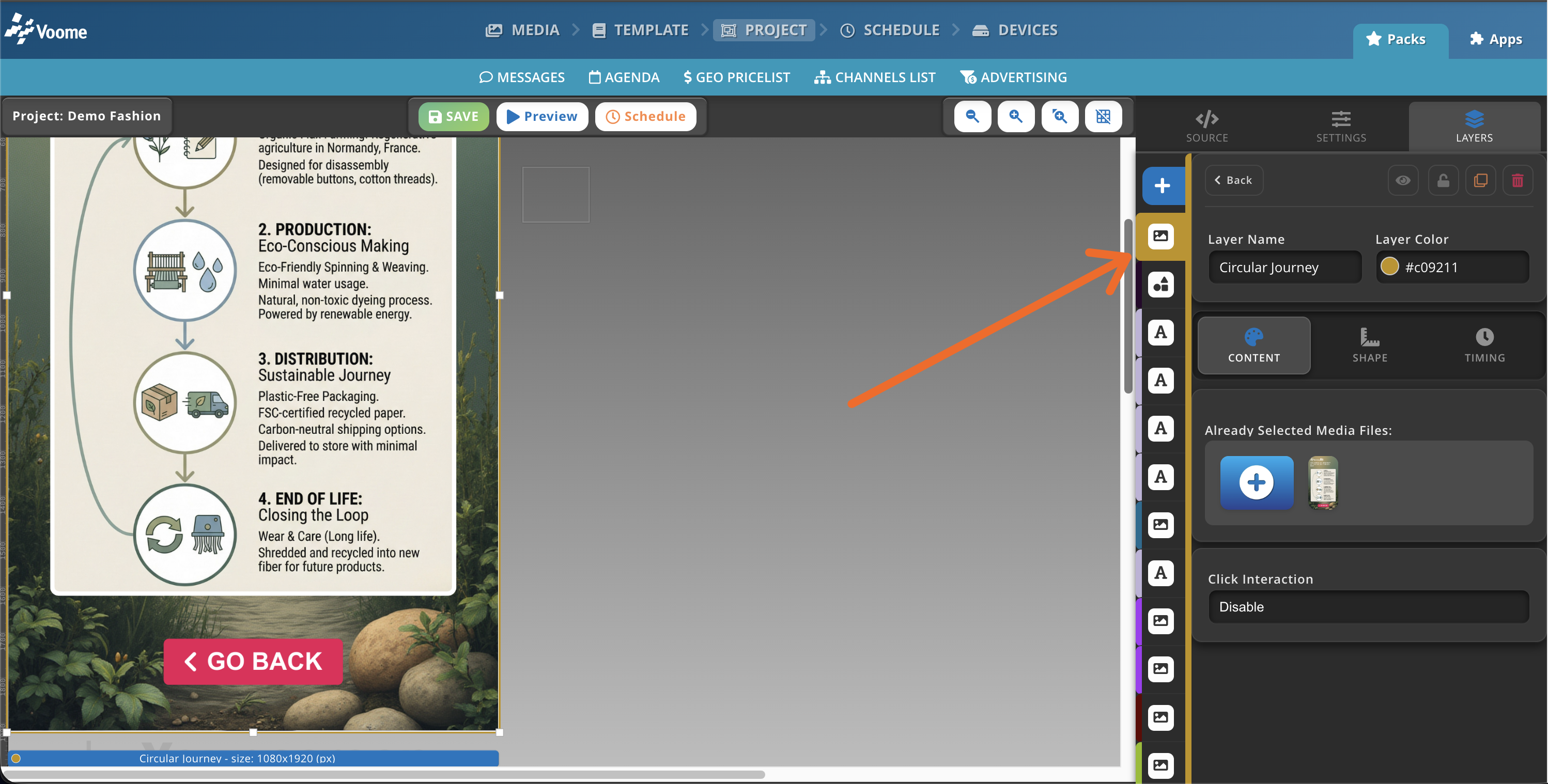
Add the layer you want to bring up on top of the design. In this example it is an image layer holding the story of the product.
-
Hide that layer: in the
LAYERSlist, click its 👁️ eye button. The layer stays in the project but does not show on screen.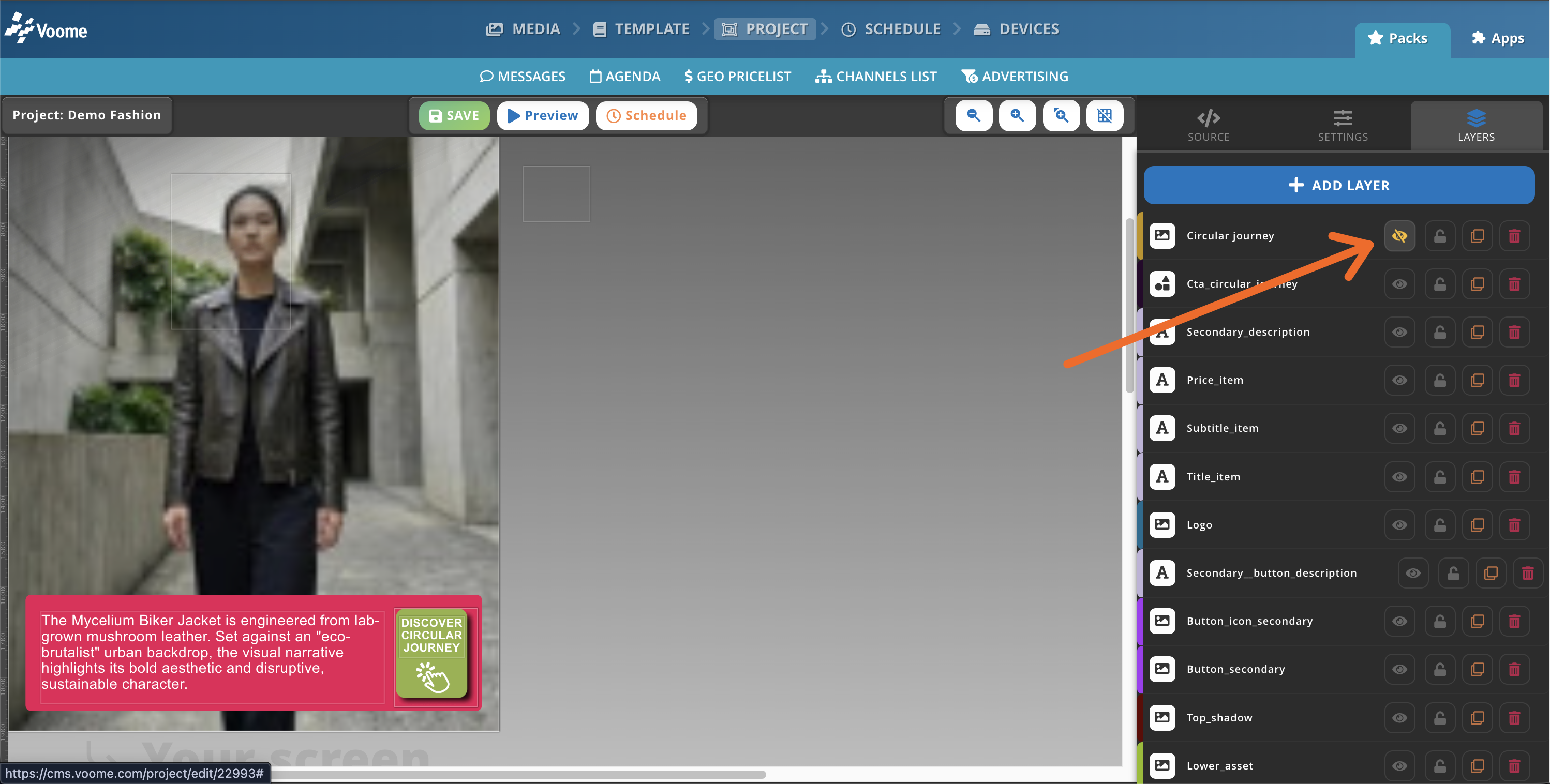
-
Add the area people will tap. In this example it is a Shape layer placed over the button graphic, with
Fill Opacityset to0, so the area catches the tap without being visible.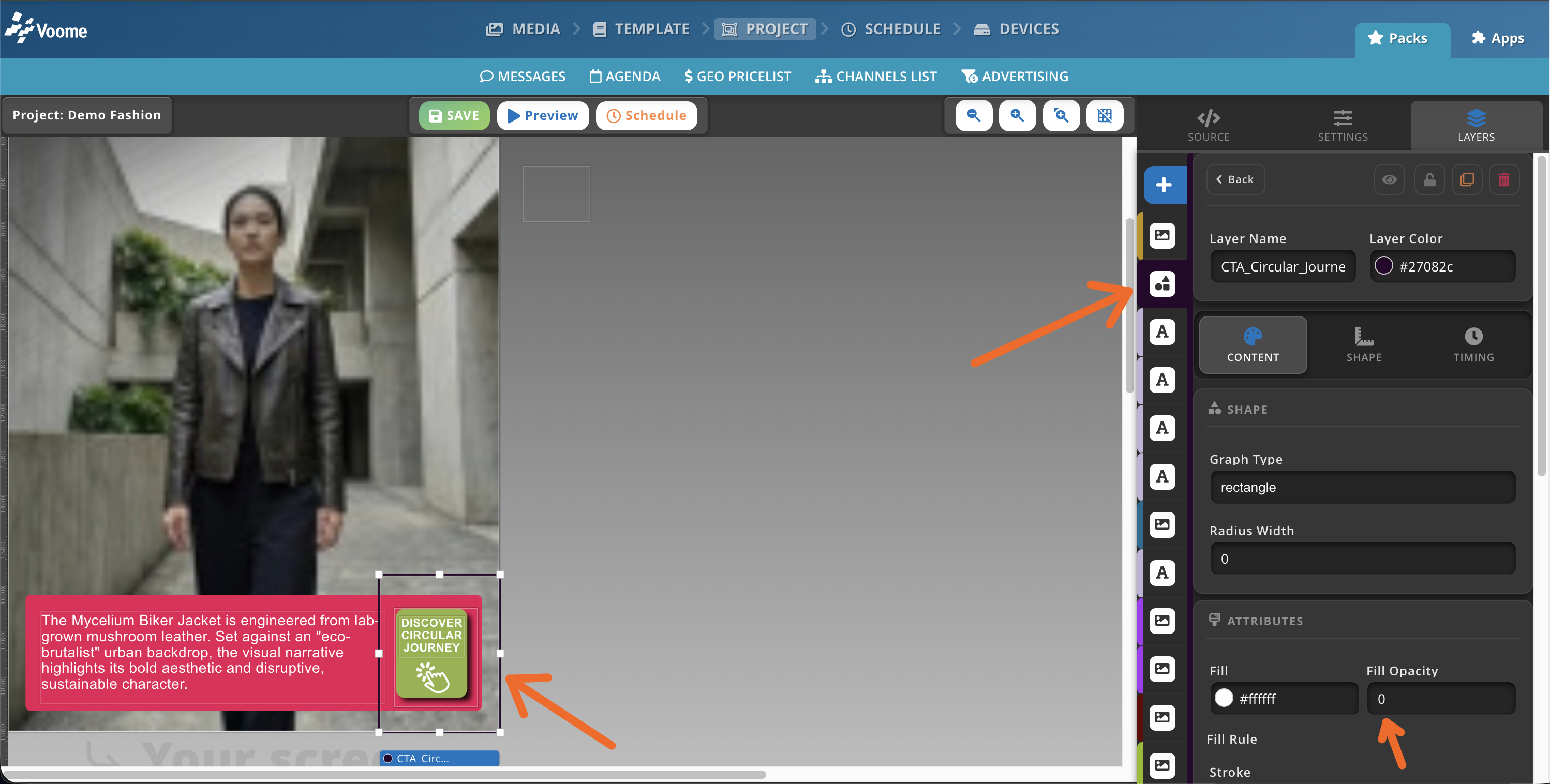
-
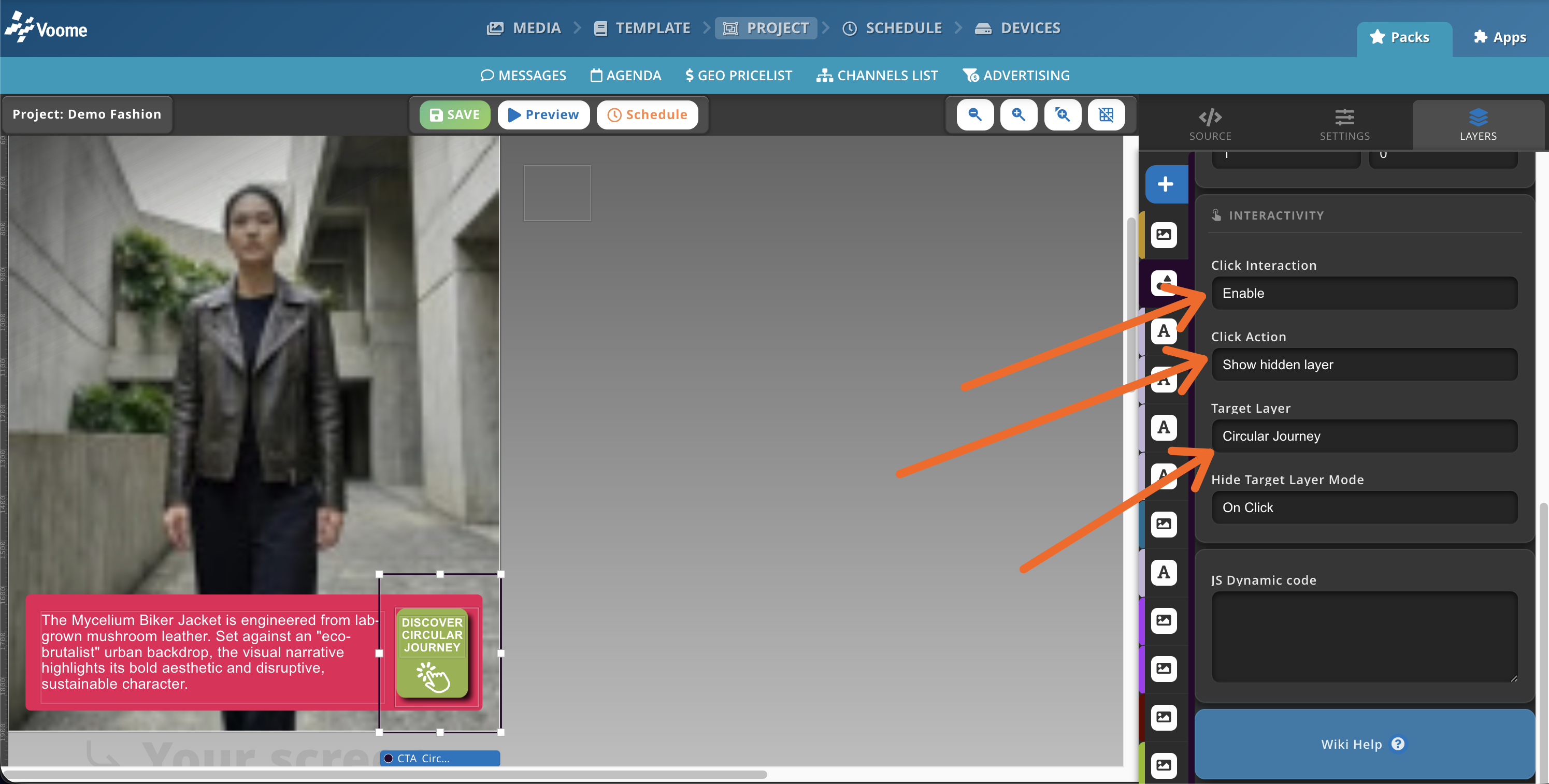
With that shape layer still selected, scroll down to its
INTERACTIVITYsection and set:Click Interaction:EnableClick Action:Show hidden layerTarget Layer: the layer you hid in step 3Hide Target Layer Mode:On Click, so a second tap hides it again
 No INTERACTIVITY section?
If a layer has no
INTERACTIVITYsection, the Interactivity module is not enabled on your account. Open a ticket from the Support section and we will switch it on for you. -
Open
SETTINGS>TIMINGand setRepeat typetoLoop this project, so the project stays on screen instead of moving on to the next one.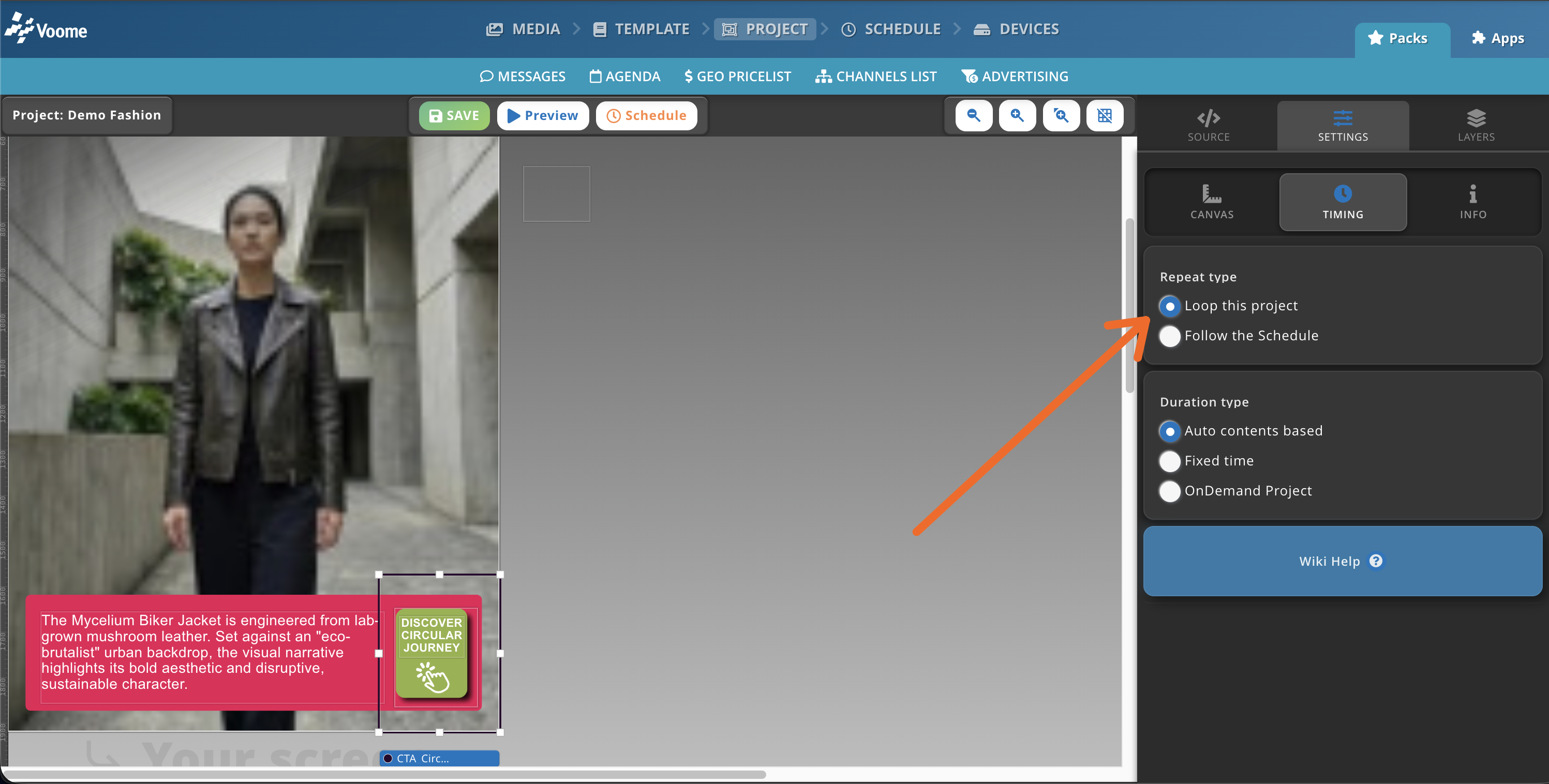
-
Schedule the project on the target device as its only project, then ☁️ publish it.
-
✅ Done. Anyone who taps the area you chose brings up the hidden layer, and taps again to put it away.
Touch navigation, API and socket triggers, and custom scenarios are configured for your account by the Voome team. Tell us what you want to happen on screen and we will put it together: book a demo if you are new to Voome, or open a ticket from the Support section if you are already a client.