🛰️ API Call: Remote Launcher
The Remote Launcher is a web app that takes control of a screen on demand: you pick a monitor, you pick a project, and the screen switches to it. Behind the scenes the app sends a trigger to the chosen device, telling it to play that specific project.
- 🖥️ One panel for all your screens. The monitors it can drive are listed on the left, for example a video wall and a touch monitor. The app also reports the type, address, and status of the target device, so you know it is ready before you launch anything.
- 🔐 LAN only. The app reaches the players from inside your own network only, which keeps your screens out of reach of anyone outside it.
- 🕹️ Cross-platform. SpinetiX, webOS, Android: the same panel drives them all.
- 📱 No extra hardware to buy. The screenshot below shows the app on a tablet, but your phone or a laptop works just as well.
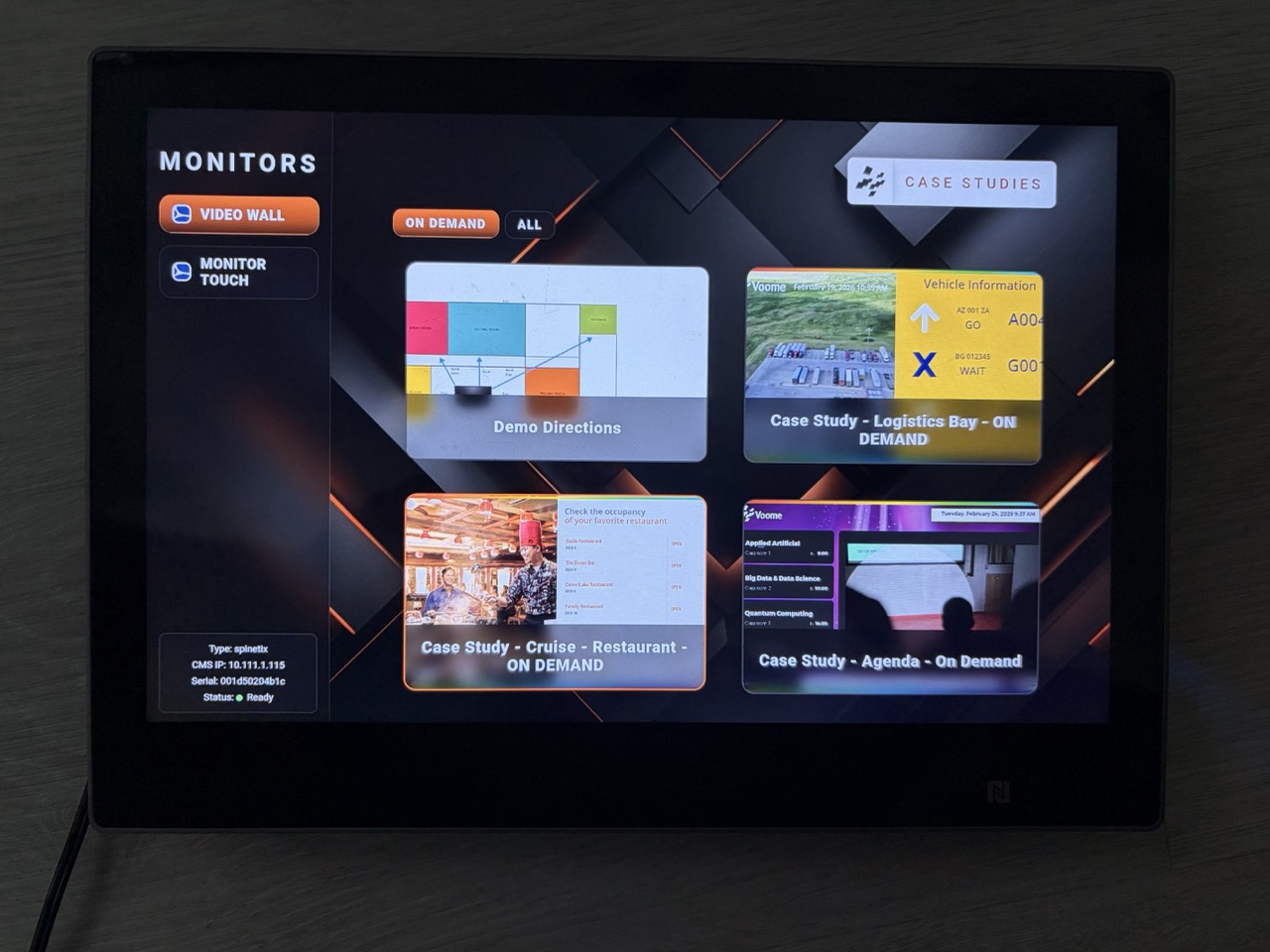
📺 The available projects
Once Voome has configured your app, your chosen monitors appear in the left sidebar. Select one and its scheduled projects appear on the right, where you can show the on demand projects only, or all of them.
On demand projects do not take part in the normal signage rotation. They only reach the screen when a trigger calls them up, and in this case that trigger is you, from the Remote Launcher.
⏱️ How to schedule a project as on demand
-
In the project, open
SETTINGS>TIMINGand set Duration type toOnDemand Project.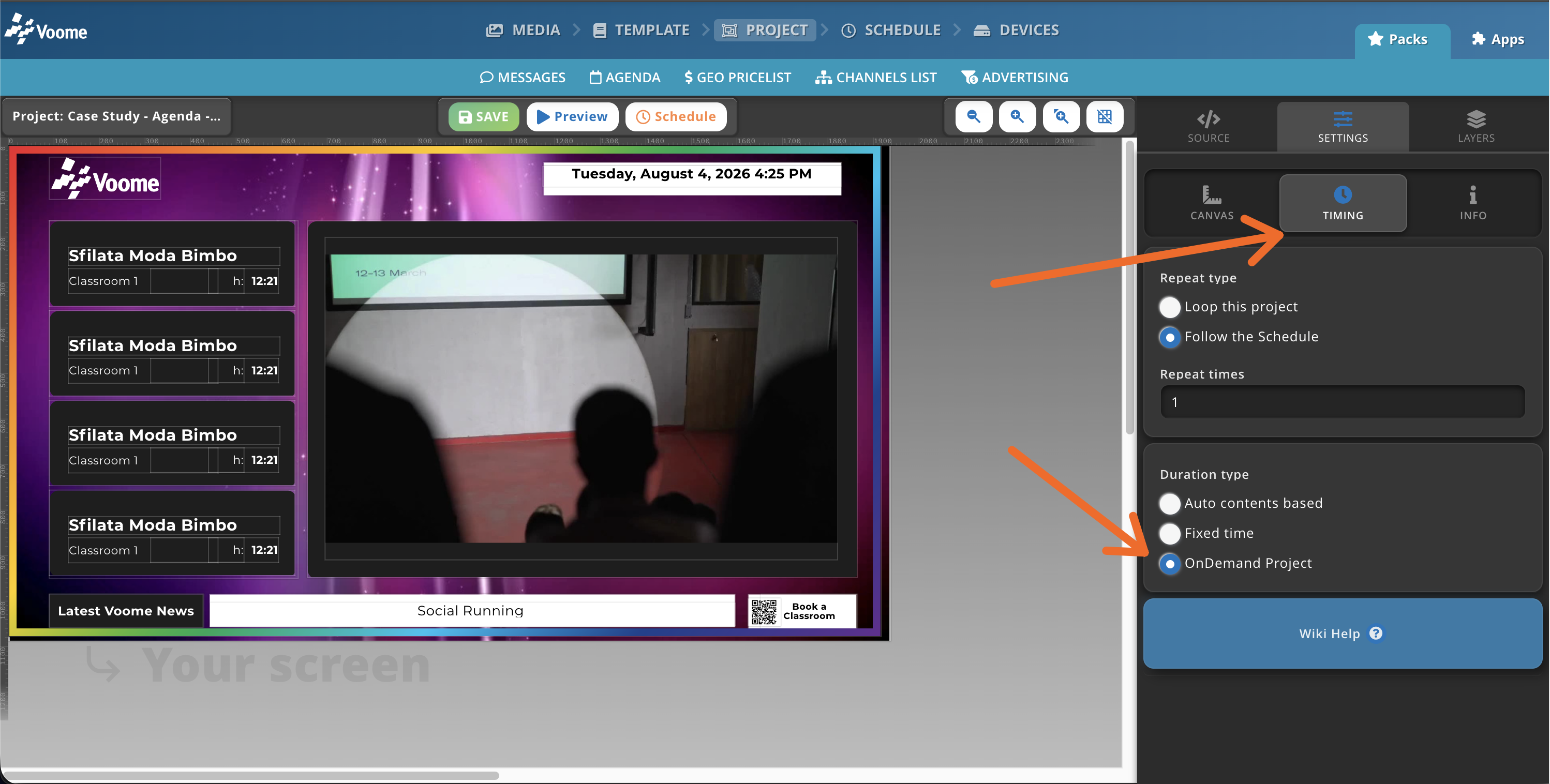
-
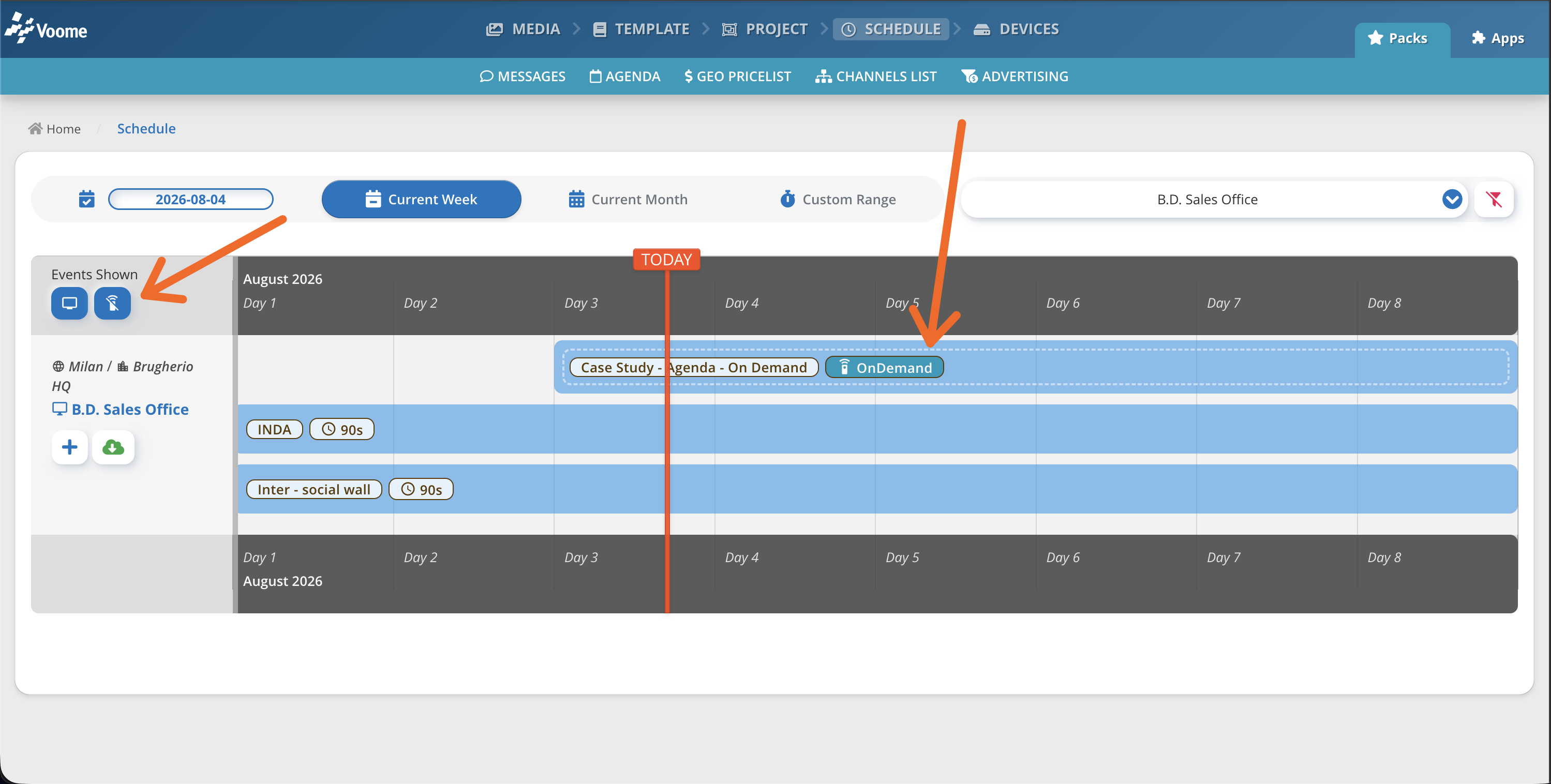
Schedule the project as you would any other. It appears in the schedule marked
OnDemand.🙈 If you cannot see it, turn on the on demand events with the Events Shown buttons in the top left of the schedule.
-
☁️ Publish the schedule to the screen.
-
✅ Done. You can now take control of that screen from the Remote Launcher.
Selecting a project interrupts the normal rotation, and the screen shows only that project. To hand the screen back to its schedule, press Back to Schedule in the Remote Launcher.
Touch navigation, API and socket triggers, and custom scenarios are configured for your account by the Voome team. Tell us what you want to happen on screen and we will put it together: book a demo if you are new to Voome, or open a ticket from the Support section if you are already a client.