🗓️ Booking
The Booking layer displays live data from the Voome Booking application on your screens. It covers three different uses, and the combination of two fields, Items Type and View Mode, decides which one you get:
The device fetches this content while the layer is playing. With no network connection there is nothing to show, and no new data arrives until the connection is back.
| Goal | Items Type | View Mode | What appears on screen |
|---|---|---|---|
| Event summary of the day | Meeting room | Events | One entry per booking, with title, times, room, and organizer. |
| Room status of the day | Meeting room | Summary | One entry per room, with a color-coded status and the next meeting. |
| Desks occupancy | Desk | not used | How many desks are busy out of the total, per branch. |
The content comes from the reservations that people create in Booking, so the screen follows them on its own as bookings are added, changed, or cancelled. Once the layer is published you never touch the project again to keep it current.
Before you start
The layer only returns data when both of these are true:
- Your account has the Booking module enabled.
- Booking has at least one branch with bookable resources: meeting rooms for the two
Meeting roommodes, desks for theDeskmode.
Add the layer to a project
- Open the Project section and create a project that fits the target screen.
- Click Add new layer and search for the Booking layer.

- Set Items Type to
Meeting roomorDesk. - Select one or more Branches. The form reacts to this choice: with
Meeting room, the Meeting Rooms list is filled with the bookable rooms of the branches you picked. - With
Meeting room, choose the View Mode, eitherEventsorSummary. - Move to the Sublayers tab and add one sublayer per field you want to draw. The Sublayers section below lists the fields each mode provides.
Items Type and View Mode change the list of fields the layer returns. Set them first, then design the layer. If you switch mode later, check that every sublayer you already added still points to a field that exists.
Event summary of the day
Set Items Type to Meeting room and View Mode to Events.
The layer returns the bookings themselves, one entry per event, and pages through them at the interval set in Page Dur. Each entry carries the event data (title, description, start and end time, speaker, company, organizer, attendees, and any attached media) plus the data of the room it was booked in (name, description, branch, capacity, equipment, and a direction arrow).
The list always covers the rest of the day: it starts at the current time and ends at midnight, so bookings that have already finished drop off on their own as the day goes by.
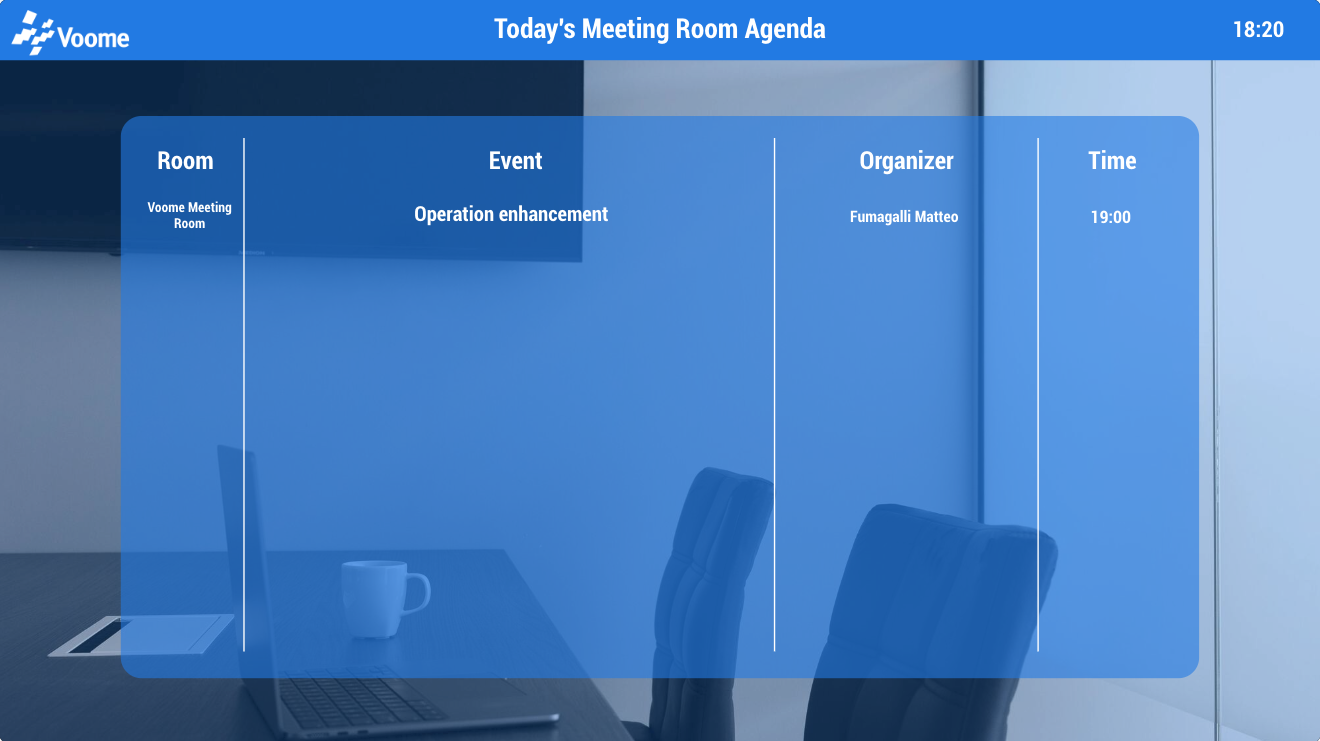
Use it for a lobby or corridor screen that answers "what is happening in this building today".
Room status of the day
Set Items Type to Meeting room and View Mode to Summary.
The layer returns the rooms instead of the bookings, one entry per selected room, each with a MeetingRoomStatus color and the details of its next meeting. The status is calculated from the first booking that has not finished yet:
| Color | Meaning |
|---|---|
| ● Green | Free: no upcoming booking today, or the next one starts in more than 30 minutes. |
| ● Yellow | Starting soon: the next booking starts within 30 minutes. |
| ● Red | Busy: a booking is ongoing right now. |
Feed the color into a Graph sublayer so the whole row or a status dot changes color on its own. A free room returns an empty NextMeetingName, NextMeetingStart, NextMeetingEnd, and Organizer, so leave room in the layout for a blank next meeting.
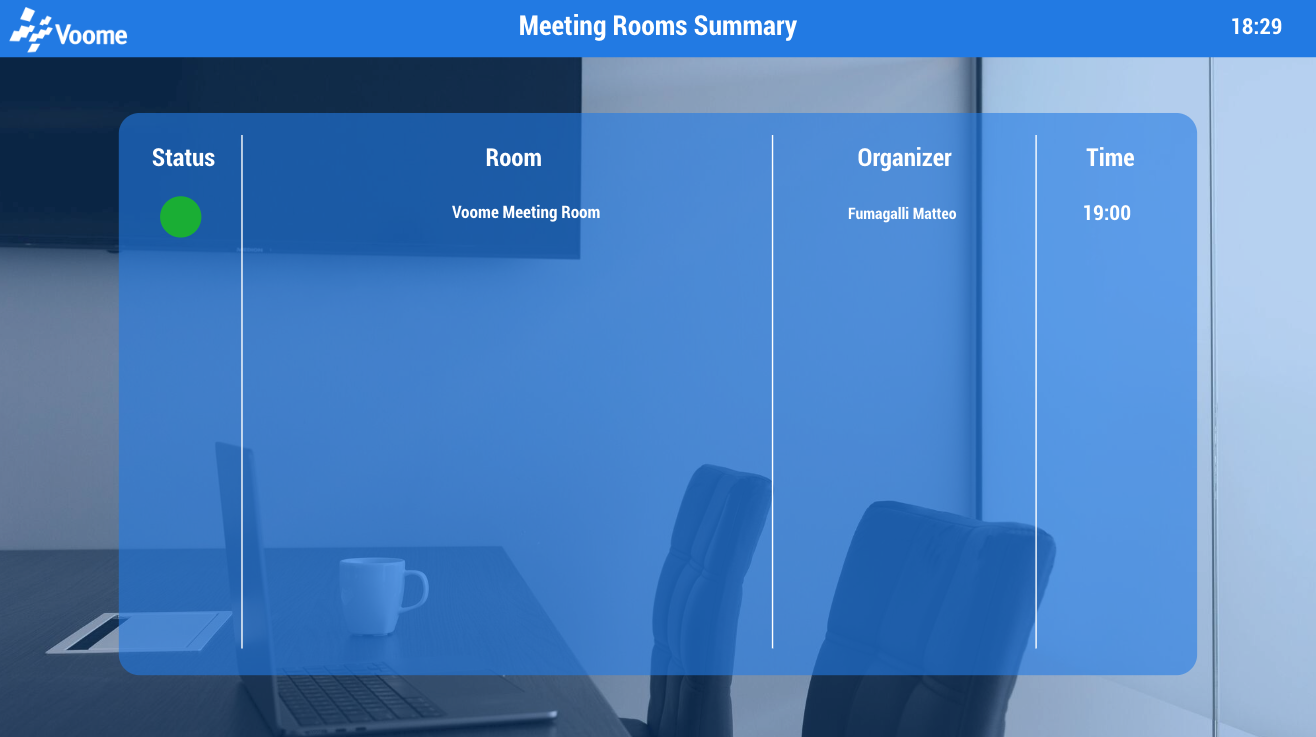
Use it for a screen at the entrance of a meeting area, or on a panel next to a single room.
Desks occupancy
Set Items Type to Desk. View Mode and Meeting Rooms do not apply and stay hidden.
The layer returns one entry per selected branch with the occupancy of its desks at that exact moment: the total number of desks, how many are busy, the two combined as a 3 / 10 string, and the same figure as a percentage. A desk counts as busy when it has a booking covering the current hour, so the numbers describe the situation right now rather than the whole day.
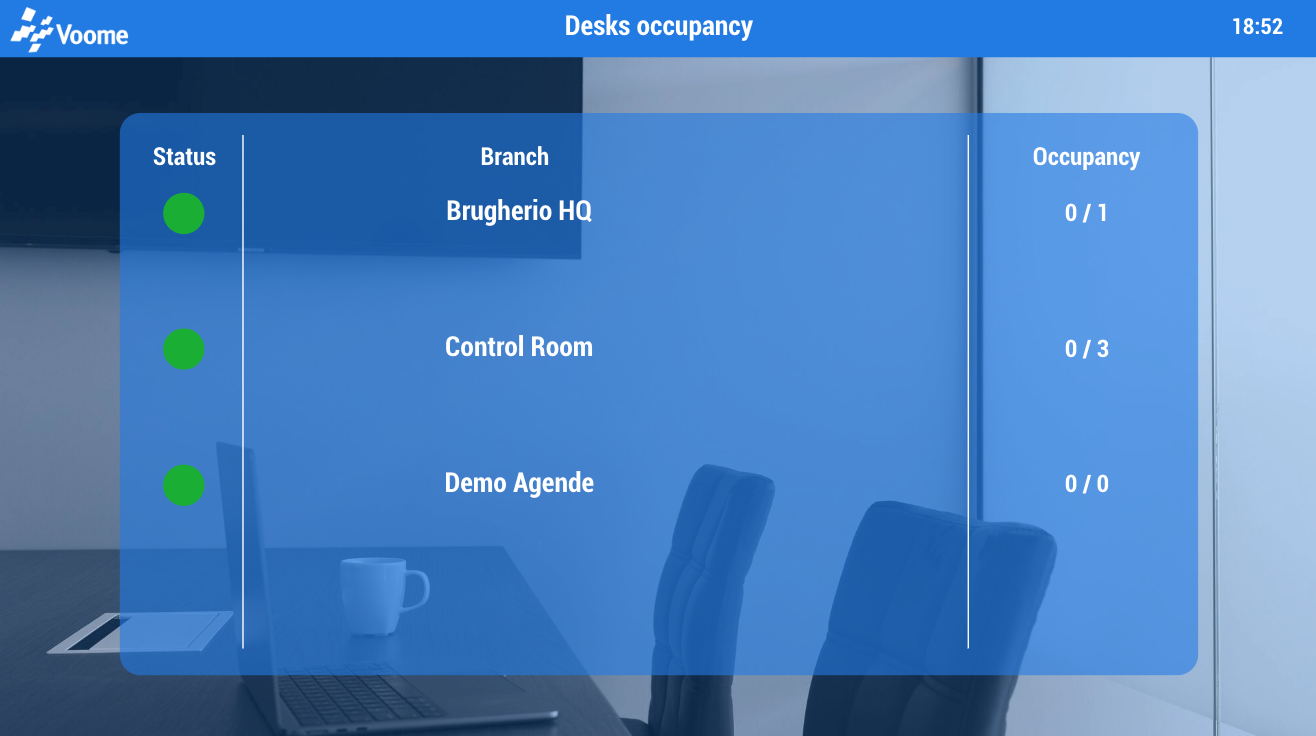
Use it for a floor screen that tells people arriving whether there is a free desk, or a reception screen that shows the load of several offices side by side.
Content fields
- Items Type: what the layer reads,
Meeting room(default) orDesk. It is the first choice to make, because it decides which of the fields below have any effect. - Branches: the Booking branches to cover. At least one is required, and it is what populates the Meeting Rooms list.
- Meeting Rooms: the rooms to include, for
Meeting roomonly. Leave it empty to include every bookable meeting room of the selected branches. - View Mode:
Summary(default) orEvents, forMeeting roomonly. See the two sections above. - Direction Symbols Set: the arrow images used by the direction field, so the screen can point people to the room. Any custom set loaded for your account also appears in this list.
- Page Dur: how many seconds a page of results stays on screen before the next one (default 5). It matters as soon as there are more results than the table can hold.
- Refresh time (in minutes): how often the device fetches fresh booking data (default 60). Bookings change through the day, so a lower value keeps a room-status screen honest; 5 to 15 minutes is a reasonable range.
- Languages: the languages used for the translated room name and description. It defaults to the language you are logged in with.
Layout fields
The Booking layer arranges its results in a table, so you can show several entries at once instead of one at a time.
- Rows and Columns: the grid of results drawn on one page. A room-status board is usually a single column with as many rows as you have rooms; a desk-occupancy screen with three branches fits a 1 row by 3 columns grid.
- Row Padding, Col Padding and Cell Padding: the spacing around and inside the cells of that grid.
Sublayers
The Booking layer draws nothing by itself. Add a sublayer for each piece of information you want on screen. Sublayers can be edited and moved like regular layers, but they remain tied to their parent Booking layer.
Each field comes with the sublayer type it needs: plain values become Text sublayers, a full date needs a Dynamic Date From Text sublayer, an image or an arrow needs an External Image sublayer, and a color or a percentage needs a Graph sublayer. The available fields depend on the mode:
Meeting room, events mode
| Field | Content |
|---|---|
Title | The title of the booking. |
Description | Its description. |
Start / End | Start and end of the booking. Each is available as a full date, or as separate day, month, year, time_12, and time_24 values. |
Organizer | Name and surname of the user who booked the room. |
Attendees | The list of attendee addresses. |
Attendees_name | The same attendees by name, one per line. |
Media | The image or video attached to the booking. |
PoiName | Name of the booked room. |
PoiDescription | Description of the room. |
PoiBranch | The branch the room belongs to. |
PoiSpaces | The number of available spaces in the room. |
PoiInstruments | The equipment available in the room. |
PoiDirection | The direction arrow towards the room, drawn from the selected Direction Symbols Set. |
Meeting room, summary mode
| Field | Content |
|---|---|
MeetingRoomStatus | The status color of the room. Add it as a Graph sublayer. |
NextMeetingName | Title of the next or ongoing booking, empty when the room is free. |
NextMeetingStart / NextMeetingEnd | Its start and end, available as a full date or as time_12 and time_24. |
Organizer | Name and surname of the user who booked it. |
PoiName, PoiDescription, PoiBranch, PoiSpaces, PoiInstruments, PoiDirection | The same room data as in events mode. |
Desk
| Field | Content |
|---|---|
BranchName | Name of the branch. |
Desks | Total number of bookable desks in the branch. |
BusyDesks | How many of them are booked right now. |
FormattedOccupancy | The two figures as a ready-made string, for example 3 / 10. |
PercentageOccupancy | Occupancy as a percentage. Add it as a Graph sublayer to draw it as a gauge or a bar. |
🙋🏼 Common Issues
The layer is disabled in the Add new layer panel
The Booking layer requires read permission on the Booking module. If it appears greyed out, your user or your account does not have access to Booking, so there is nothing for the layer to read. Ask your administrator to enable it.
The editor preview stays empty
The project editor loads sample values only once the layer knows which items to read. With Meeting room, select at least one branch and wait for the Meeting Rooms list to fill; if it stays empty, that branch has no bookable meeting rooms. With Desk, a branch without bookable desks returns nothing at all.
The screen shows a room as free while a meeting is running
The device keeps the booking data it downloaded until Refresh time has elapsed, so a reservation created a minute ago is not on screen yet. Lower Refresh time for status screens, or publish the project again to force the device to reload.
Only part of my bookings appear
Check that the missing bookings are still to come: the layer only reads from the current time to midnight, so the ones that already ended are gone by design. Then check the layout, because Rows by Columns sets how many entries fit on one page, and Page Dur has to be short enough for the screen to cycle through every page while someone is watching.