🖼️ Image
The Image layer is useful for placing a static image on the canvas, such as a logo or any generic graphic.
Works offline
Media chosen from your media library is published to the device together with the project, so it plays with no network connection. Items added by external URL are fetched while the layer plays and do need one.
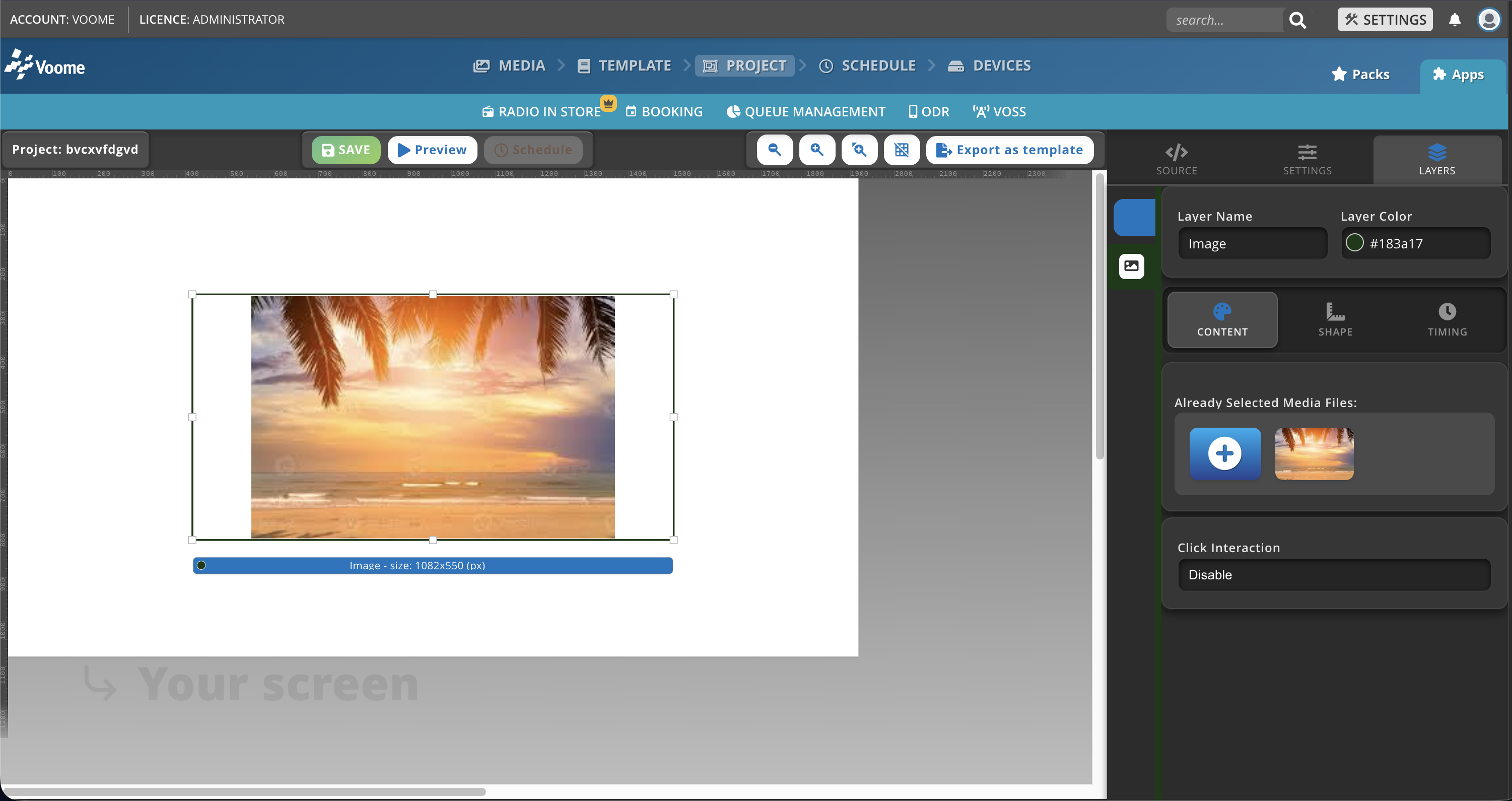
Fields
- Already Selected Media Files: click the + circle to choose or replace a media file from the media library.
- Click Interaction: enables or disables an action when the image is clicked.
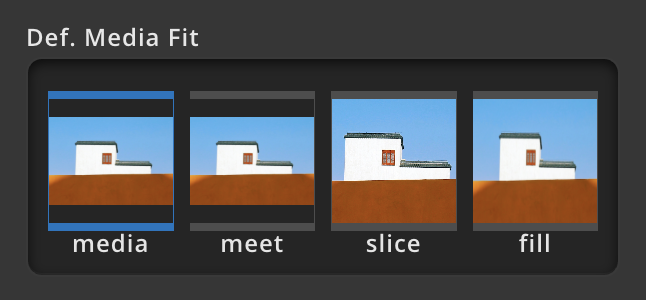
How do I change the media fit of my image?
- Click the image you want to adjust.
- Select Media Fit.
- Choose between:
- Meet: scales the media to fit entirely within the layer without cropping, preserving its aspect ratio. This may leave empty space (letterboxing) if the aspect ratios differ.
- Fill: scales the media to completely fill the layer while preserving its aspect ratio. Parts of the media may be cropped if the aspect ratio does not match the layer.
- Slice: scales the media to cover the entire layer without preserving the original aspect ratio. This may distort the image, but no empty space or cropping occurs.