▶️ Media Playlist
The Playlist layer is useful for creating a rotation of media content, such as videos and images. The media items are displayed one after another automatically, without user interaction.
Works offline
Media chosen from your media library is published to the device together with the project, so it plays with no network connection. Items added by external URL are fetched while the layer plays and do need one.
Content fields
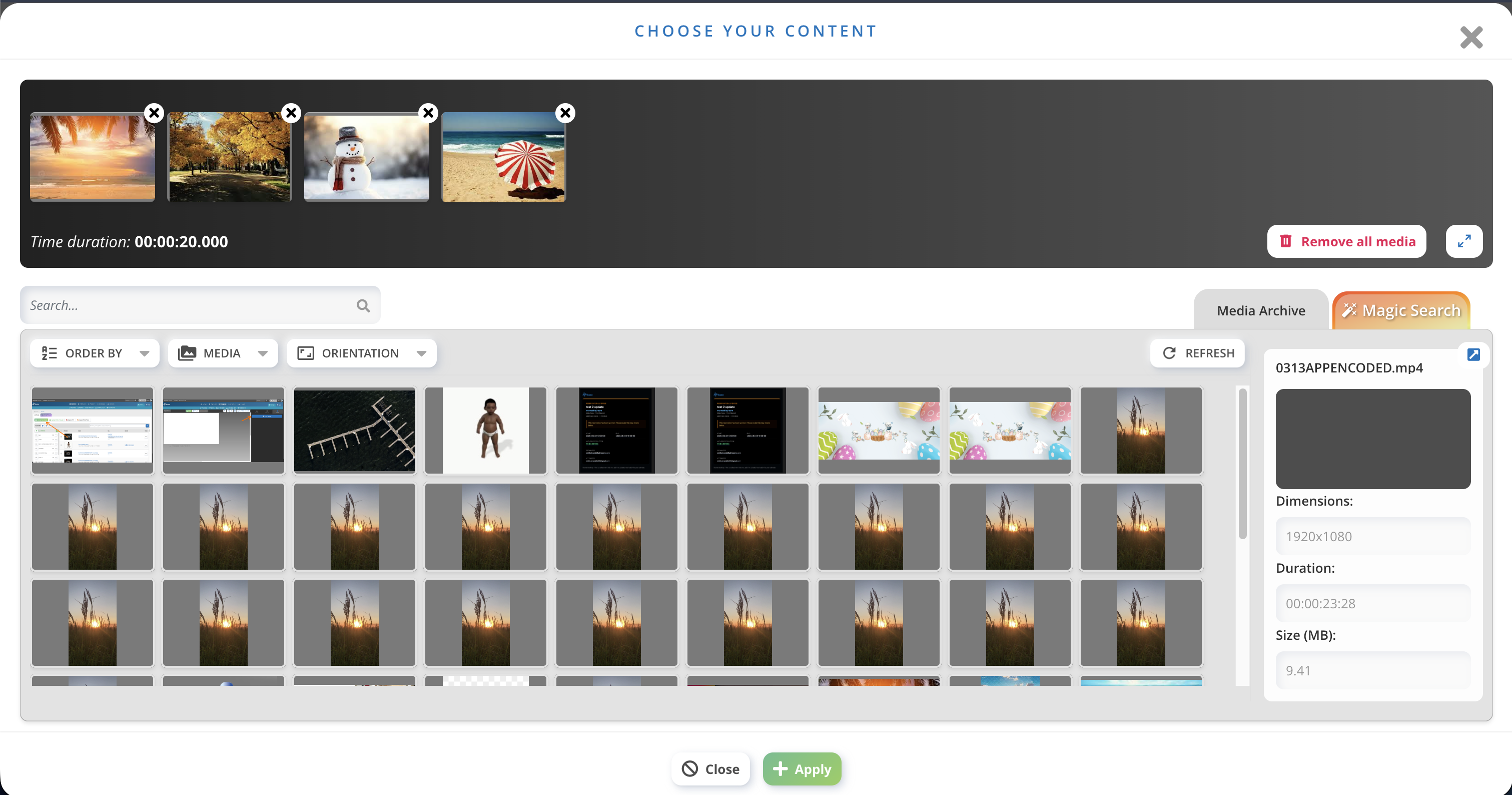
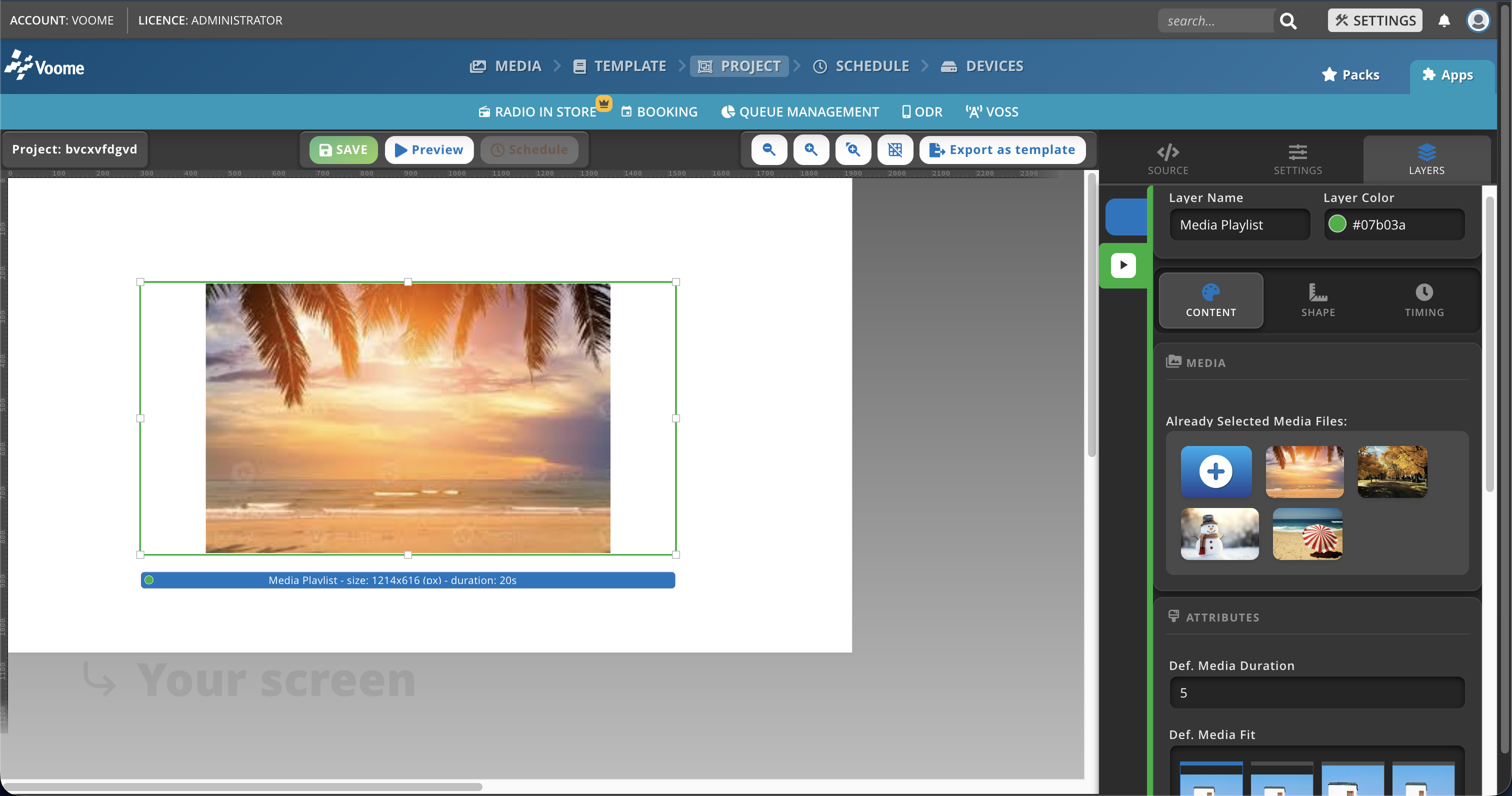
- Already Selected Media Files: click the + circle to choose or replace the media files from the media library.
- Def. Media Duration: how long each image is displayed, in seconds. This setting applies only to static media like images, not videos.
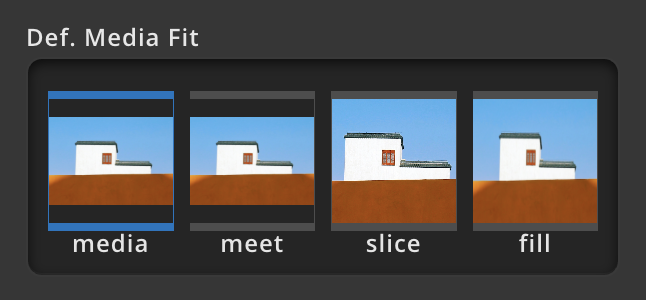
- Def. Media Fit: defines how media content fits within the layer area.
- Meet: scales the media to fit entirely within the layer without cropping, preserving its aspect ratio. This may leave empty space (letterboxing) if the aspect ratios differ.
- Slice: scales the media to cover the entire layer without preserving the original aspect ratio. This may distort the image, but no empty space or cropping occurs.
- Fill: scales the media to completely fill the layer while preserving its aspect ratio. Parts of the media may be cropped if the aspect ratio does not match the layer.
- Def. Audio Level: the default audio volume for video playback, expressed as a percentage (e.g. 100% for full volume).
- Def. Transition Effect: the visual effect used when switching between media items. Available options: fade, crossfade, slide, push, wipe, page, flip, cube, zoom, random, none.
- Def. Transition Duration: duration of the transition effect, in seconds.
- Enable shuffle: randomizes the playback order of media items.
- 0: disabled (default sequential order).
- 1: enabled (random order).
Advertising fields
- Enable accounting: registers Proof of Play data when opening and closing external media. The default value to insert (only for SpinetiX devices) is
open,close. - Accounting Tag (optional): a prefix added to log entries for identification purposes, especially useful when multiple advanced projects are published to the same device.
- Video Advertising Configuration: insert the VAST (Video Ad Serving Template) here to configure advertising.
❓ How long last your playlist
- Click the Playlist layer, then the + circle to choose or replace media files from the media library.
- In the top-left corner, the timeline shows the selected files.
- Directly below the timeline, the total duration of the current playlist is displayed.