🤳🏼 QR Code
The QRCode layer draws a QR code that people scan with a phone camera. The main use is in a static way, where you type the value yourself and it never changes. You can use it as dynamic content, where you add it as a sublayer of another layer and the code is rebuilt for every item that layer shows.
The value does not have to be a web address. The QRCode Type field tells the phone what the code contains, so the same layer can hand over a contact card, a calendar event, or the Wi-Fi credentials of the room.
The code is drawn on the device, so a static code needs no network connection at all. A dynamic code added as a sublayer follows its parent layer, which does need a connection to fetch the items it prints codes for.
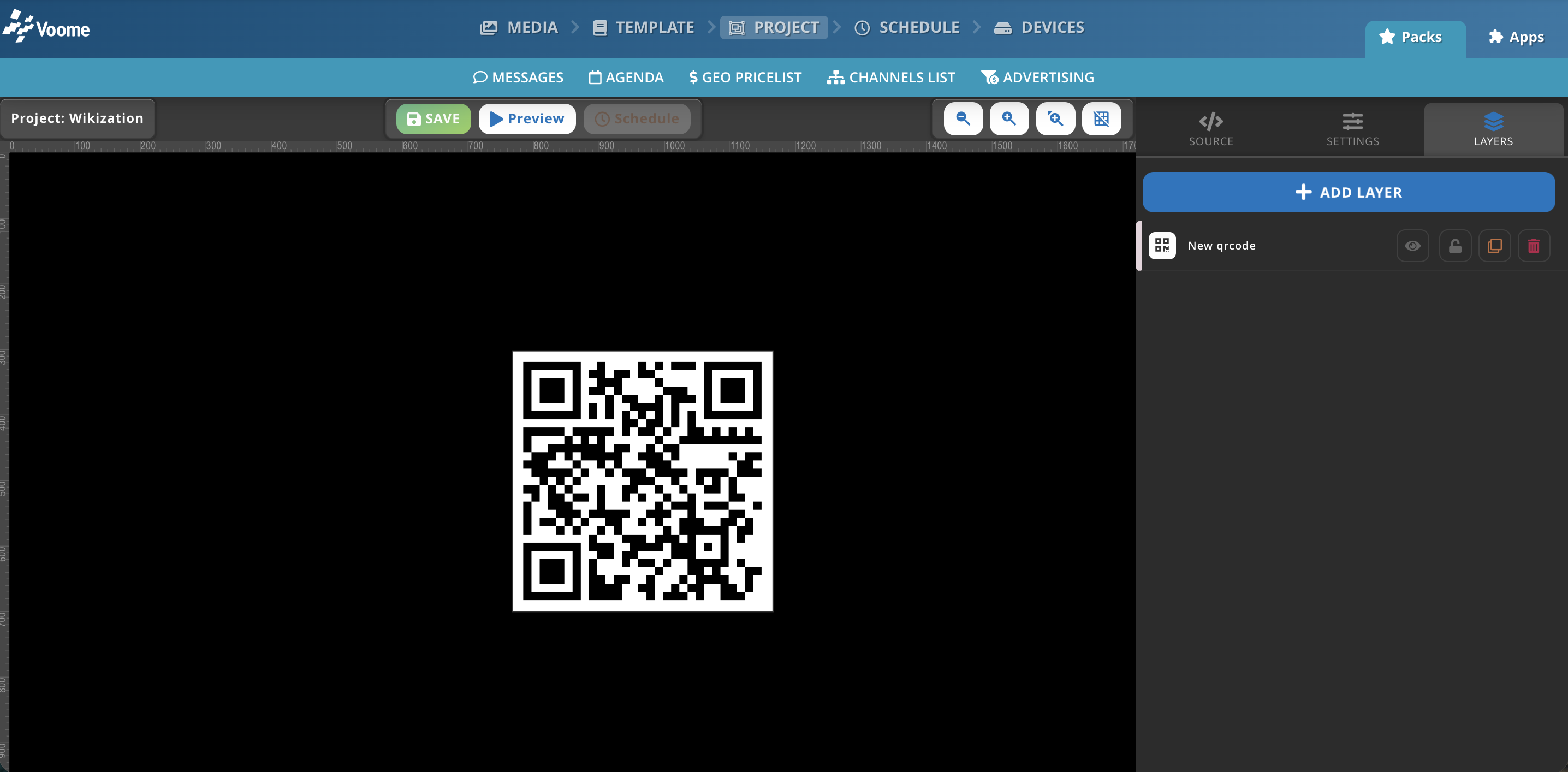
Add the layer to a project
- Open the Project section and open or create the project you want the code in.
- Click Add Layer and pick QRCode from the Advanced group.

- On the Content tab, type the value in Data and pick the Color of the code.
- Open Advanced and set QRCode Type to match what you typed. Selecting a type rewrites Data with the format that type expects, so choose the type first and then replace the hint with your own value.
- On the Shape tab, size and position the code. Keep width and height equal, because a QR code is square.
Changing QRCode Type overwrites whatever is already in Data with a format hint. If you type the value first and change the type afterwards, your value is lost and you have to type it again.
QR code types
Data is a single text field for every type. Types that need more than one value read them from one comma separated line, in the order below, so the position of each comma matters.
| QRCode Type | What to type in Data | What the phone does when it scans |
|---|---|---|
URL | https://voome.com | Opens the page in the browser. |
Text | Any text | Shows the text as it is. |
Phone Number | The number to call | Offers to dial the number. |
SMS | The number to text | Opens a new message to that number. |
Email | name@domain.com | Opens a new email to that address. |
Wifi | SSID, PASSWORD | Joins the WPA network with those credentials. |
Event | EVENT NAME, LOCATION, STARTDATETIME | Offers to add the event to the calendar. |
VCard | PERSON NAME, PHONE, EMAIL, WEBSITE | Offers to save the contact in the address book. |
For Event, the start is a compact UTC timestamp: 20181106T160405Z means 6 November 2018 at 16:04:05. A full line looks like Open Day, Main Hall, 20181106T160405Z.
For VCard, the name is split on the first space, so Mario Rossi, +39 02 1234567, mario.rossi@example.com, https://example.com is stored as surname and first name.
Wifi, Event, and VCard split the line on every comma. A password, a location, or a company name that contains a comma shifts every following value into the wrong field, and the code ends up unreadable or wrong. Pick values without commas.
Dynamic codes: QR code as a sublayer
Two layers can produce a QR code per item instead of a single fixed one: SharePoint and Json API. Both expose their address field as a QRCode sublayer, so the code on screen always points at the item currently displayed. A news carousel taken from SharePoint can print, next to each article, the code that opens that exact article on a phone.
To print the address of the SharePoint page currently on screen:
- Add and configure the SharePoint layer: pick the Microsoft credentials, the site, and the item type. The sublayer list stays empty until the layer has read the site.
- Open the Sublayers tab and click Add sublayer.
- In the Dynamic list, pick Url. It is added as a QRCode sublayer with Data already filled in with the placeholder
((item.url)), which resolves to the address of each item as the layer pages through them. - Size and position it on the Shape tab, then set Color and the Advanced fields as you would for a static code.
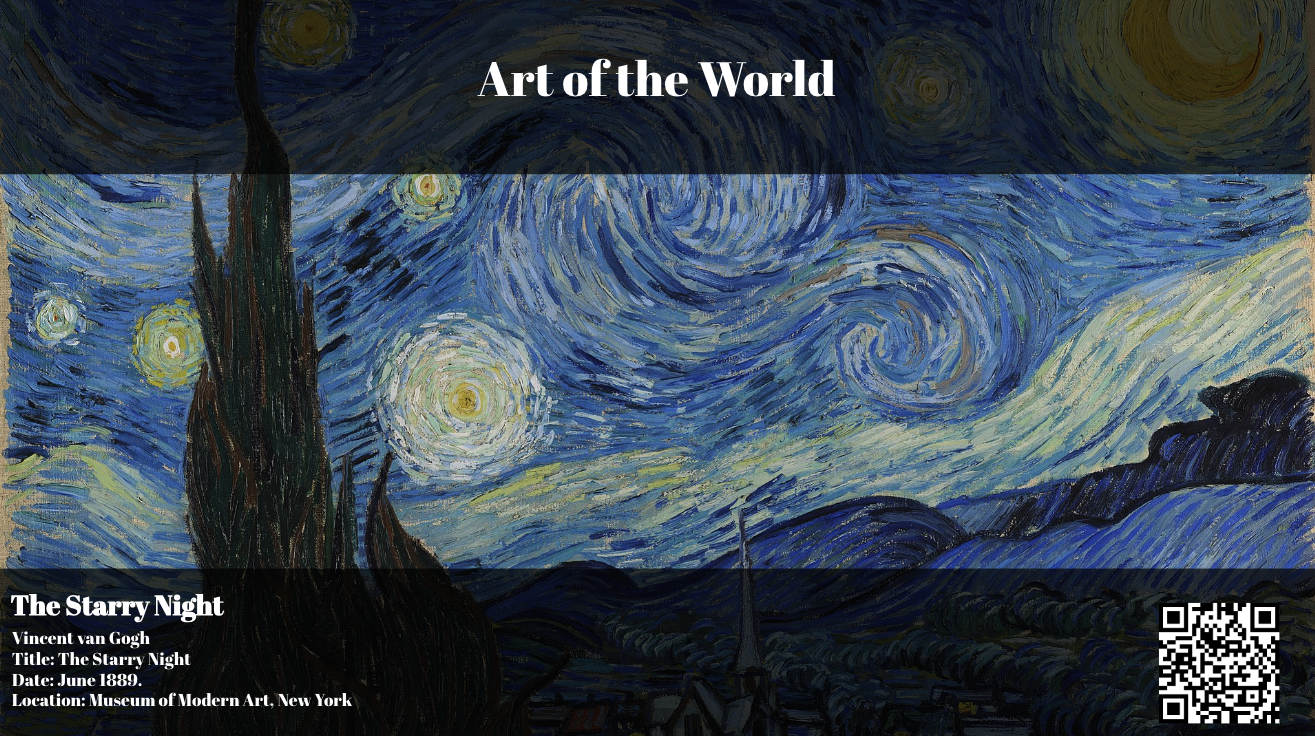
The placeholder only works inside the layer that provides it. Typing ((item.url)) into a standalone QRCode layer produces an empty code, because there is no parent layer to read the item from.
Content fields
- Data: the value the code carries. Required. It defaults to
https://voome.com. The format depends on QRCode Type, see the table above. - Color: the color of the code itself, black by default. Keep it dark: scanners rely on the contrast between the code and its background.
Advanced fields
- QRCode Type: what the code contains,
URLby default. It decides how Data is interpreted. - Type Number: the QR version, from
1to10, orauto(default). The version sets the size of the grid and therefore how much data fits. Leave it onautoand the smallest version that holds your value is used. A fixed version that is too small for the value produces no code at all. - Error Correction Level: how much of the code can be dirty, damaged, or covered and still be read,
7%,15%(default),25%, or30%. Higher levels are more forgiving but pack more modules into the same square, so the code gets denser and needs more room on screen. - Background:
white(default) ortransparent. Choosewhiteover photos and busy backgrounds.transparentonly works when what shows through is plain and light enough to keep the contrast. - Generator:
optimal_mask_is_skipped(default) orwith_optimal_mask. The second option computes the best mask pattern for your value and takes longer to draw. Leave the default unless a code refuses to scan.
🙋🏼 Common Issues
The code in the editor is not my code
The project editor draws a fixed sample image in place of the QR code, the same one for every QRCode layer, so scanning it in the editor leads nowhere. Click Preview to see the real code built from your Data, and scan it from there.
The code will not scan
Work through the four things that break a code, in this order: contrast, so keep a dark Color and, over photos, a white Background. Size, so make the layer bigger, since a dense value needs more room. Distance, so keep in mind that people scan from where they stand, not from where you designed it. And finally the value itself, since a very long address produces a dense code that is hard to read at any size.
The Wi-Fi, event, or contact code opens something wrong
The values are read by position, split on commas. Count the commas in your Data: Wifi needs one, Event two, VCard three. Any comma inside a value adds one more and shifts everything after it.
The dynamic code is empty on some items
The sublayer prints whatever the item carries in that field. An item without an address returns an empty value, so no code is drawn for it. Check the item in SharePoint, then check that the layer is still returning it at all.
The code looks stretched
The Shape tab lets you set width and height independently, but the code is always square. Set the two values equal, or the code is drawn in the space of the shorter side and the rest of the layer stays empty.