🎫 Ticketing System
The Ticketing System layer shows the desk calls of the Ticketing System on screen: each time an operator calls a ticket, the layer updates with the new call. In the Project editor you add it with the Ticketing System tile, in the Applications group, and point it at the totem server of the location.
The layer runs on the device itself and needs no internet connection. The calls arrive over the local network, so the totem server has to be able to reach the device.
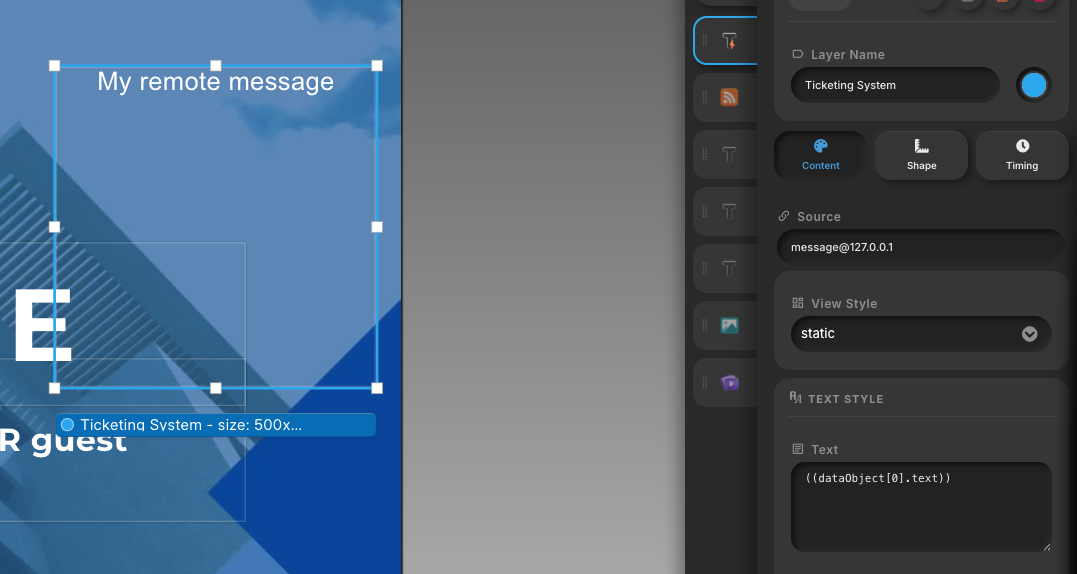
Fields
The layer has every field of the Text layer (view style, font, colors, alignment, background). Two of them tell it what to show:
- Source: the name of the variable to read, optionally followed by
@and the IP address of the totem server, for examplejadeq_desk_1orjadeq_desk_1@10.111.1.67. Whether you need@ipdepends on the device, as explained below. - Text: which part of that variable to display. The value depends on the variable and on the device.
What you can show
The ticket called at a desk
Use the variable jadeq_desk_ followed by the desk number, for example jadeq_desk_1 for desk 1. The layer shows the code of the last ticket called at that desk.
The summary of a service
Use the variable jadeq_, the service letter, and the service name, for example jadeq_a_accettazione. It is the Service identifier shown next to each service in the totem configuration.
In Text, use one of these keys, written as shown in the device sections below:
| Key | What the layer shows |
|---|---|
INLINE | The number of people waiting for the service |
CALLED | The code of the last ticket called for the service |
YOURNUMBER | The last ticket number taken at the totem |
Spinetix devices
The totem server sends each call straight to the Spinetix device, so the device must be registered on the totem: add its IP address under Connected devices in the totem configuration.
- Source: write only the variable name, for example
jadeq_desk_1. The device reads it from itself. Add@iponly when the device has to read the variable from another player. - Text: to show the ticket called at a desk, write
((dataObject[0].text)). For the summary of a service, write the key as((dataObject[0].KEY)), for example((dataObject[0].INLINE)).
LG webOS, Samsung Tizen, and Android devices
These devices connect to the totem server on their own, through a socket, to receive the updates. Nothing needs to be registered on the totem.
- Source: always add
@and the IP address of the totem server, for examplejadeq_desk_1@10.111.1.67. - Text: to show the ticket called at a desk, write
((code)). For the summary of a service, write the key as((KEY)), for example((INLINE)).
The call pop-up
Whatever the device, when a new call arrives, a pop-up appears in the center of the screen with the desk and the ticket code, then slides away after about 13 seconds. It uses the call colors of the totem: white text on a black background, in Open Sans.
Examples
| To show | Device | Source | Text |
|---|---|---|---|
| The ticket called at desk 1 | Spinetix | jadeq_desk_1 | ((dataObject[0].text)) |
| The ticket called at desk 1 | LG webOS, Samsung Tizen, Android | jadeq_desk_1@10.111.1.67 | ((code)) |
| People waiting for service A | Spinetix | jadeq_a_accettazione | ((dataObject[0].INLINE)) |
| People waiting for service A | LG webOS, Samsung Tizen, Android | jadeq_a_accettazione@10.111.1.67 | ((INLINE)) |