🌐 Web Site
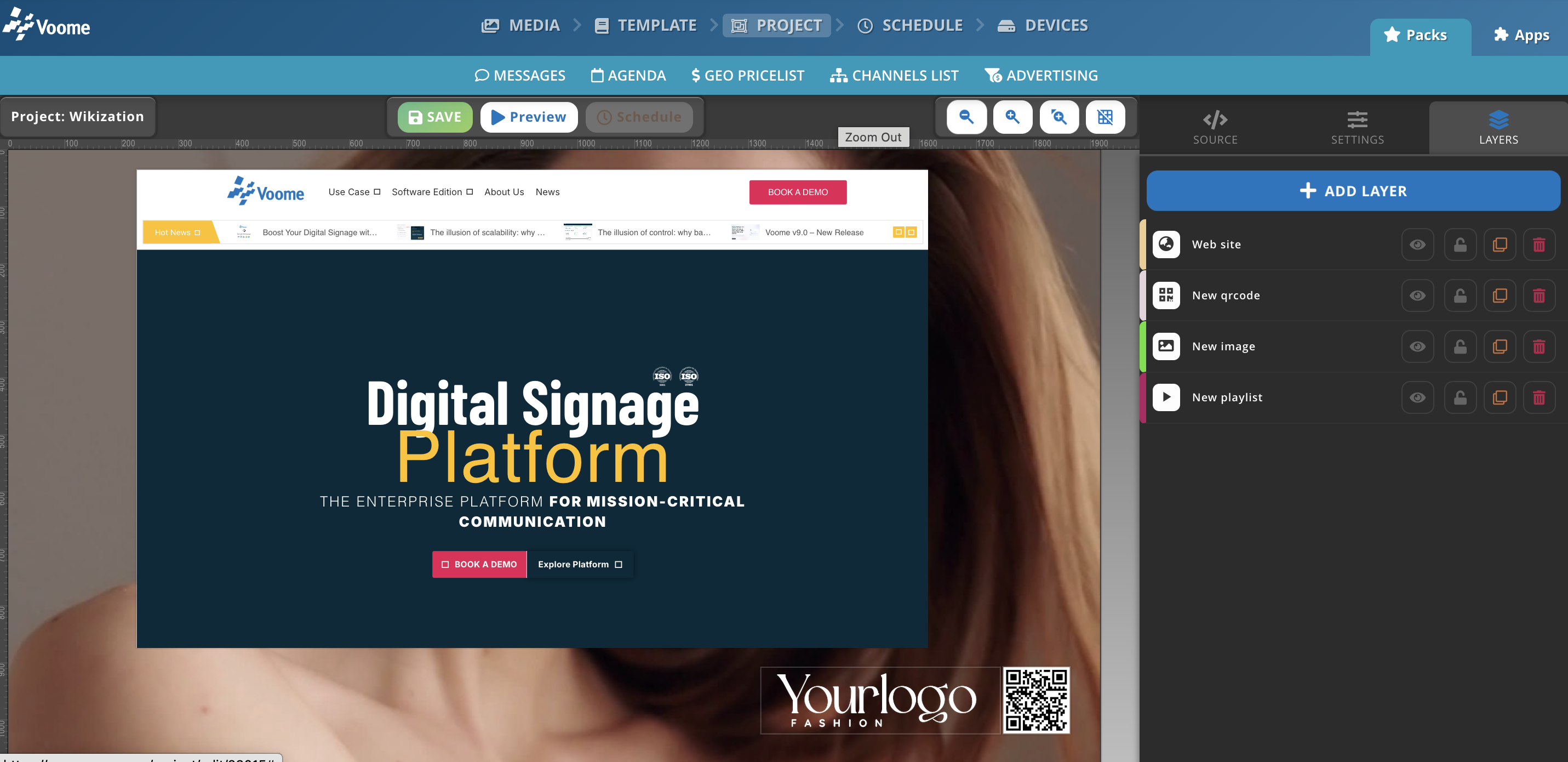
The Web Site layer embeds a live web page inside a project. The player opens the address you type and draws the page inside the layer box, next to or on top of every other layer in the design.
It has a single setting, the address of the page. Everything else, meaning size, position, when the layer appears and for how long, comes from the usual Shape and Timing tabs and behaves as it does on any other layer.
The device fetches this content while the layer is playing. With no network connection there is nothing to show, and no new data arrives until the connection is back.
Those players render plain HTML and JavaScript, but not HTML5. A page that relies on HTML5 features, dynamic content, or animations comes out incomplete or blank on them, which rules out most sites built with a current web framework. For those, use an HMP400 or IBX410, or a device from another family.
A dashboard, an intranet page, a status board, or a production monitor that already exists on the web goes on screen as it is, with nothing to rebuild in Voome.
Add the layer to a project
- Open the Project section and open or create the project you want the page in.
- Click Add Layer and pick Web Site from the Advanced group.

- On the Content tab, type the address in Web Page Link. Write it in full, including the protocol:
https://voome.com, notvoome.com. - On the Shape tab, set the size and position of the box the page is drawn in. A new layer starts at 720 by 480 pixels, 20 pixels from the top left corner of the canvas.
- On the Timing tab, set when the layer comes in and how long it stays.
How the page is drawn
The player loads the address the way a browser would and places the result in the layer box. Four things follow from that, and they decide whether the page is usable on screen.
- The page is not scaled down to fit. It renders at its natural size, so the layer shows the top left portion of it. A site laid out for a 1920 pixel desktop, put in a 720 by 480 layer, shows roughly a quarter of itself or adapt the visualization according to the responsive rules provided by the web site itself.
- Scrolling depends on the hardware. On a touch monitor, or on a device with a mouse connected, people can scroll the page and use it as they would in any browser. On a plain screen with no input device there is nothing to scroll with, so whatever falls outside the layer box is never seen and the part that matters has to sit in the visible area.
- The page is loaded once. Voome has no refresh setting for this layer. If the page updates itself, through its own JavaScript or a meta refresh, the screen follows along. If it does not, the screen keeps showing the state the page had when the layer opened, until the project restarts.
- There is no login session. The player opens the address anonymously, so a page behind a sign-in shows the sign-in form. Use a page that is public, or one whose service gives you a shareable or embeddable link. SpinetiX HMP400 and IBX410 players are the exception, as they can fill a simple login form themselves.
Choosing the right page
The layer works best with a page built, or at least configured, for the space it gets:
- Prefer a page you control, or an embed link the service publishes for this purpose. Those are meant to be framed and are the ones that work reliably.
- Match the layer size to the page rather than the other way round. A page designed at 1920 by 1080 belongs in a full screen layer.
- Many web apps have a kiosk, TV, or full screen mode, often a query string on the address. If yours does, use it: it strips the navigation and toolbars that waste the space you have.
- Serve the page over
https. A page served overhttpcan be blocked outright depending on the device.
Content fields
- Web Page Link: the full address of the page to show. Required. It defaults to
https://voome.com.
🙋🏼 Common Issues
The layer is blank on screen
Check the device first: on a SpinetiX HMP350 or earlier, an HTML5 page comes out blank no matter what the address is. Everywhere else, the site is almost certainly refusing to be embedded. Sites declare this with the X-Frame-Options header or with Content-Security-Policy: frame-ancestors, and the decision belongs to whoever runs the site, not to Voome. Most large public services (search engines, social networks, banks, and mail providers) refuse by default. Use a page you control, or the dedicated embed link the service provides.
It renders in the editor but not on the device
The project editor loads the page through a Voome proxy, which is not subject to the embedding rules described above. The device loads the page directly and is. This is why a page can look perfect on the canvas and stay blank on screen. Treat the editor as a layout aid for this layer, and confirm the result on a real device after publishing.
Only the top left corner of the site is visible
The page is not scaled to the layer. Either enlarge the layer on the Shape tab until the area you need fits, or point the layer at a page that is built for that size, such as the mobile or kiosk version of the same address. Scrolling to the rest is only an option where the screen is a touch monitor or the device has a mouse connected.
The screen shows stale data
Voome loads the page when the layer starts and does not reload it. If the source is updating but the screen is not, the page has to refresh itself. If you cannot change the page, set the project Timing so the project ends and comes round again, which reopens the layer with a fresh load.
The page asks for a username and password
There is no browser session on the device, and on an unattended screen nobody is there to type the credentials in. The address has to be reachable without signing in: a public page, a shared link, or an embed token that carries its own authorisation in the URL.
The HMP400 and IBX410 media players have an auto-login mechanism that fills the form for you. It only works on a plain sign-in form: a username or login text input, a password input, and a submit button. Anything more elaborate, such as a two step form, a single sign-on redirect, or a second factor, is out of its reach, and the page stops at the login screen.