What is a Layer
Layers are the building blocks you compose into a project. They are organised into groups based on their category.
How to add a layer
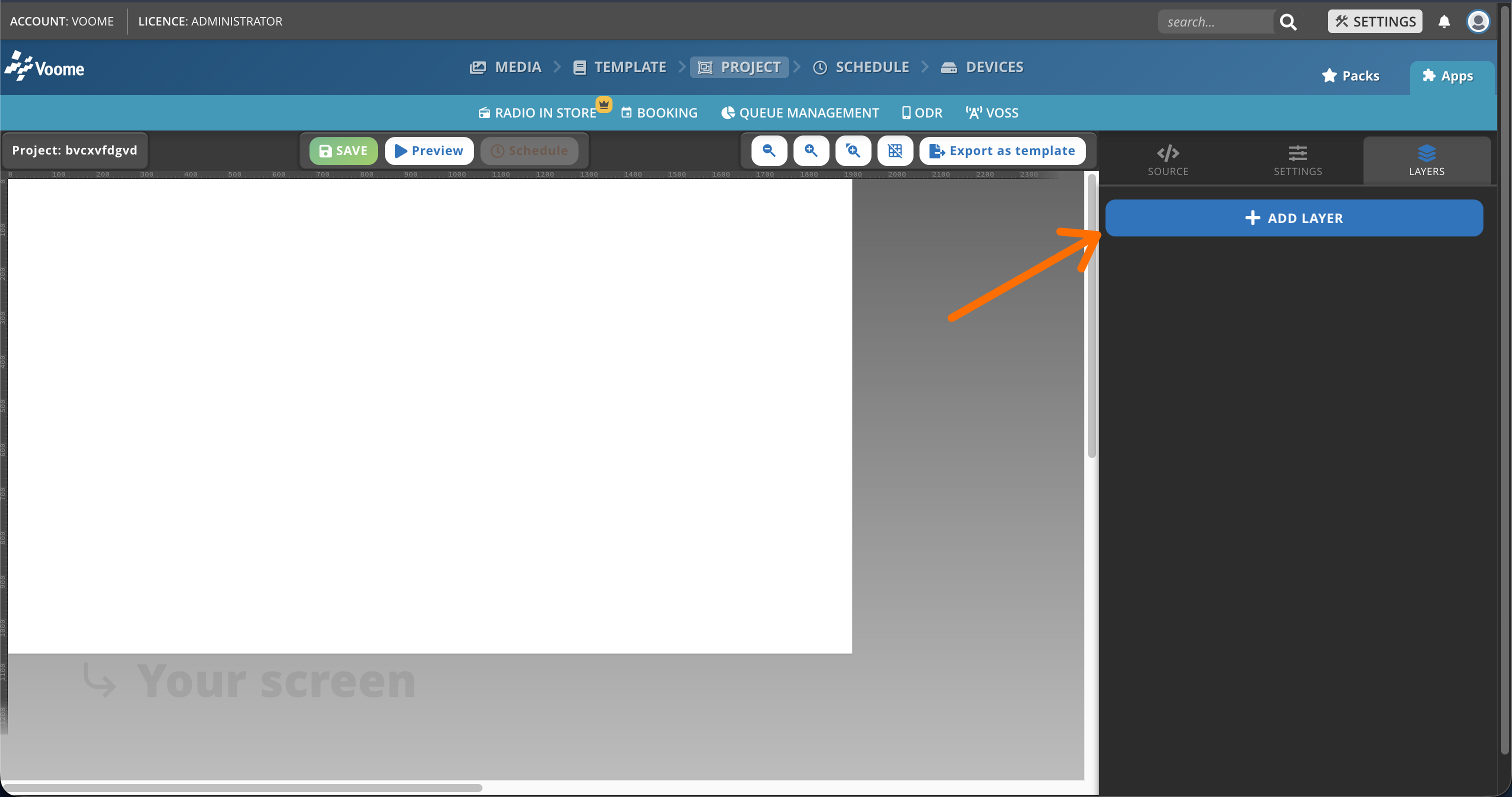
- Create a project (see Projects) to open the Project editor.
- Locate the Layers button in the top-right corner.
- Click + New Layer and pick one of the layers below.
Layer Tabs
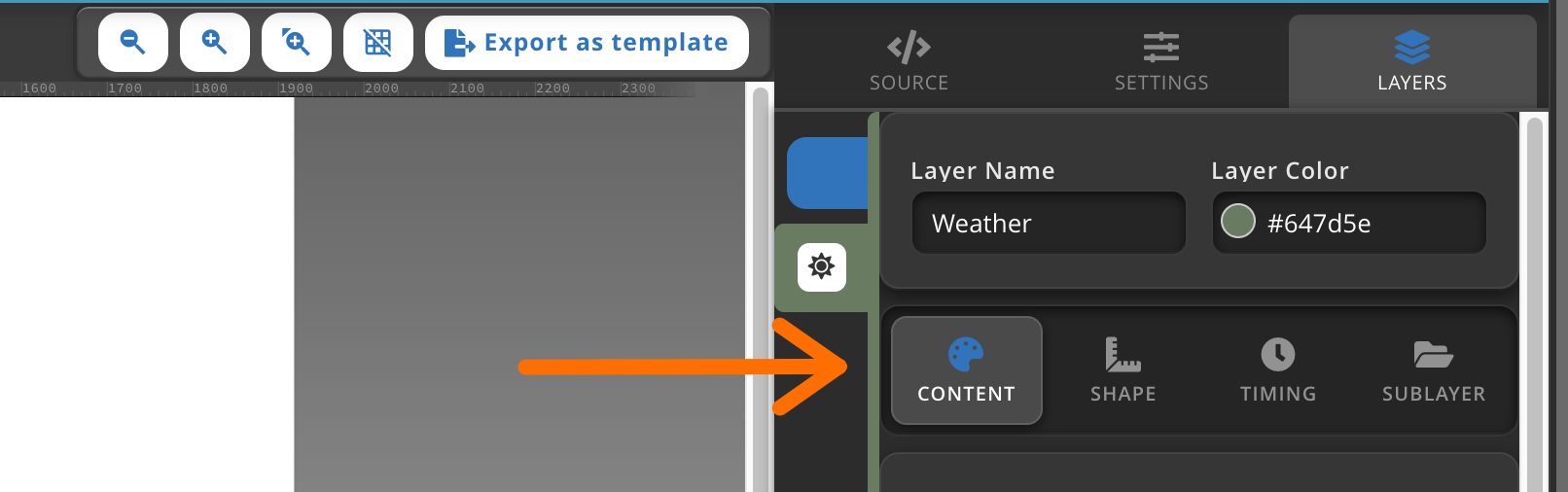
Each layer contains several configuration tabs, each serving a specific purpose:
- Content: defines the main settings of the layer, such as text, fonts, and colors.
- Shape: controls the position and size of the layer within the canvas.
- Timing: manages how the layer enters, stays, and exits the stage.
- Sublayers (when required): some layers can contain other layers. Use this tab to add and configure sublayers as needed.
Online and offline
Each layer page states what it needs from the network, in a box near the top:
- Works offline: everything the layer shows is published to the device together with the project, so it keeps playing with no network connection. A connection is only needed to publish your changes.
- Works offline, refreshes when online: the device keeps a copy of the content, so the layer keeps playing through an outage, but it needs a connection to pick up changes made at the source.
- Works offline, needs the local network: no internet connection is required, but the layer is fed by something else on the same network, such as a phone, a sender, or a local stream.
- Needs a live connection: the layer fetches its content while it plays, so it has nothing to show while the device is offline.
Basics
The essential building blocks for most projects.
- ▶️ Playlist: rotate through a sequence of media items.
- ✏️ Text: display formatted text on screen.
- 🗓️ Date & Time: show the current date and time.
- 🖼️ Image: show a single image.
- 🗞️ Feed Ticker: scroll a feed across the screen.
- 🔷 Shapes: draw colored shapes and backgrounds.
- 🎵 Audio Playlist: play a sequence of audio tracks.
- 🌤️ Weather: current conditions and forecast.
Advanced
Dynamic content and data-driven widgets.
- 🤳🏼 QR Code: display a QR code.
- 🌐 Web Site: embed a web page.
- 📰 News Feed: show headlines from a news feed.
- 📂 External Media: pull media from an external source.
- ⏱️ Count Down/Up: a countdown or count-up timer.
- 📂 Folder Playlist: build an automated playlist from a folder in your media repository.
- 📊 Charts: render your data as charts.
- 📺 Media Channels: broadcast curated media channels.
Applications
Content managed from outside the project structure.
- ✉️ Messages: push text and notices to your screens.
- 🗒️ Agenda: show schedules, events, and meeting-room agendas.
- 🗓️ Booking: show the day's events, meeting-room status, or desk occupancy.
- 🌎 Geo Price: location-aware price lists.
- 📻 Radio-in-Store: in-store audio and ambient sound.
- 🖼️ On demand Slideshow: a user-triggered slideshow (Spinetix only).
- 📲 Real-Time Text Message: show real-time text messages on screen.
- 🎫 Ticketing System: show the desk calls of the Ticketing System on screen.
Integrations
Connect third-party services to your screens.
- 📱 Social Feed: display posts from social media.
- 🎬 Youtube: play YouTube videos.
- 🦆 StreamYard: broadcast a StreamYard stream.
- 🔗 Json API: display data from a JSON API.
Microsoft 365
Display Microsoft Office content directly on screen. Protected files require a Microsoft 365 connection.
- 📊 Power BI: embed Power BI reports and dashboards.
- 📽️ PowerPoint: display a PowerPoint presentation.
- 📄 Word: display a Word document.
- 📊 Excel: display an Excel spreadsheet.
- 📕 PDF: display a PDF document.
- 📁 SharePoint: show content from SharePoint.
Google Workspace
Display content straight from your Google Drive.
- 🟡 Google Slides: show a Google Slides presentation.
- 🔵 Google Docs: show a Google Docs file.
- 🟢 Google Sheets: show a Google Sheets file.
- 📕 PDF: show a PDF document from Google Drive.
Developers
- 📡 Streaming: show a live video stream (Spinetix only).