🪟 How to Video Wall
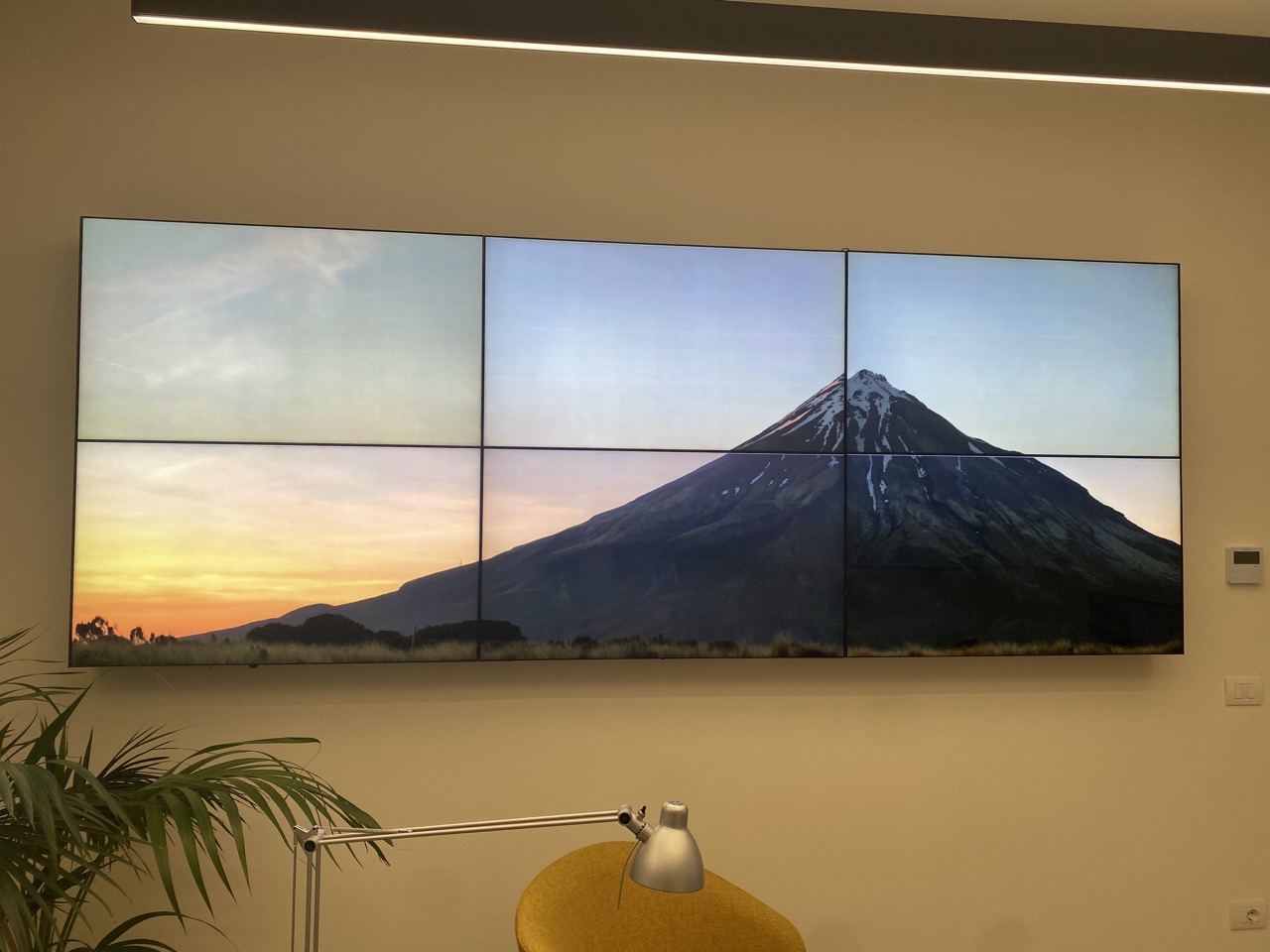
A video wall is a set of screens mounted next to each other and driven as one large canvas, so a single piece of content can span all of them.
One thing decides how you configure it: the total resolution of the wall. Add up the pixels of all the screens, then compare that number with what one media player can output. That comparison tells you whether the wall runs on one player, or on several players playing in sync.
1️⃣ Single project video wall
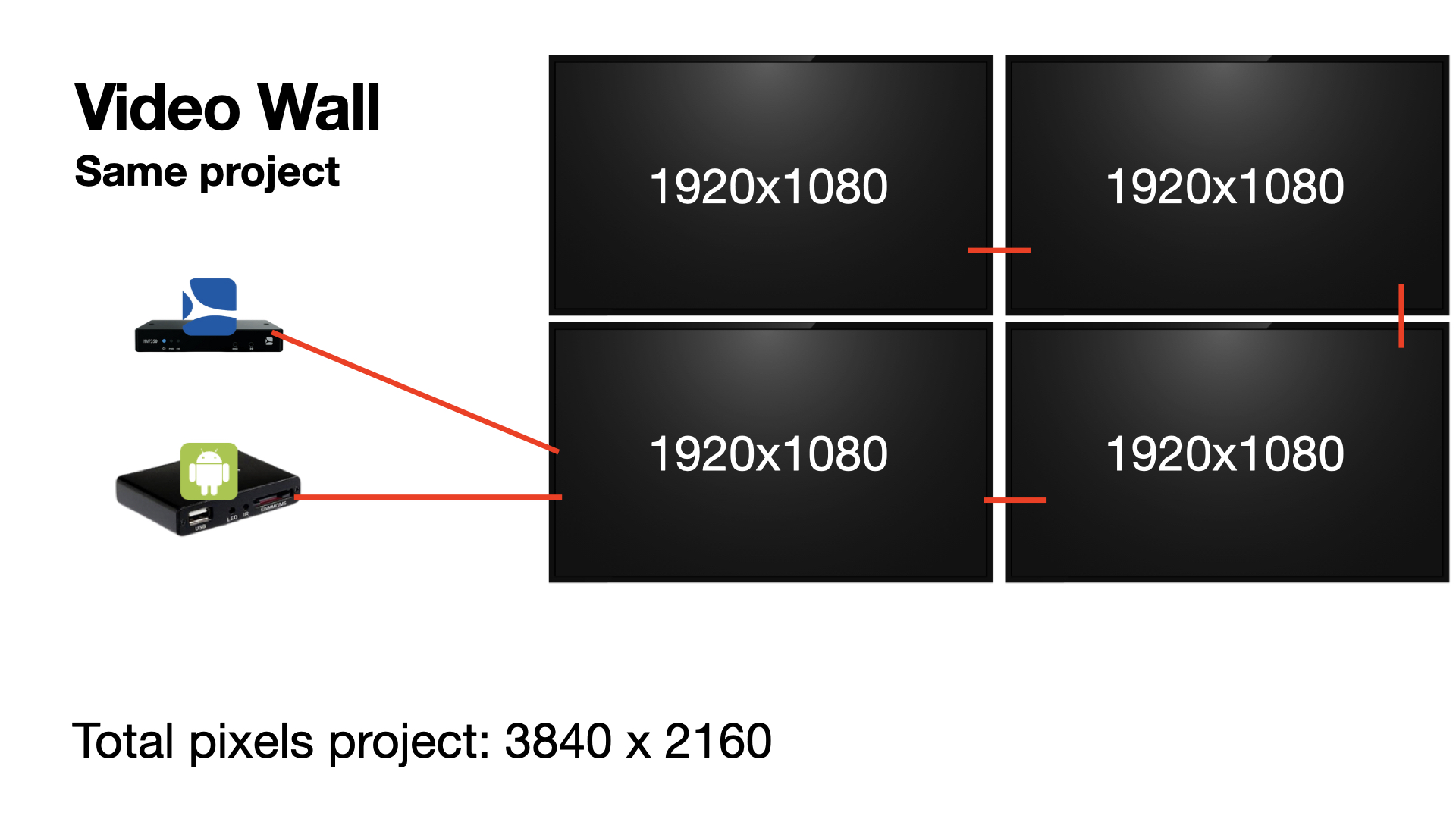
If the total resolution of the wall fits within what one media player can output, a single player drives every screen and the whole wall is one project. Each screen shows its own portion of that project.
A media player is generally capable of a 4K output, that is 3840 x 2160 pixels. A 2 x 2 wall of Full HD screens (1920 x 1080 each) adds up to exactly 3840 x 2160, so one player is enough.
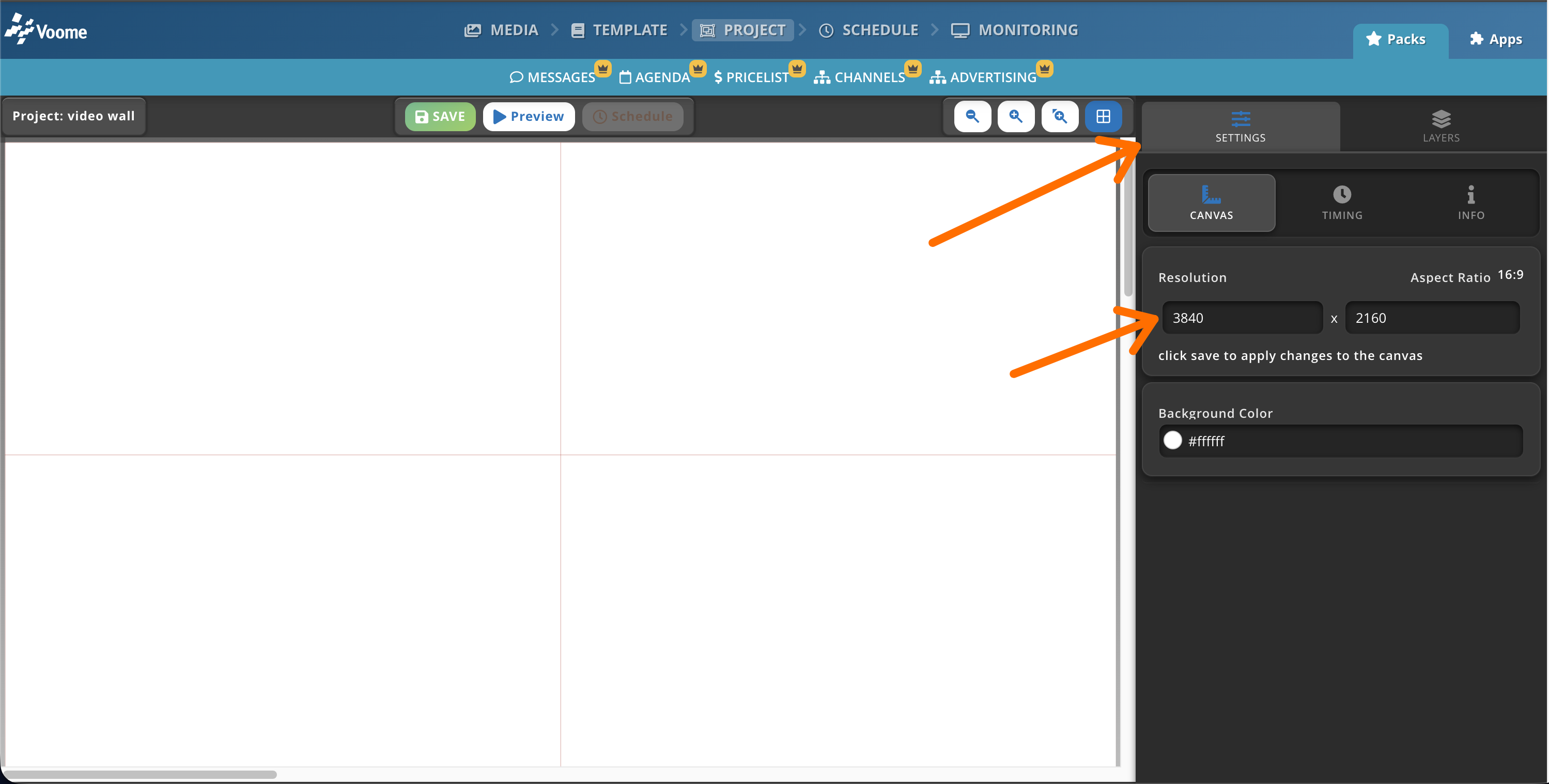
To build it in Voome CMS:
- Create a project.
- Open
SETTINGS>CANVASand set Resolution to the total resolution of the wall, for example 3840 x 2160. Click SAVE to apply it to the canvas. - Add your layers as you would in any other project.
- Schedule the project on the zone that contains the 4K device, then publish it.
✅ Done. Each screen shows its own portion of the project.
2️⃣ Multiple project video wall
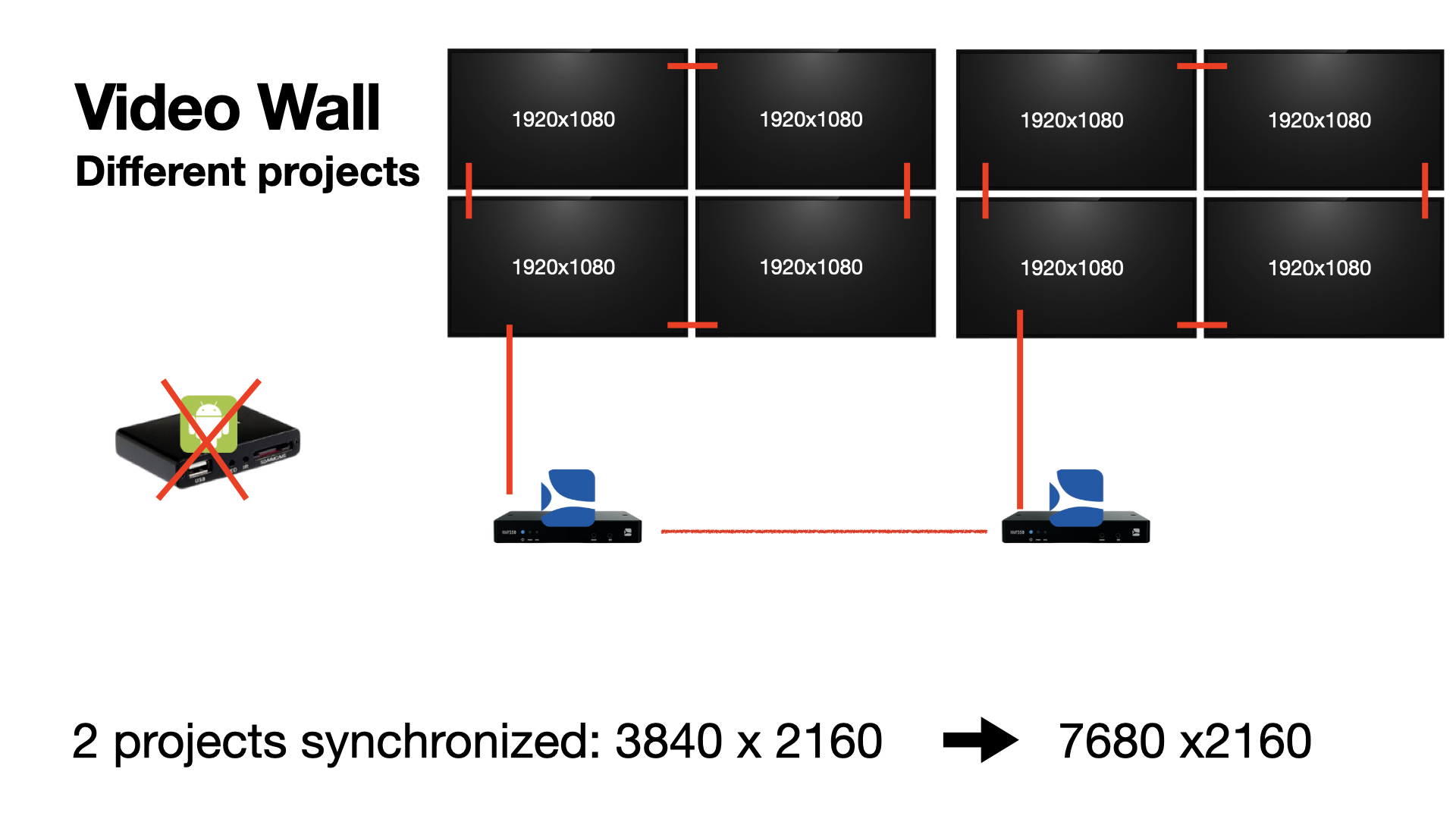
If the wall is larger than what one player can output, which in practice means anything above 4K, you need several players running in sync. Each player drives its own portion of the wall, and each portion is a separate project.
For this we currently recommend SpinetiX players. Once they sit on the same LAN, they communicate to align their internal clocks, so each one plays its own project in step with the others and the wall behaves as a single surface. Other device families, including Android players, cannot synchronise this way.
In the example below, one player covers 3840 x 2160 on the left and a second one covers 3840 x 2160 on the right, for a wall of 7680 x 2160. How many players you need depends on their maximum output: with players limited to Full HD (1920 x 1080), that same 7680 x 2160 wall would take 8 of them.
SpinetiX players only stay in step if the projects they play run on the same clock. Schedule every project of the wall with the same start time and the same duration.
For example, if project 1 on zone 1 starts tomorrow at 00:00 and lasts 10 minutes, then project 2 on zone 2 has to start tomorrow at 00:00 and last 10 minutes too.
🎨 Different content on each screen
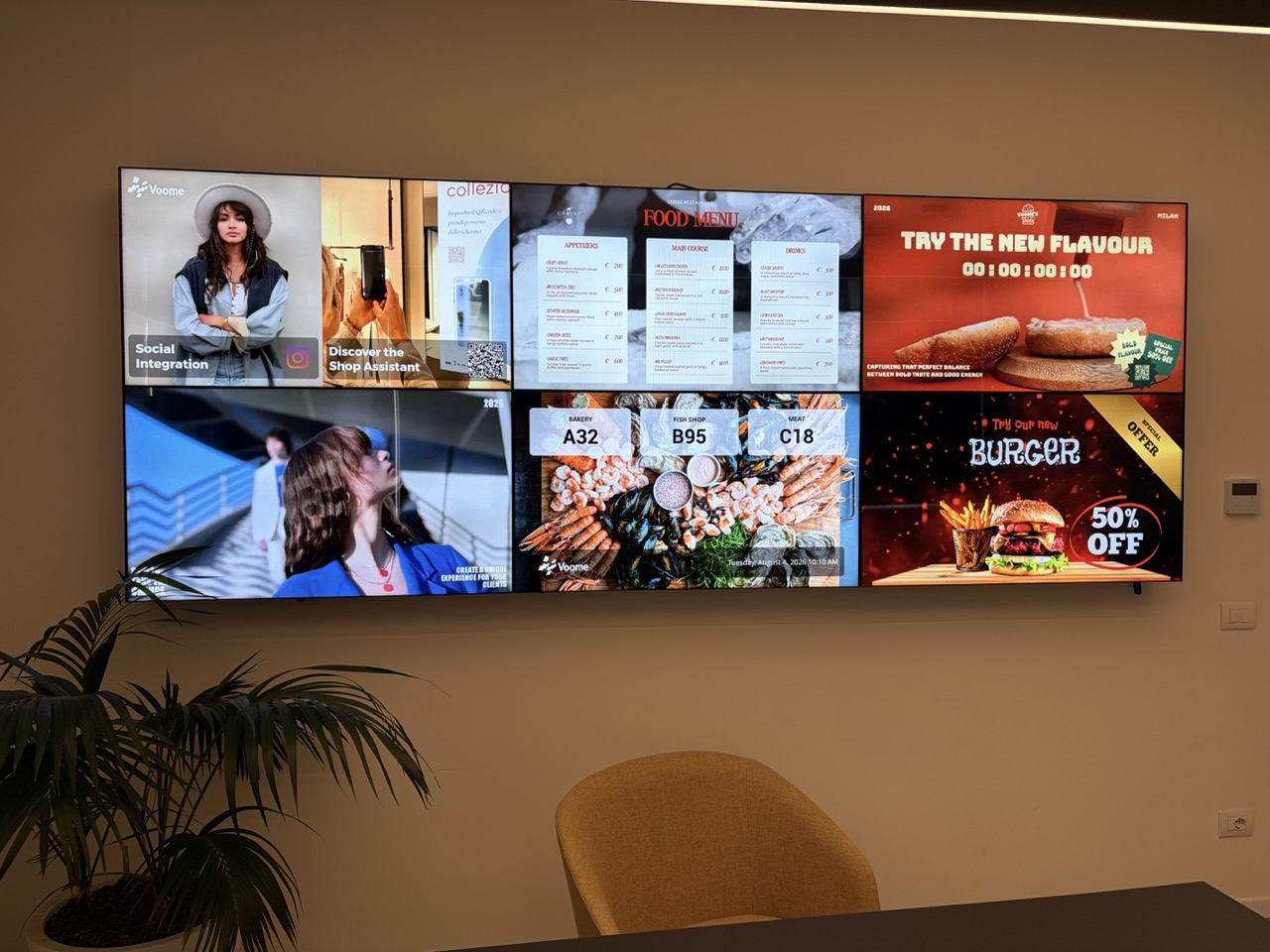
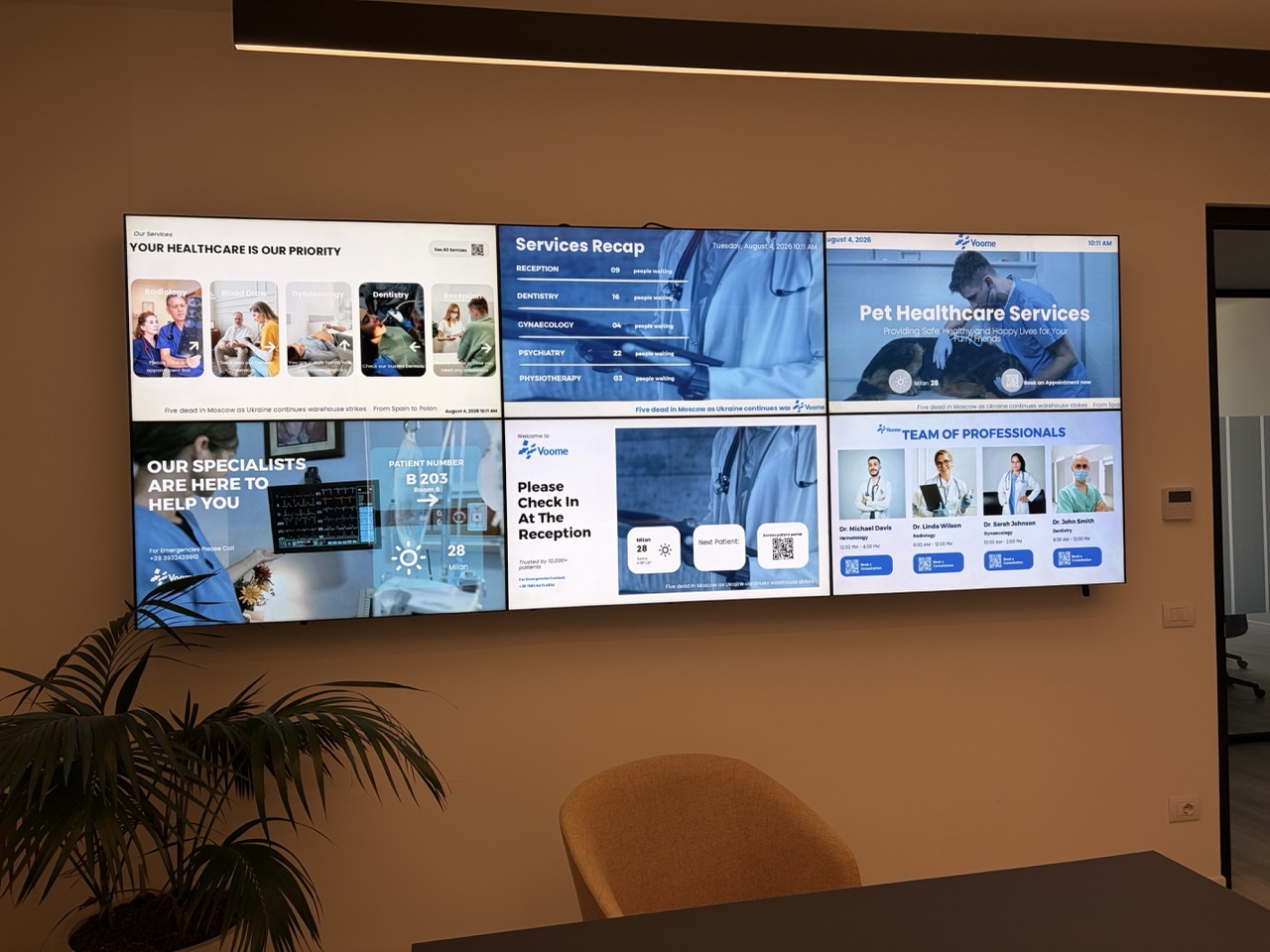
Spreading one image or video across the whole wall is only one of the options. The canvas can also be divided so that every screen carries its own content, for example a promotion on one screen, a menu on the next, and queue numbers on a third. The hardware setup is the same as above: what changes is how you arrange the layers on the canvas.
You can also alternate between the two over time. A schedule rotates the projects assigned to a zone, so the wall can play a video across the full width, then a project with separate content on each screen, then the full-width video again, and keep looping.
🗺️ Place the devices in your network
Whichever setup you use, every device of the wall has to be placed in your network. See Network Manager for zones and the Device position setting.
🤝 Planning something bigger?
No two video walls are alike: screen count, total resolution, and player choice all shape the final result. Our team designs these setups every day, and we would love to plan yours with you.
- New to Voome? Book a demo and we will size your wall together.
- Already a Voome client? Open a ticket from the Support section and our specialists will take it from there.