Media
Everything you display starts as media: the images and videos stored in your library. Build this up first so your content is ready to drop into a project.
Upload your media
- Open the Media section from the main menu.
- Click Upload and select images or videos from your computer, or drag them in.
- Wait for processing to finish. Large videos may take longer. See Encoding to learn more about transcoding media.
- Organize your files into folders so they are easy to find later.
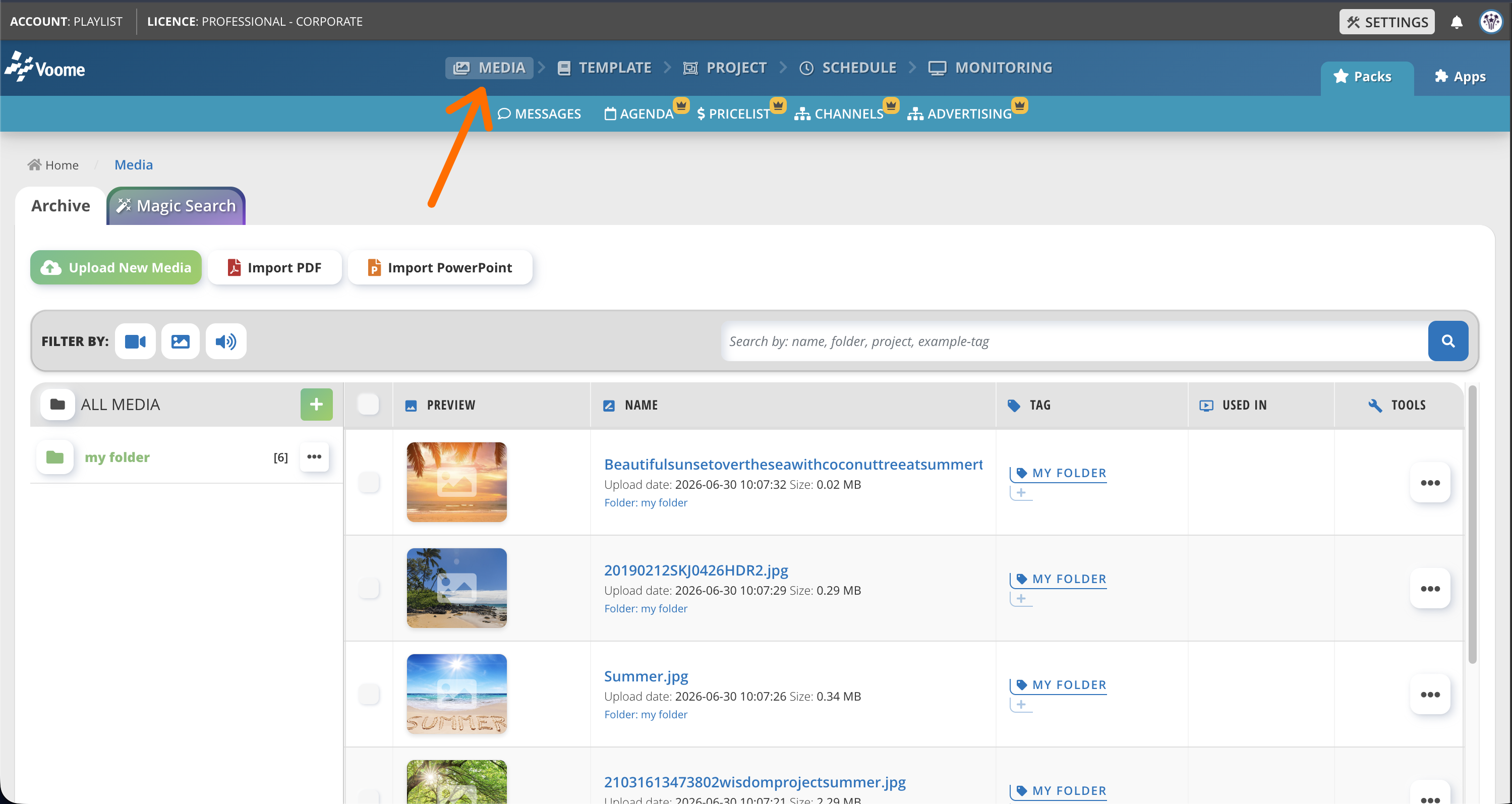 The Media library, your central store of images and videos.
Organize with folders
Folders keep your library tidy and make files easy to find later. Create or select a folder on the left, then click Upload New Media to add files directly into that folder.
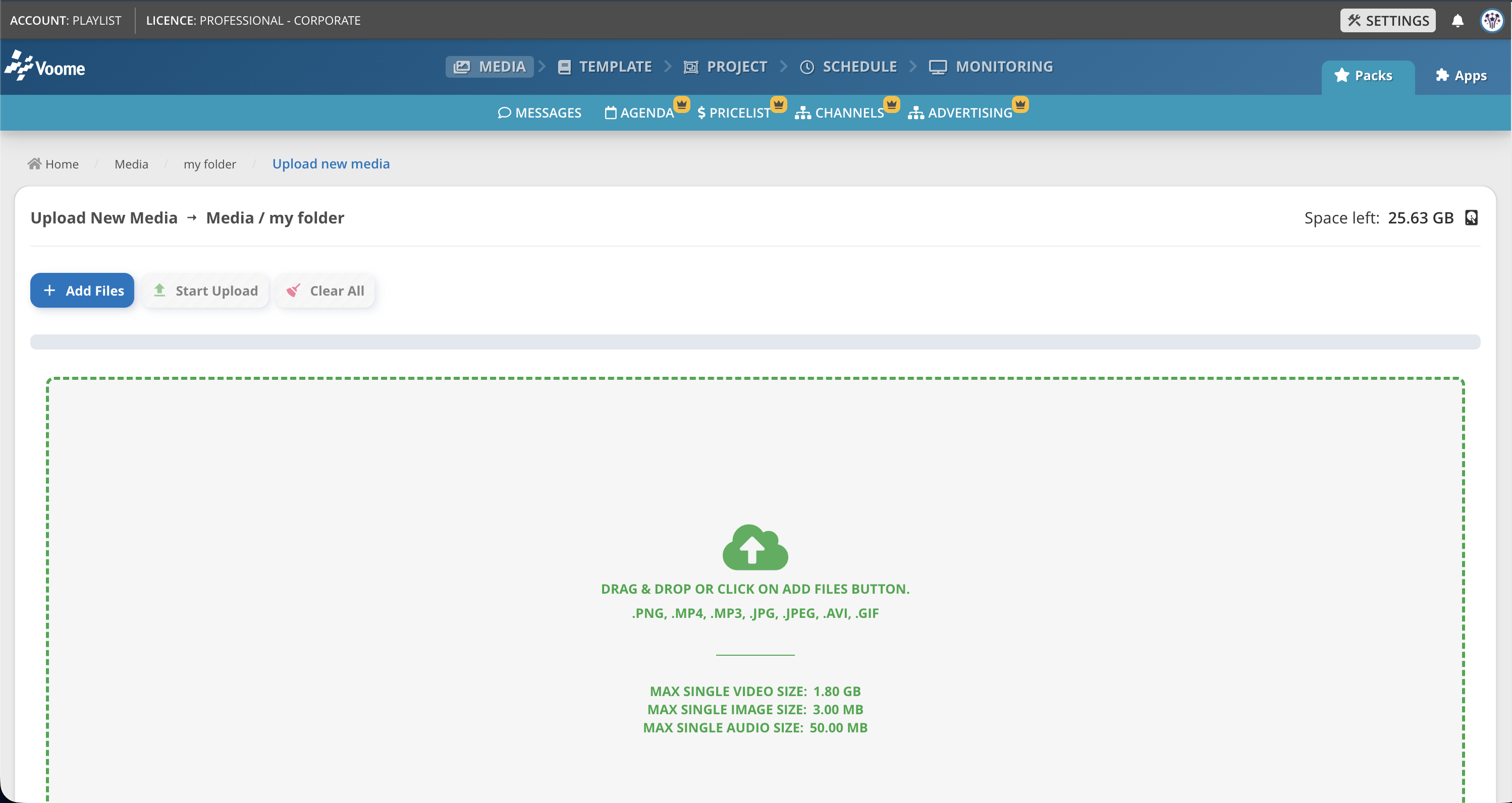
The maximum size for a single video, image, or audio file depends on your account type. If you need larger limits, contact support to extend or adjust them.
How uploaded files are processed
Drag your files in or click to add them. Each file is processed based on the monitors and players available in your account, and an automatic check confirms it is compatible with that hardware.
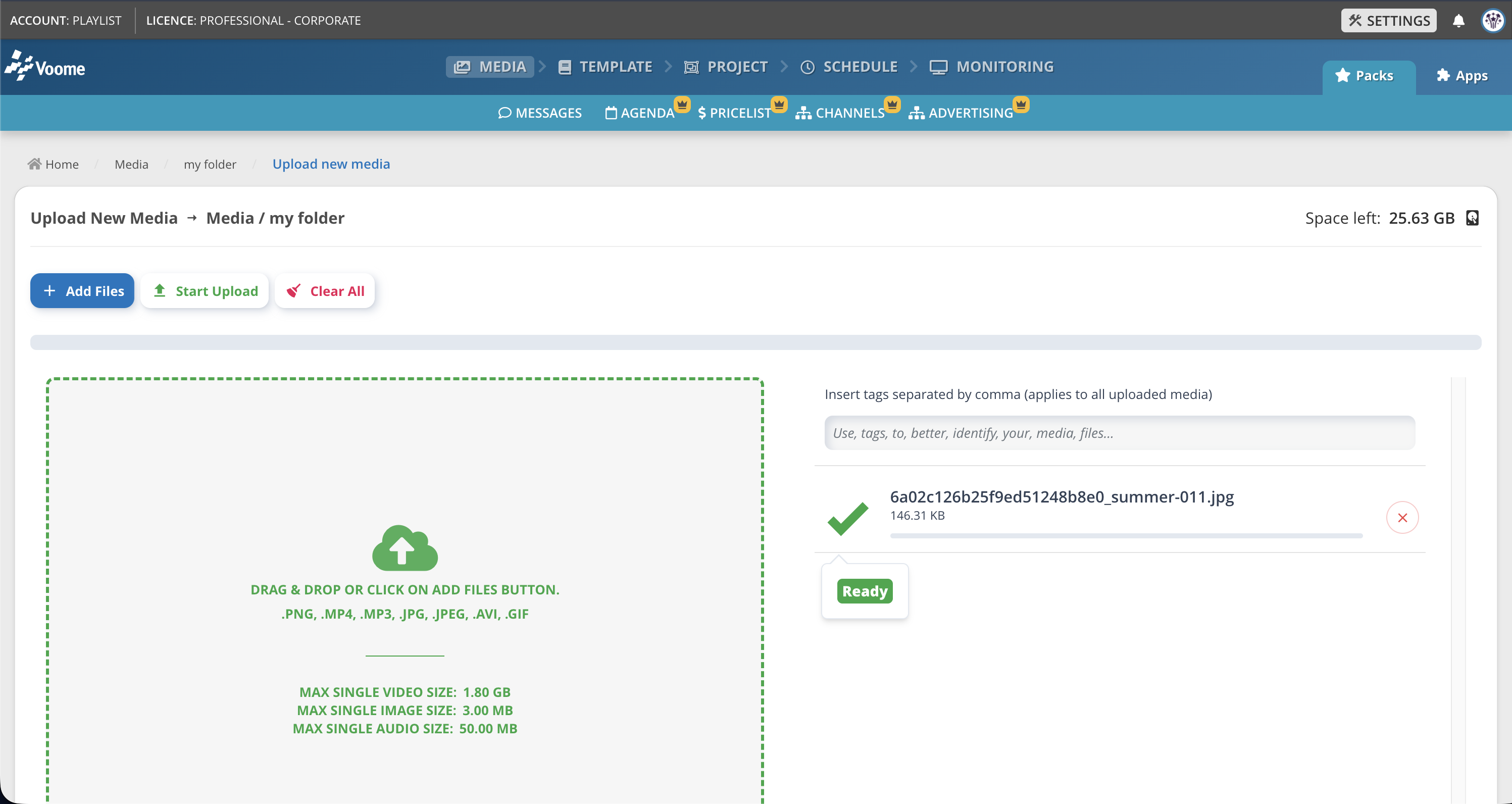
Use standard web-friendly formats (e.g. JPG/PNG for images, MP4/H.264 for video). Very large files take longer to process.
Depending on the player your content runs on, you may need to transcode your images and videos first. See Encoding for details.
Exporting and transcoding media
Follow these rules of thumb when exporting your media. They keep your files hardware-agnostic and help you avoid playback issues across different players. If you are not sure how to encode a file, see Encoding for details.
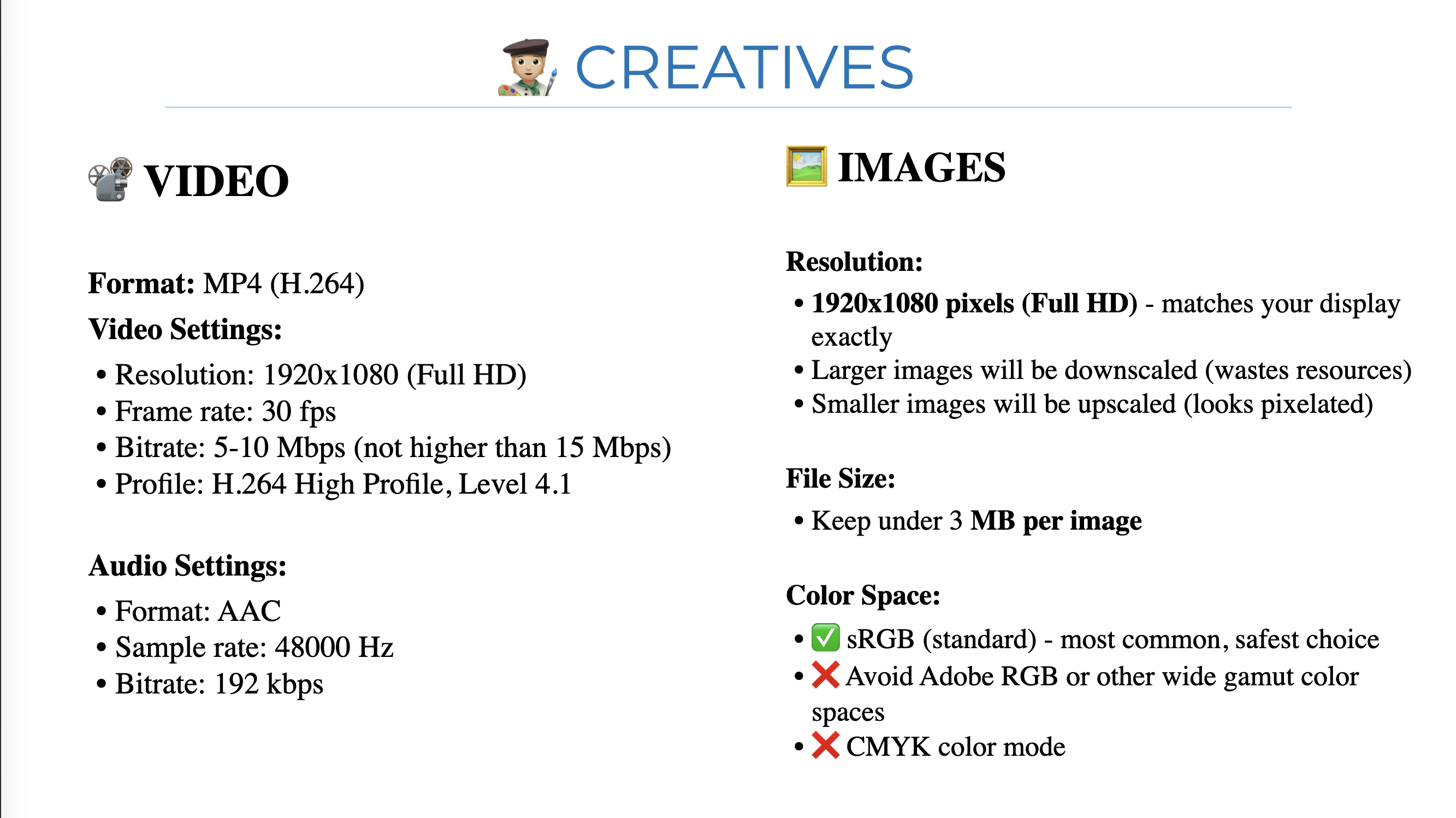
View media details
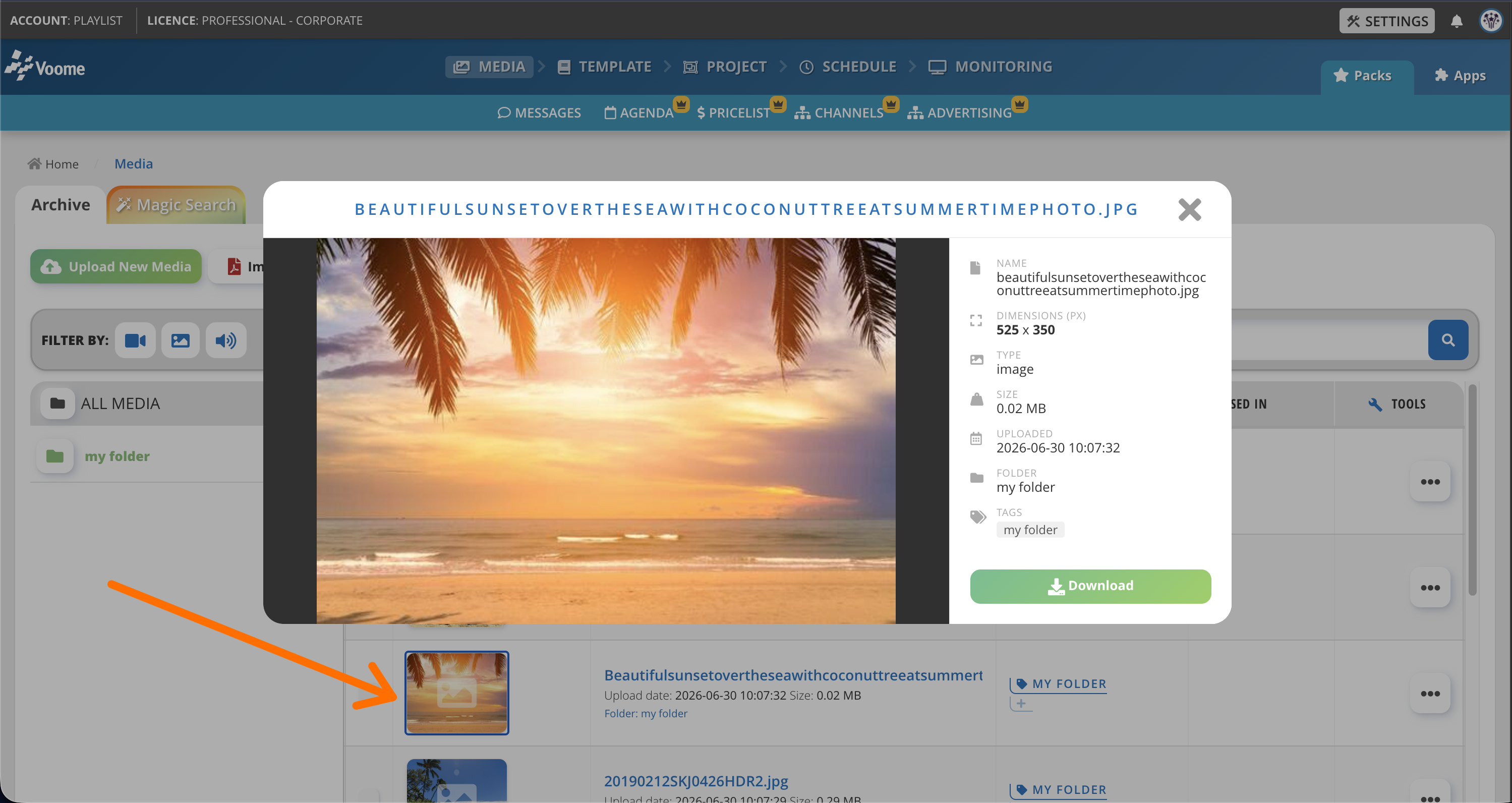
Click an image or video thumbnail to open its details. The preview panel shows the file's name, dimensions, type, size, upload date, folder, and tags, and lets you Download the original file.
Good to know
- Add tags to a media file to make it easier to search and group.
- Check the remaining storage for your account in the top-right corner. Contact support if you need to extend it.
🙋🏼 Common Issues
❓ Why can't I remove a media file?
A media file that is used in a project cannot be deleted. The player expects the file to be there, so this is a safety measure to avoid breaking content that is live on screen.
To delete a file, first unhook it from wherever it is used. The Used in column shows where each file appears, whether that is a project, a message, or any other place.