Monitoring
The Monitoring view is where you check that your screens are actually showing what you scheduled. Every device appears as a card with its current status, the latest snapshot of what is on screen, key timestamps, and any warnings it is raising, so you can scan a whole network without opening a single device.
Monitoring is step 5 of the workflow. Depending on your account setup, that step opens either this view or the Devices view. Monitoring is the simpler of the two and is built for checking state at a glance, while the Devices view is the full control surface, with search, filters, and per-device actions for advanced and IT users.
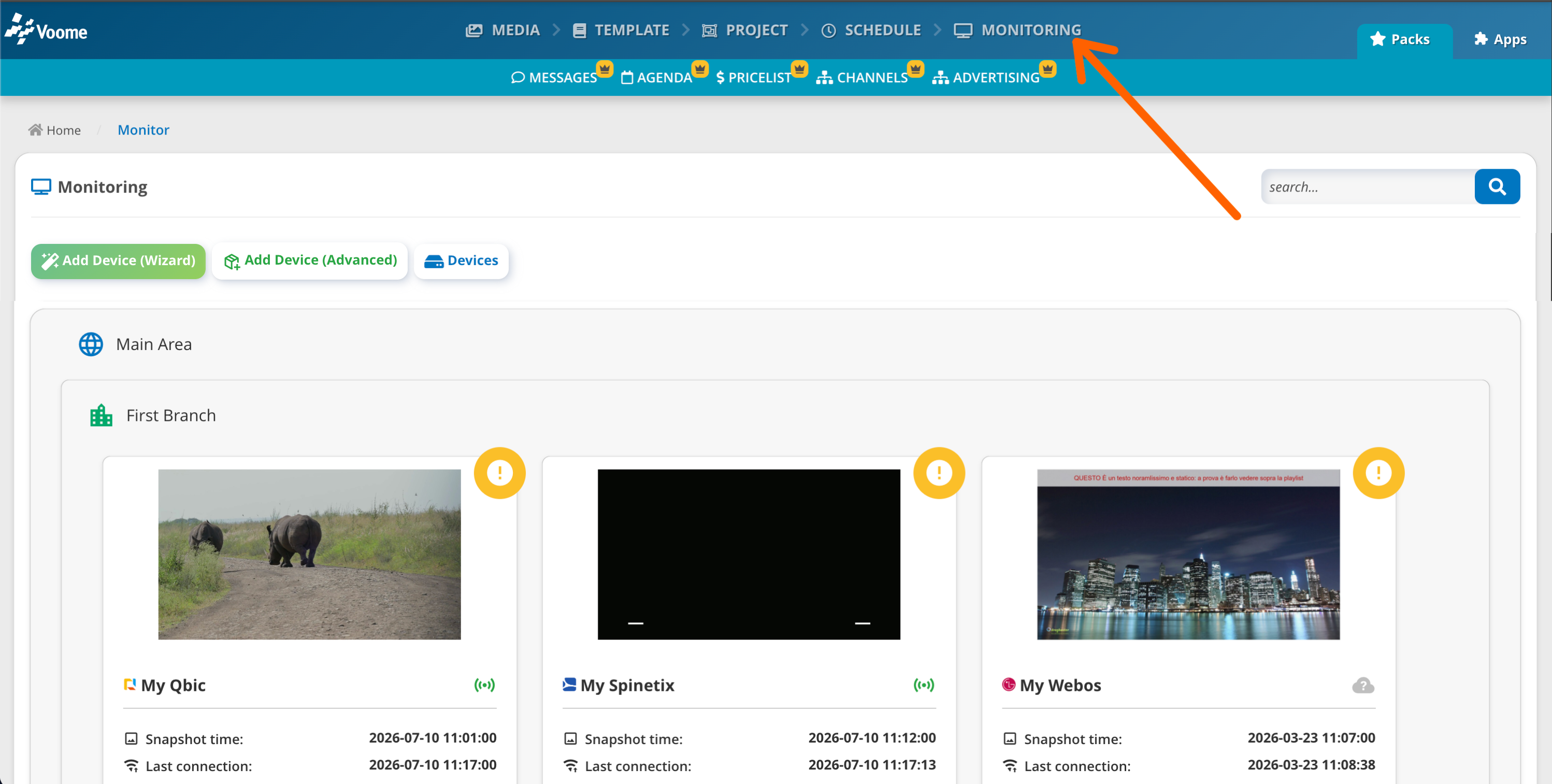
📍 Card Fields
-
📸
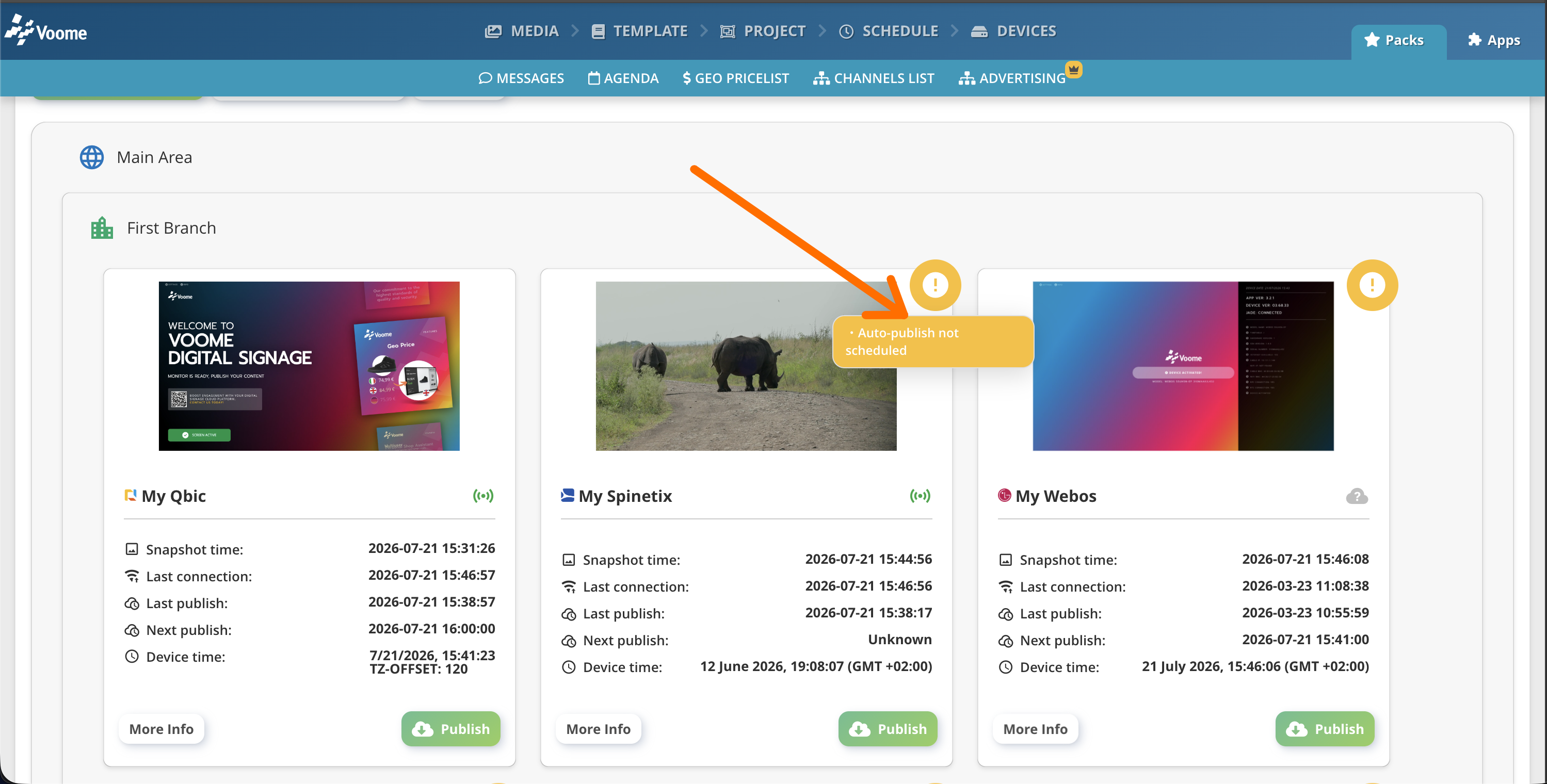
Snapshot time: when the screenshot currently on the card was taken. Players send a new one about every 5 minutes, so refresh the page to fetch the latest. -
Last Connection: the last time the device communicated via RPC. -
Last Publish: the last time content was published to the device (☁️ green cloud). -
Next Publish: when the next automatic publish is due. It showsUnknownwhen no recurring auto-publish is set on the device, which is the same condition that raises theAuto-publish not scheduledwarning. -
Device Time: the clock as the player itself reports it, read from the device each time the view loads. Use it to spot a timezone mismatch, which matters because scheduling follows the device's own clock: if the timezone is wrong, content plays offset from what you scheduled.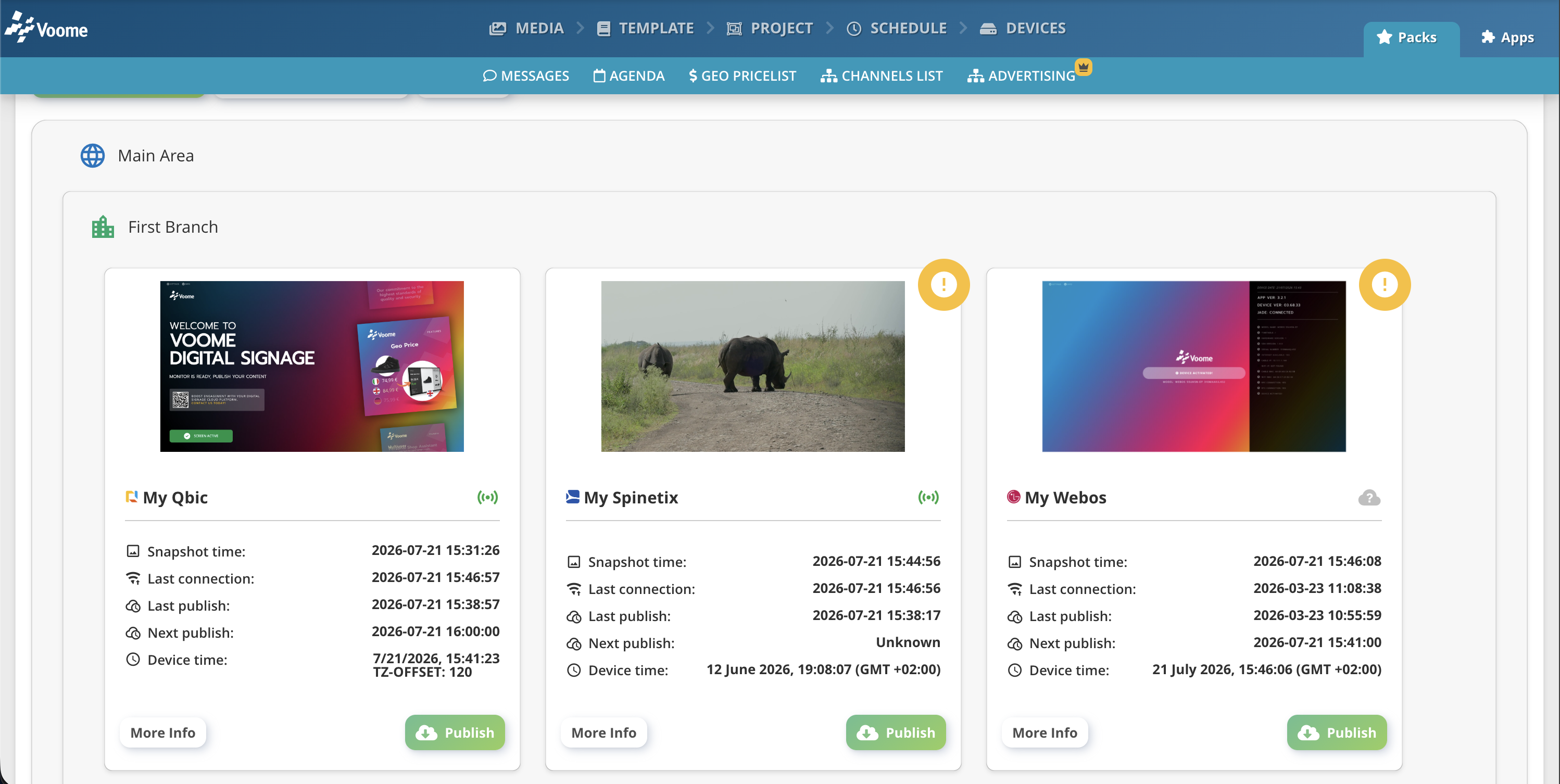
📶 Device Status
Status is determined by the device's last heartbeat, the moment it last reached our servers. Players send one about every minute over RPC.
-
✅
Online/Running: the last heartbeat arrived less than 15 minutes ago, so the device is currently reaching our servers.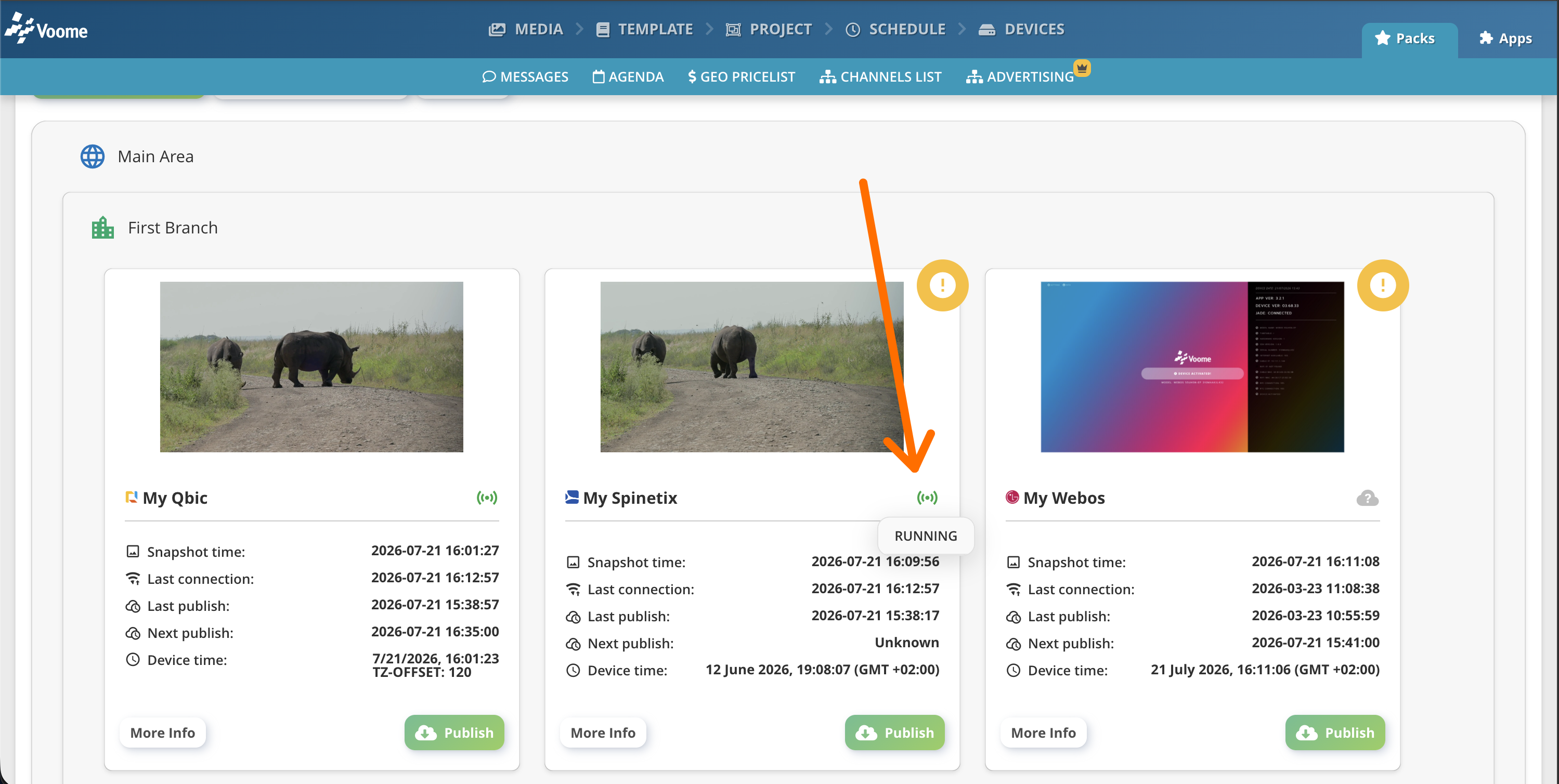
-
ℹ️
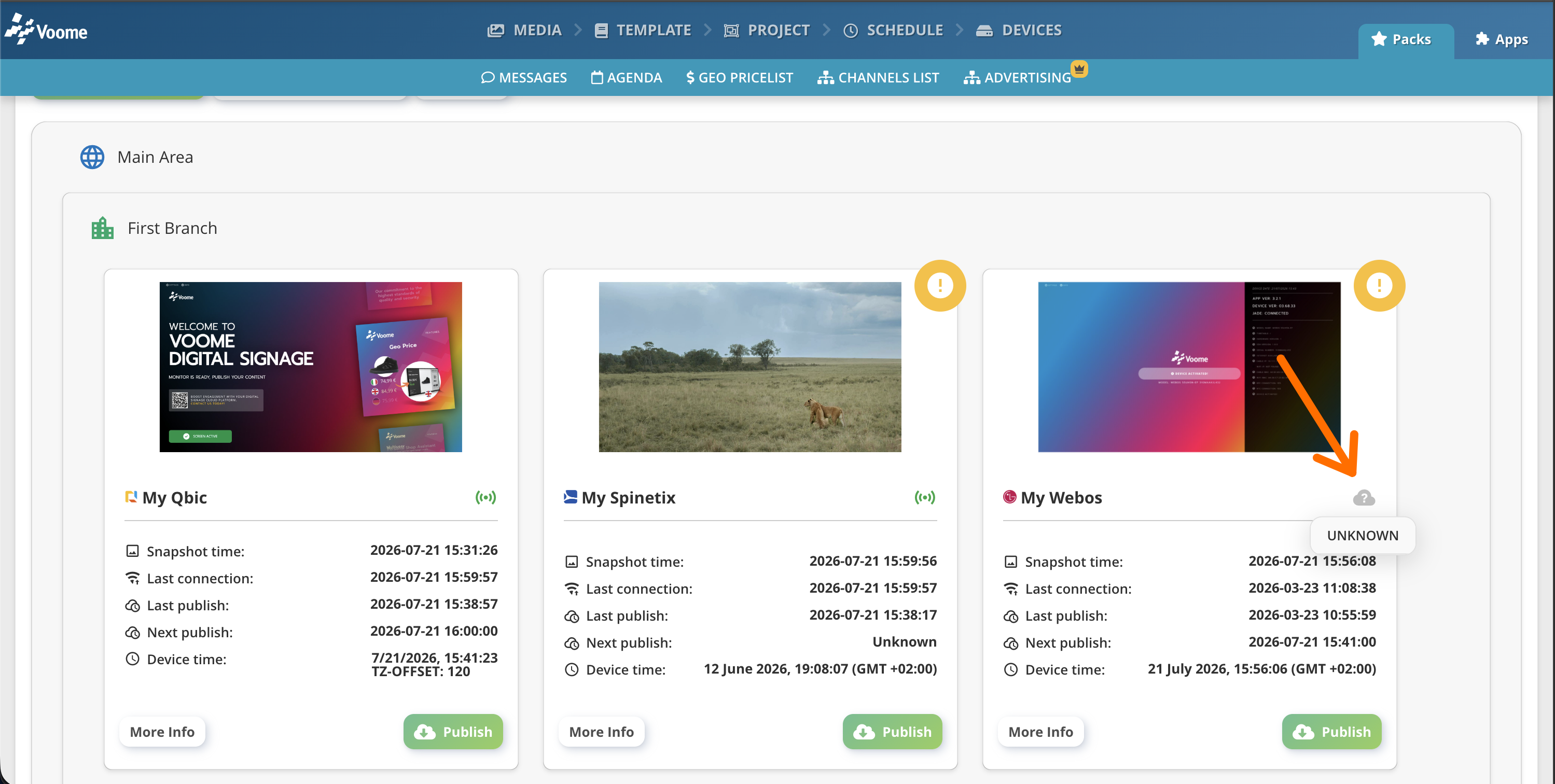
Unknown/Offline: the device is not reachable. Two different situations produce this, and the difference tells you where to look:- Offline: heartbeats exist, but the most recent one is more than 15 minutes old. The device was working and has stopped reporting. It has lost its internet connection, is not powered on, or something is blocking it from reaching Voome cloud services.
- Unknown: no heartbeat has ever been recorded for this device. It has not completed a connection since it was registered, so check activation and network access before troubleshooting the screen itself. See Domains and Ports for what a player needs to reach.
If either state persists, contact your IT service to investigate.
 Status is measured against your computer's clock
Like the snapshot check, the age of the last heartbeat is compared to the clock of the machine you are browsing from. A badly set local clock can push healthy devices into
Offline.
⚠️ Device Warnings
Possible warnings and their meanings:
-
🖼️ ❌
No content scheduled: the platform has no content scheduled for this device, so there is nothing for the player to show. It usually means that the zone the device belongs to has no project scheduled, or that its schedule has been emptied. To clear the warning, assign a project to the zone and publish it, following the Schedule guide.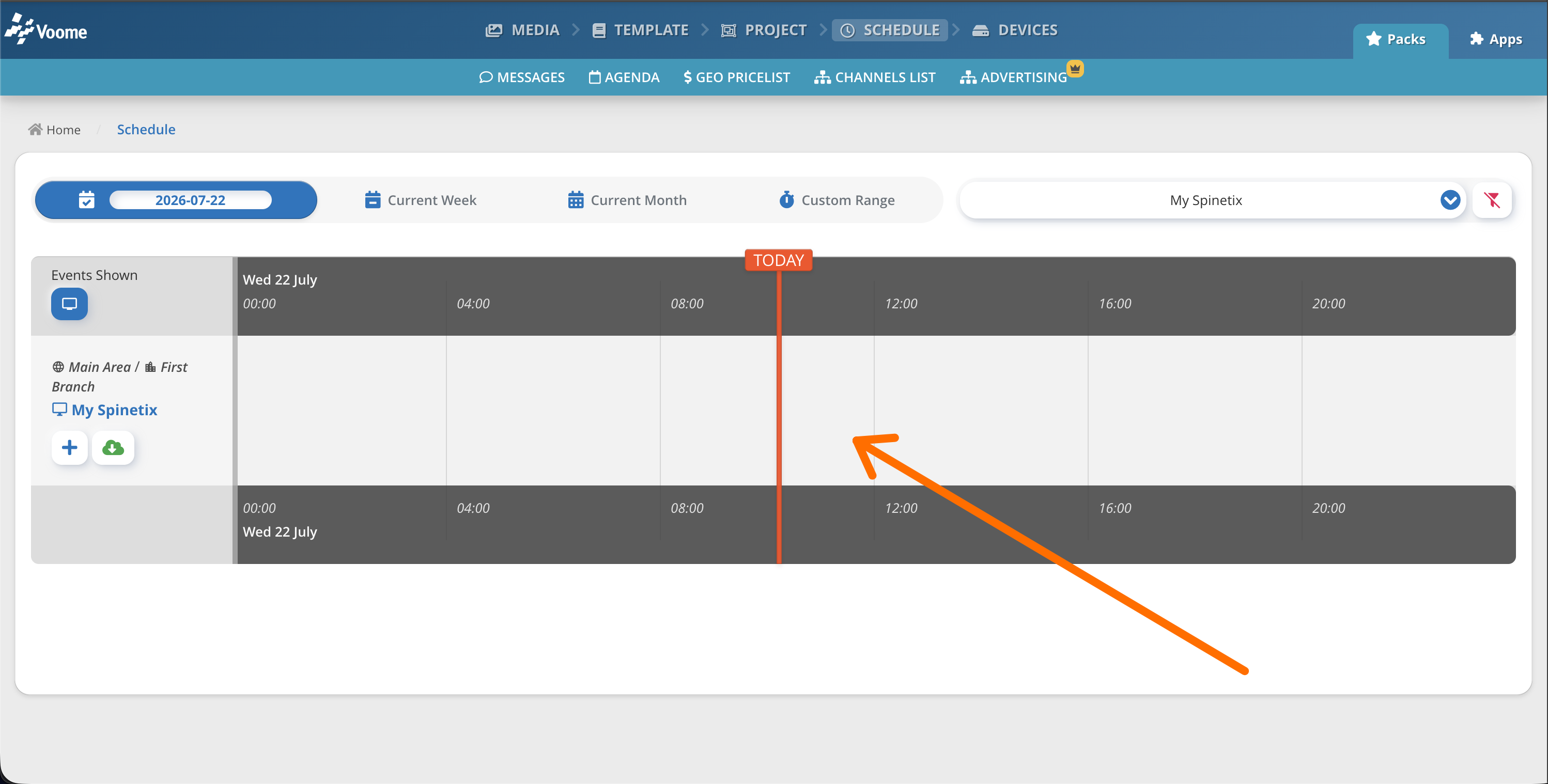
- 💳 ❌
Licence is expired: the device's licence expiry date has passed. Open a ticket from the Support page or contact your reseller to renew any expired licence.
-
📸 ⏳
Snapshot is not up-to-date: the age of the latest screenshot is checked every time the Monitoring view loads, and the warning appears when that screenshot is more than 30 minutes old. Players send a new snapshot about every 5 minutes, so this means roughly six updates in a row were missed. The same warning is shown when no screenshot can be retrieved at all, for example when the device has never sent one.A device can be
Onlineand still raise this warning: the player is reaching our servers, but it is not delivering fresh screenshots. That usually points to the player application being stuck or to the screen output having stopped, so it is worth a closer look even when the status looks healthy.The 30 minute countdown uses your computer's clockThe snapshot age is measured against the clock of the machine you are browsing from, not the player's. If your own clock is wrong, devices can appear to have stale snapshots when they do not.
-
🗓️ ❓
Calendar default activated/Has never been published on the device: the device is not receiving fresh content (both come from the same check on the last publish value):-
Calendar default activated: content has been published to the device at least once, but the most recent publish is more than 15 days old. After that long without one, the player has almost certainly fallen back to its Calendar Default state, so it is showing either the media set to loop when a screen stops receiving fresh content, a black screen, or the last part of the schedule it received. ☁️ Publishing again clears the warning. -
Has never been published on the device: the platform has no record of any publish at all. The screen has never received scheduled content, so it is showing its Calendar Default or nothing. This is expected on a device that was only just activated. If it is not new, check that at least one project is scheduled on the device's zone, then ☁️ publish to it.
-
-
🔁 ❌
Auto-publish not scheduled: no recurring auto-publish action is set on this device. Your installer or admin should schedule a daily ☁️ auto-publication.A daily publish refreshes the content on the screen, clears the cache, and recovers the player from any faulty state it may have got into. If it has not been set up, contact your IT service or your reseller, or open a ticket from the Support page.
- 📶 ❌
Device offline/Unknown status: the device is not reaching our servers.Device offlinemeans its last heartbeat is more than 15 minutes old, whileUnknown statusmeans no heartbeat has ever been recorded for it. See Device Status above for what each one points to.