🛠️ Admin Guide
The Totem tab is where a manager sets up the Ticketing System: one totem server for each location, the services customers can choose, and the desks that call them. Everything the report later shows comes from what is configured here.
The tab is visible only to users with the Ticketing System manager permission. Each totem server is a dedicated Voome device, so the device must already be registered in your account before you can configure it as a totem.
Usually, the Totem Configuration is in charge of the Voome Support Team.
The totem list
The tab opens on the list of your totems, one row per configured totem.
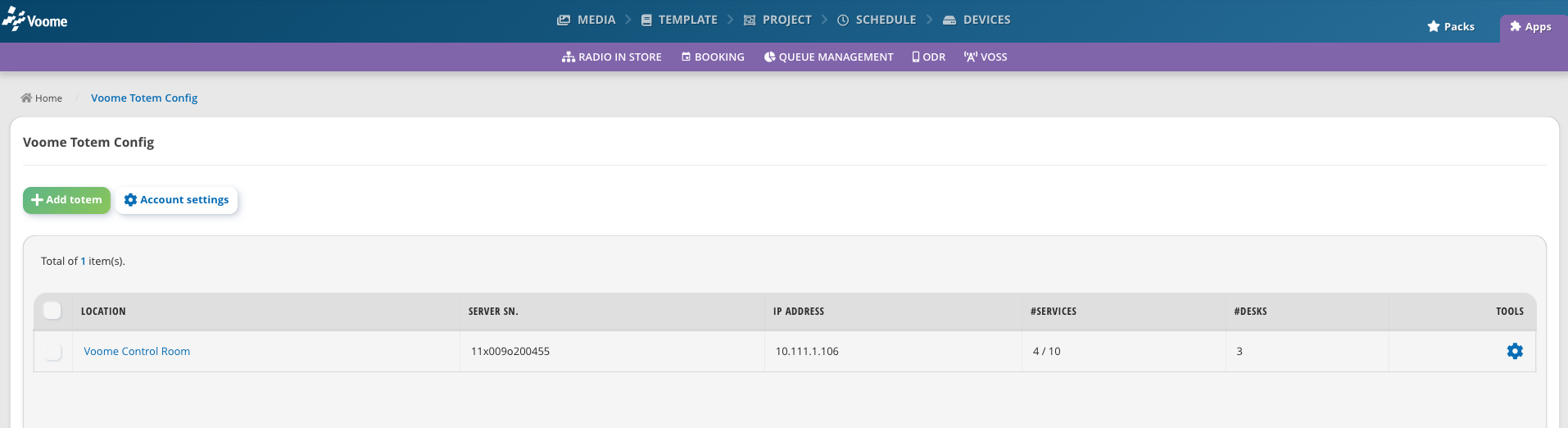
| Column | What it shows |
|---|---|
| Location | The name of the location; click it to manage the totem |
| Server SN. | The serial number of the device acting as totem server |
| IP Address | The local IP address of that device |
| #Services | The services configured on the totem, out of the maximum allowed for the account |
| #Desks | The number of desks at the location |
| Tools | The ⚙️ icon opens the totem settings |
A totem appears in the list only while its device is active in your account.
How to: Set up account settings
Account settings, above the list, holds the options shared by every totem in the account.
- Click Account settings.
- Fill in the fields:
- Operator Page Logo: the address (URL) of the logo shown on the operator page, 350×120 px, PNG or JPG.
- Printer Logo: the address of the logo printed on the tickets, same size and formats. It is required, and it applies to every totem in the account.
- Max Number Of Available Service: how many services each totem can offer, from 1 to 20 (4 by default). Only users with full manager rights see this field.
- Click Confirm.
A preview of each logo appears under its field as soon as you leave it, so you can check the address is right before saving.
How to: Create a new totem
Each totem can serve different services, so you can install multiple servers in the same location, e.g. a server on the ground floor and a server on the first floor.
- Click Add totem.
- Fill in the form Setup a new totem server:
- Device S.N.: the serial number of the device that will act as totem server.
- Device IP: its IP address on the local network.
- Location: the name shown in the list and in the reports.
- #Desk: how many desks serve customers at this location (2 by default).
- Click Confirm.
The totem settings open straight away, so you can add its services. Every setting on that page is explained in Totem Configuration.
Where to go next
- 🖨️ Totem Configuration: general settings, operator page addresses, connected devices, and services of a single totem server.
- 📊 Report: live queues by location, statistics by service and by operator, waiting times.
- 📥 Export Data: the monthly reports of each totem server, one year at a time.