👤 Operator
The operator page is where a desk operator calls and serves customers: you click NEXT, and the next ticket is called to your desk and shown on the screens in the waiting area.
Each desk has its own operator page address, which your administrator gives you. The page runs on the totem server of your location, so you open it from a computer on the same local network.
Log in
- Open the operator page address of your desk in the browser.
- Log in with your Voome account, the same username and password registered in the Voome platform.
The page opens in the language of your browser. To change it, click the flag in the top bar and pick another language: the page remembers your choice in that browser.
The operator page
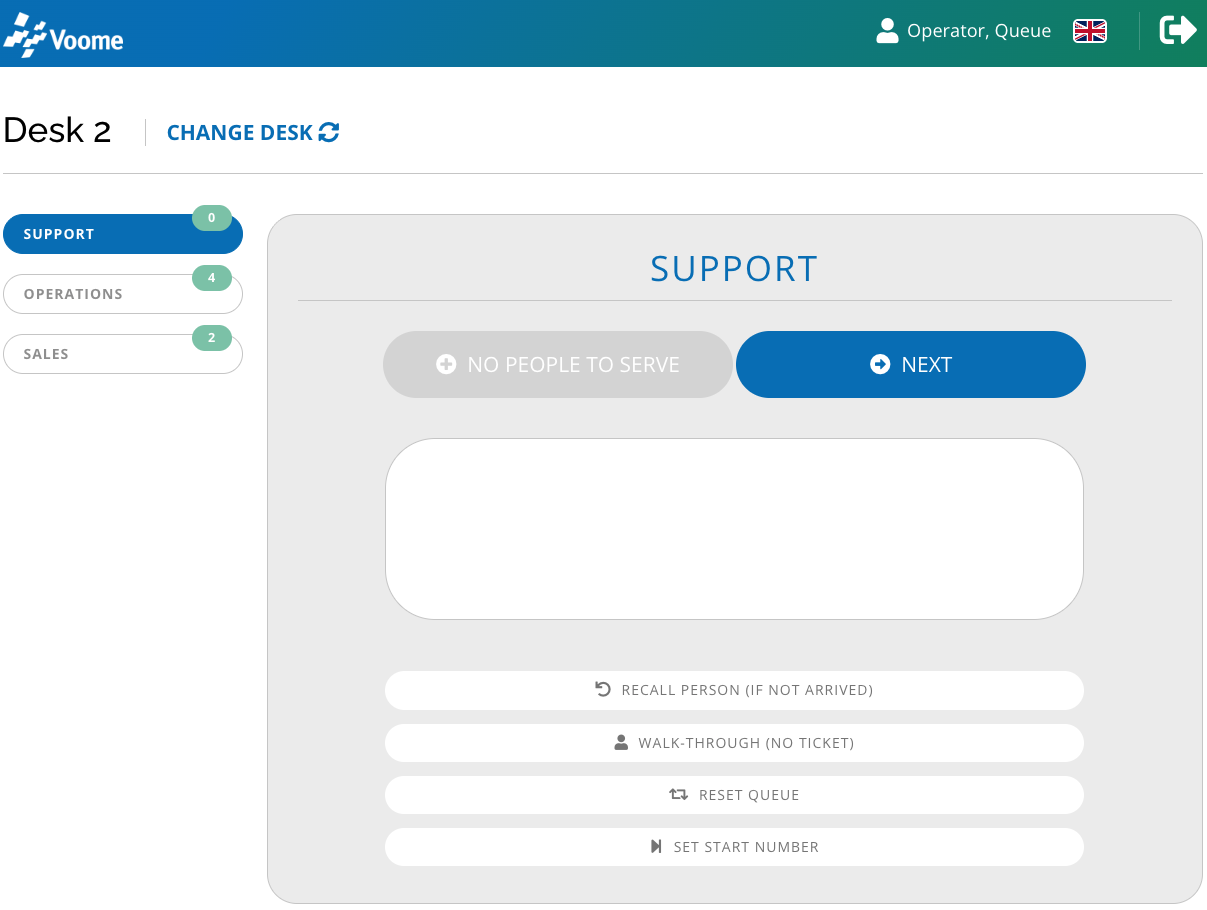 The operator page of a desk, with the Support service selected.
- Top bar: your name, the language flag, and the logout icon (⇥) on the far right.
- Desk name: the desk you are serving from, with Change desk next to it.
- Services: on the left, one button per service. The badge on each one is the number of people waiting for that service.
- Service panel: the selected service, with the two call buttons, the ticket you last called, and the other actions below.
Call the next customer
There are two ways to call, and both show the called ticket in the panel and on the screens in the waiting area.
- NEXT calls the customer who has been waiting longest, whatever the service. The page selects that service for you. Use it when your desk serves every service in arrival order.
- NEXT BY SERVICE calls the next ticket of the service selected on the left. Click a service first, then this button. When nobody is waiting for that service, the button reads No people to serve and does nothing.
Other actions
The buttons below the panel act on the selected service.
- Recall person (if not arrived): calls the last ticket of your desk again, on the screens and with the sound if audio is enabled, for a customer who has not come to the desk.
- Walk-through (no ticket): registers a customer you serve without a ticket. The page gives them a
WTnumber (WT1,WT2, and so on), and they still count in the report. - Reset queue: after you confirm, removes every ticket of the service, waiting or called, and starts its numbering again from the beginning. Customers still holding a ticket of that service will not be called.
- Set start number: enter a number and click Confirm to make the service continue from there. Tickets below that number are treated as already called. Entering
0is the same as Reset queue.
The queue of a service is shared by all the desks that serve it, so Reset queue and Set start number change it for every operator, not only for you.
Change desk or log out
- Click Change desk, pick the desk from the list, and click Confirm to serve from a different desk without logging out. The link is hidden when the location has a single desk.
- Click the logout icon in the top right corner when you finish your shift. The report uses your logins and logouts to calculate your time at the desk, so always log out.