📊 Report
The Ticketing System report is where you follow how your locations are performing: how many customers each service handled, how long they waited, and how much each operator served. You can look at today's activity or at any past period, for one location or for all of them at once.
To open it, click the Ticketing System tab. The report is available to every user with read access to the Ticketing System. Each location in the lists is a totem server configured under Totem and linked to one of your devices.
The three panels
The top of the page has three panels side by side.
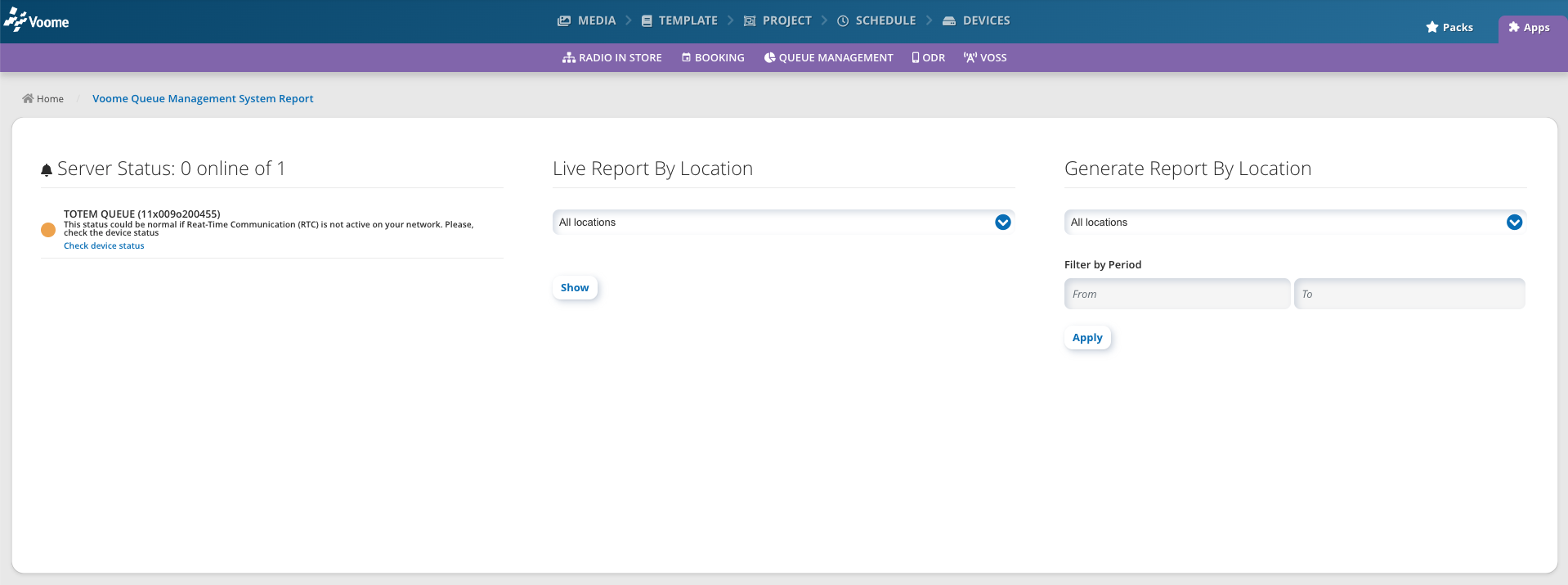
- Server Status: how many totem servers are online out of the total, with one line per location. A green line reads Your server is properly connected to Voome; a red one links to the device so you can check its status.
- Live Report By Location: today's activity, for one location or for all of them.
- Generate Report By Location: the same report for a period you choose.
An offline status can be normal when Real-Time Communication (RTC) is not active on your network. Click Check device status on that line to open the device and see whether it is actually reachable.
See today's activity
- In Live Report By Location, pick a location, or leave All locations.
- Click Show.
The report opens below the panels, with the location and Today in its header. It does not refresh on its own: click Show again to see the latest tickets.
Report on a past period
- In Generate Report By Location, pick a location, or leave All locations.
- Under Filter by Period, set From, then To. Choosing a new From clears To, so always set them in this order.
- Click Apply.
The header of the report shows the location and the period you chose.
Reading the report
The report starts with four summary panels.
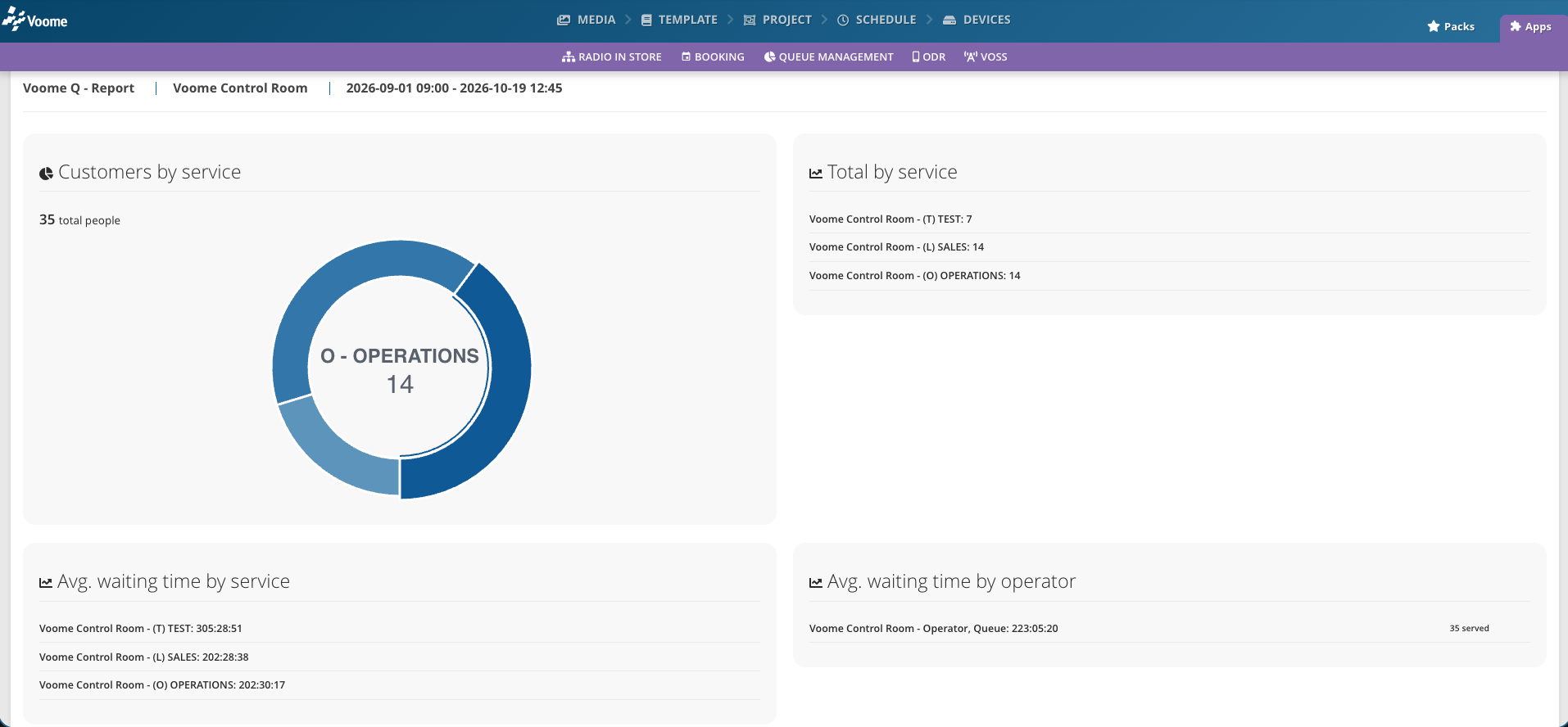
- Customers by service: a chart of how the customers split across services, with the total number of people above it. It is shown only when you report on a single location.
- Total by service: the number of tickets each service handled.
- Avg. waiting time by service: the average wait for each service, listed as location, service letter, and service name.
- Avg. waiting time by operator: the average wait of the customers each operator called.
Just following this statistics section, there are two detailed tables:
1. Statistics by Operator
A table containing one row per operator, with:
| Column | What it shows |
|---|---|
| Location | Where the operator worked; several locations are listed together when you report on all of them |
| Operator | The operator's name |
| First LogIn | The first login in the period |
| Last LogIn | The most recent login in the period |
| Last LogOut | The most recent logout in the period |
| Total LogIn Time | Time spent logged in, as hh:mm:ss |
| Total Served | The number of tickets the operator called |
When an operator logs in and never logs out, the report counts them as logged in until 23:59:59 of that day. A forgotten logout therefore inflates Total LogIn Time.
2. Statistics by Services
A table containing one row per ticket, with:
| Column | What it shows |
|---|---|
| Location | The location where the ticket was taken |
| Service | The service the customer chose at the totem |
| Code | The ticket code |
| Desk | The desk that called the ticket |
| Registration Time | When the customer took the ticket |
| Operator | The operator who called it |
| Operator Called At | When the ticket was called |
| Waiting Time | The time between registration and call, as hh:mm:ss |
This table is hidden when the period has no tickets. Per-ticket detail is only available for today, so the table is also hidden when you look at a past period.
How waiting time is calculated
The waiting time of a ticket is the time from the moment the customer takes it at the totem (Registration Time) to the moment an operator calls it (Operator Called At). It does not include the time spent at the desk. The averages by service and by operator are the mean of these values.
Export a table
- Generate the report you want, live or for a period.
- Click Export above or below Statistics by Operator or Statistics by Services.
The browser downloads a CSV file with exactly the rows on screen, separated by semicolons. To download a whole year of raw data instead, use the Export Data tab. There you can download a specific report you need organized by totem. You can navigate between different years.