▶️ Media Playlist
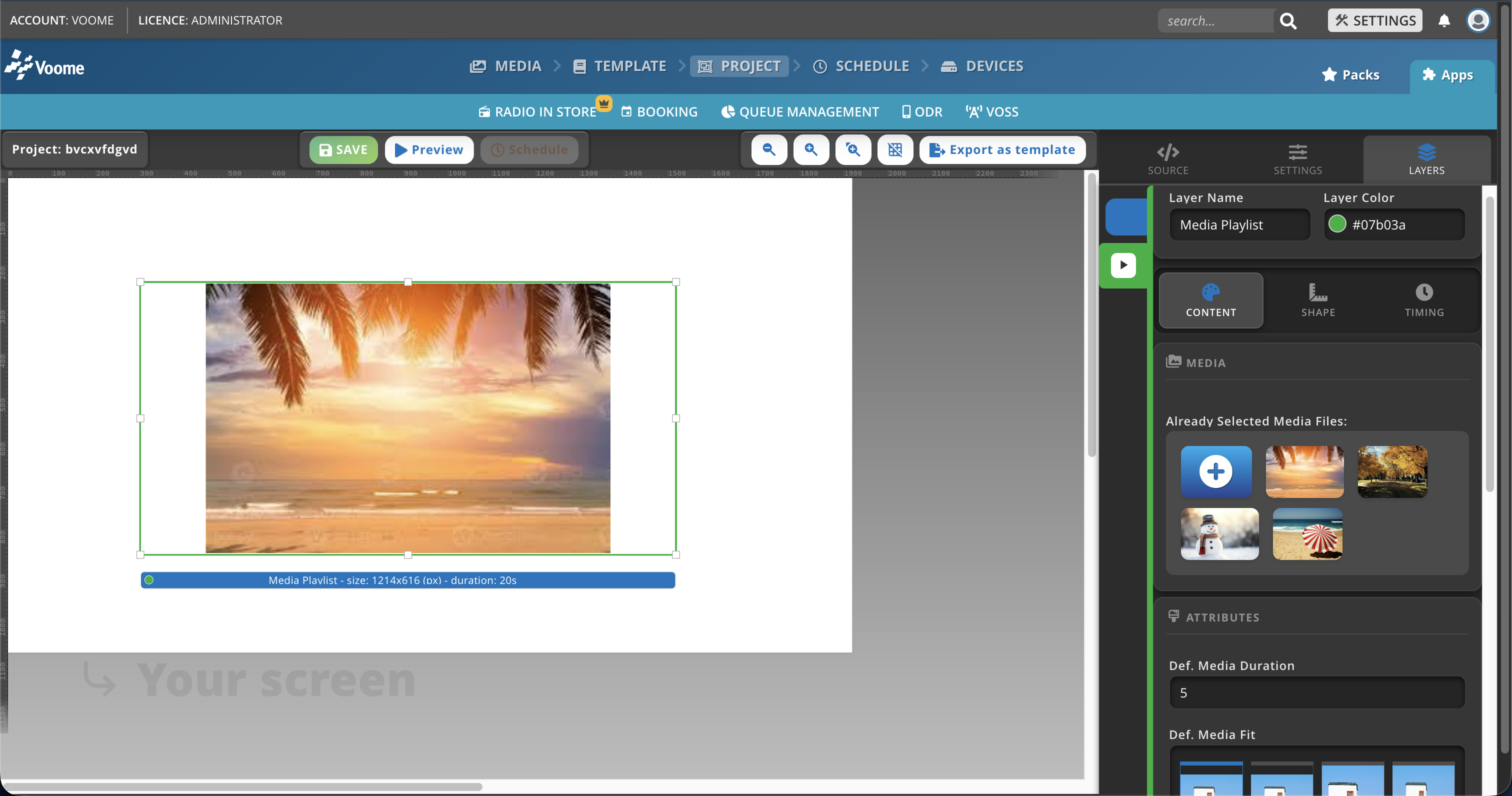
Il livello Playlist è utile per creare una rotazione di contenuti media, come video e immagini. Gli elementi vengono mostrati uno dopo l'altro in automatico, senza interazione da parte di chi guarda.
Funziona offline
I media scelti dalla tua libreria vengono pubblicati sul dispositivo insieme al progetto, quindi vengono riprodotti senza connessione di rete. Gli elementi aggiunti tramite URL esterno vengono invece scaricati durante la riproduzione e la richiedono.
Campi del contenuto
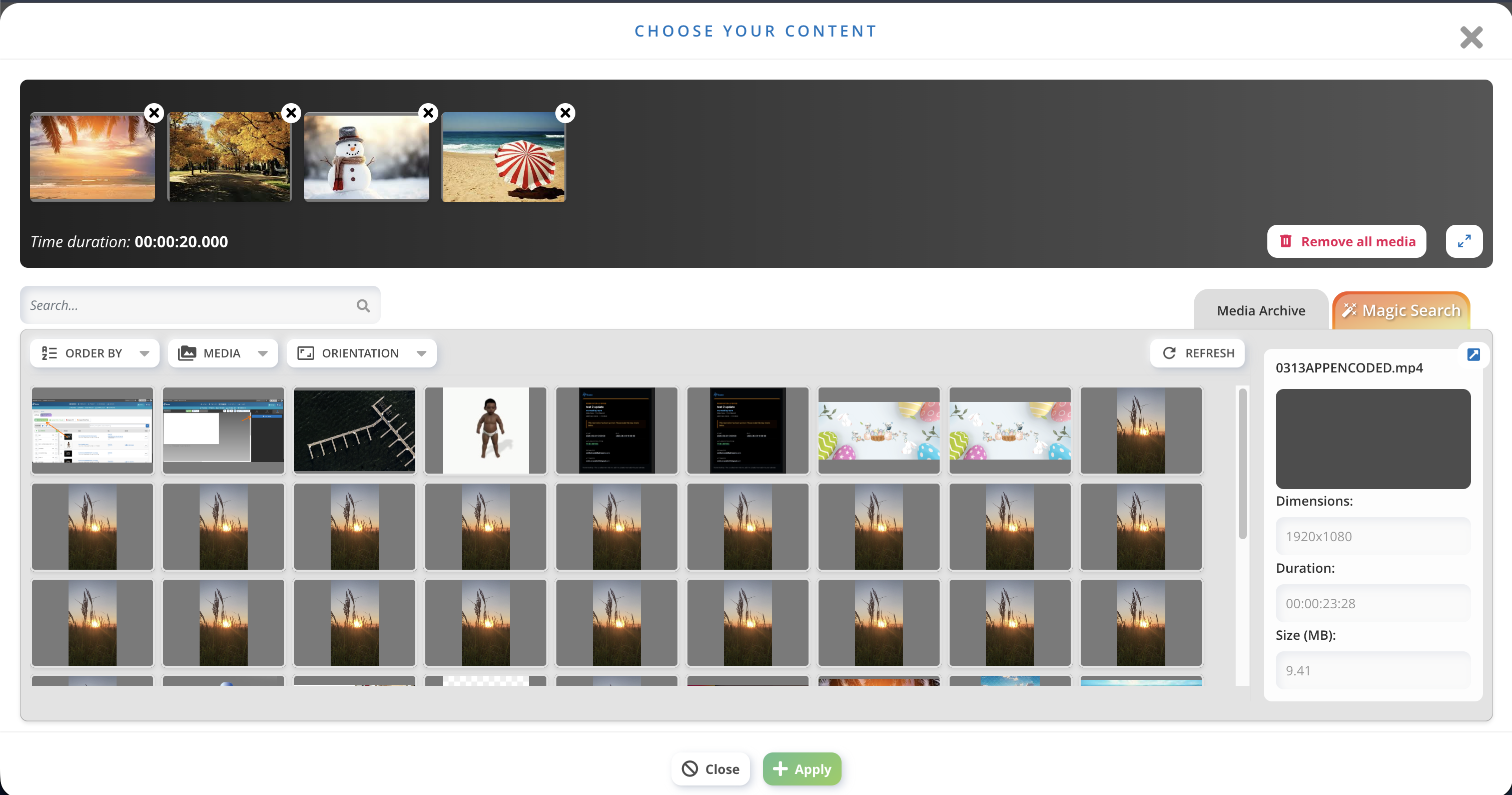
- Already Selected Media Files: clicca sul cerchio + per scegliere o sostituire i file dalla libreria media.
- Def. Media Duration: per quanti secondi resta a schermo ogni immagine. Vale solo per i media statici come le immagini, non per i video.
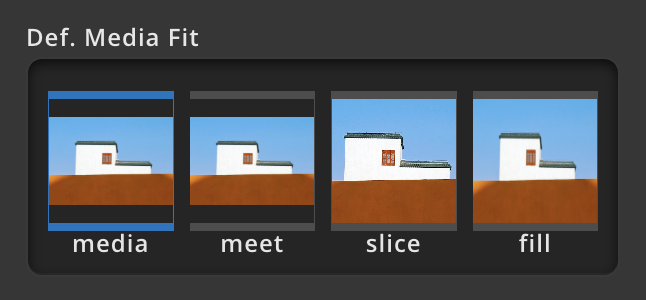
- Def. Media Fit: definisce come il contenuto media si adatta all'area del livello.
- Meet: ridimensiona il media perché entri per intero nel livello senza ritagli, mantenendo le proporzioni. Se le proporzioni non coincidono può restare dello spazio vuoto (letterboxing).
- Slice: ridimensiona il media perché copra tutto il livello senza mantenere le proporzioni originali. L'immagine può risultare deformata, ma non ci sono spazi vuoti né ritagli.
- Fill: ridimensiona il media perché riempia completamente il livello mantenendo le proporzioni. Se le proporzioni non coincidono con quelle del livello, parti del media possono essere ritagliate.
- Def. Audio Level: il volume audio predefinito per la riproduzione dei video, espresso in percentuale (ad esempio 100% per il volume massimo).
- Def. Transition Effect: l'effetto visivo usato nel passaggio da un elemento all'altro. Opzioni disponibili: fade, crossfade, slide, push, wipe, page, flip, cube, zoom, random, none.
- Def. Transition Duration: durata dell'effetto di transizione, in secondi.
- Enable shuffle: rende casuale l'ordine di riproduzione degli elementi.
- 0: disattivato (ordine sequenziale predefinito).
- 1: attivato (ordine casuale).
Campi advertising
- Enable accounting: registra i dati di Proof of Play all'apertura e alla chiusura dei media esterni. Il valore predefinito da inserire (solo per i dispositivi SpinetiX) è
open,close. - Accounting Tag (facoltativo): un prefisso aggiunto alle voci di log per riconoscerle, particolarmente utile quando sullo stesso dispositivo vengono pubblicati più progetti avanzati.
- Video Advertising Configuration: inserisci qui il VAST (Video Ad Serving Template) per configurare la pubblicità.
❓ Quanto dura la tua playlist
- Clicca sul livello Playlist, poi sul cerchio + per scegliere o sostituire i file dalla libreria media.
- In alto a sinistra, la timeline mostra i file selezionati.
- Subito sotto la timeline è indicata la durata totale della playlist corrente.